
Just connect the dots you come across a photograph of a chair you love, but there's no product name, brand, or link to the store.
Or perhaps you've found a beautiful landscape and want other photographs with the same scenery, colors, or composition.
What exactly do you type into Google?
Describing an image with words can be surprisingly difficult, especially when you don't know what an object is called.
Fortunately, AI image search allows you to use the picture itself as a search query.
With any realiable AI Reverse Image Search tool, you can discover visually similar pictures, alternative product photos, edited copies, and websites featuring related images.
However, not every result that looks similar is the same image. Knowing the difference helps you find what you actually need.
This guide explains how to search using a photo, choose the right results, improve weak matches, and verify their sources before using them.
| Quick Answer |
|---|
| To find similar images with AI, upload a clear photograph to an AI reverse image search tool and open the Similar results category.If the matches are too broad, crop the image to its main subject and search again. Choose Duplicate results when you need another version of the same image, and Similar results when you want different pictures with comparable objects, colors, styles, or compositions. |
Now, before we upload our first image, let's clear up something that can easily confuse -
What Does a Similar Image Actually Mean?
Imagine you have a photograph of a green armchair standing beside a window.
You upload it to an AI image finder and receive several pictures.
Some show the same chair in the same room. Others show different green chairs, while a few display living rooms with a comparable decorating style.
Although these results may all be useful, they represent different types of matches.
Let's look at the differences.
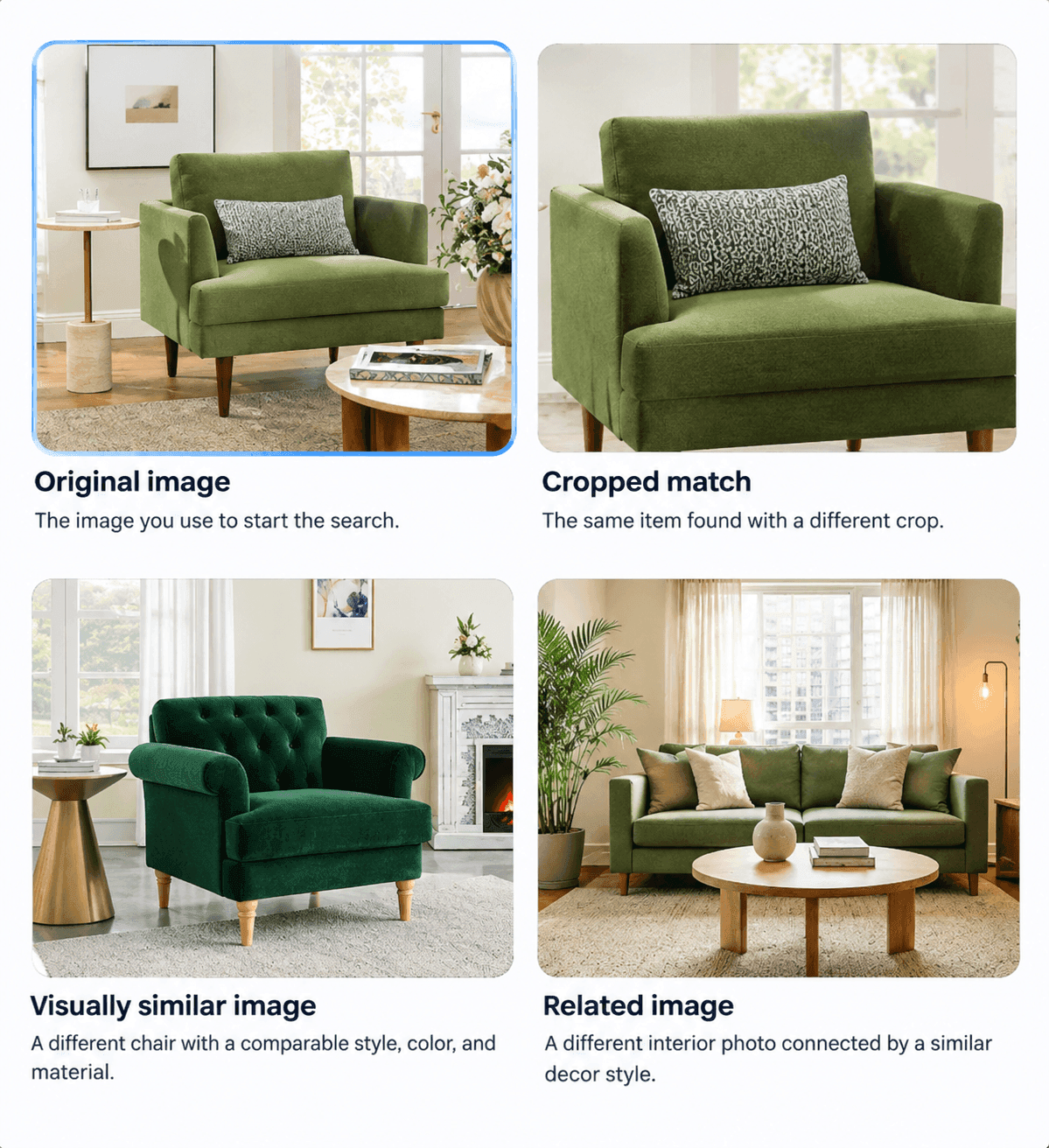
Figure 1: Illustrative comparison of an original photograph, a duplicate, a visually similar image, and a contextually related image. These examples demonstrate the categories rather than actual results from an AI search
An exact match is the same photograph with little or no visible difference.
A duplicate is another version of that photograph, perhaps resized, cropped, compressed, or edited.
A visually similar image, on the other hand, is a different photograph that shares characteristics such as subject, color, shape, texture, or composition.
A related image has a connection to the original subject but may not look particularly similar.
There are two more useful result types:
- Product match: A listing or photograph of the same or a comparable item.
- Source result: A webpage where the original image or a version of it appears.
Of course, these categories can overlap.
A duplicate of your original photograph might appear on a furniture store's website, helping you discover both the product and a page where it's listed.
So, rather than asking which result looks the most similar, it helps to ask a more important question: What am I actually trying to find?
Are you looking for the exact chair, another chair with a similar design, or simply more decorating inspiration?
Your answer determines which type of image search result will be most useful.
Let's make that choice easier.
Which Image Search Result Should You Use?
Not every image that looks similar is the result you're looking for.
The right match depends on what you want to discover, whether that's the original source of a photograph, a product you want to buy, or inspiration for your next design project.
For example, if you're searching for a green armchair you saw online, a visually similar chair might help you find alternative products.
But if you want to find the original retailer, you'll need an exact or duplicate match that leads you back to a product listing.
Understanding these differences helps you choose the right image search result instead of spending time browsing matches that don't serve your purpose.
The table below explains which type of image search result works best for different search goals and what you should check before relying on a match -
| Search Goal | Best Result Type | Example | What to Check |
|---|---|---|---|
| Find the same image | Exact or Duplicate | The original chair photo | Identical visual details |
| Find an edited copy | Duplicate | A cropped chair photograph | Matching underlying image |
| Find a similar photo | Similar | Another green armchair | Shape and appearance |
| Find the same product | Product or Similar | A matching chair listing | Model and dimensions |
| Find design inspiration | Similar or Related | Comparable interiors | Style and composition |
| Find a webpage using an image | Source | Furniture store or blog | Whether the image appears there |
| Find a higher-resolution image | Exact or Duplicate | A larger copy of the photo | Image quality and resolution |
| Find matching images of a face | Face search | Other consented photos | Permission and verification |
| Find the same location | Place or Similar | Another photograph of a landmark | Geographical details |
As you can see, choosing the right result category can save you from browsing dozens of images that don't actually help you.
For instance, if you're looking for a higher-resolution version of your original chair photograph, there's little reason to browse pictures of entirely different chairs, no matter how similar they look.
But this brings up another interesting question.
How does an AI image search tool recognize that two different chairs share a similar design?
And how can it tell the difference between another version of your original photograph and a completely different picture?
Understanding what happens behind the search will help you make better decisions when uploading, cropping, and refining your images later in this guide.
How Does AI Find Visually Similar Images?
Traditional image searches rely primarily on words to describe what you want to find.
AI-powered image searches, on the other hand, can use the visual information within a photograph.
When you upload an image, a visual search system analyzes features such as shapes, colors, textures, patterns, objects, and composition.
Many modern systems represent these characteristics numerically, allowing them to compare your photograph with other images in their searchable index.
Consider a photograph of a beige woven handbag with a curved handle.
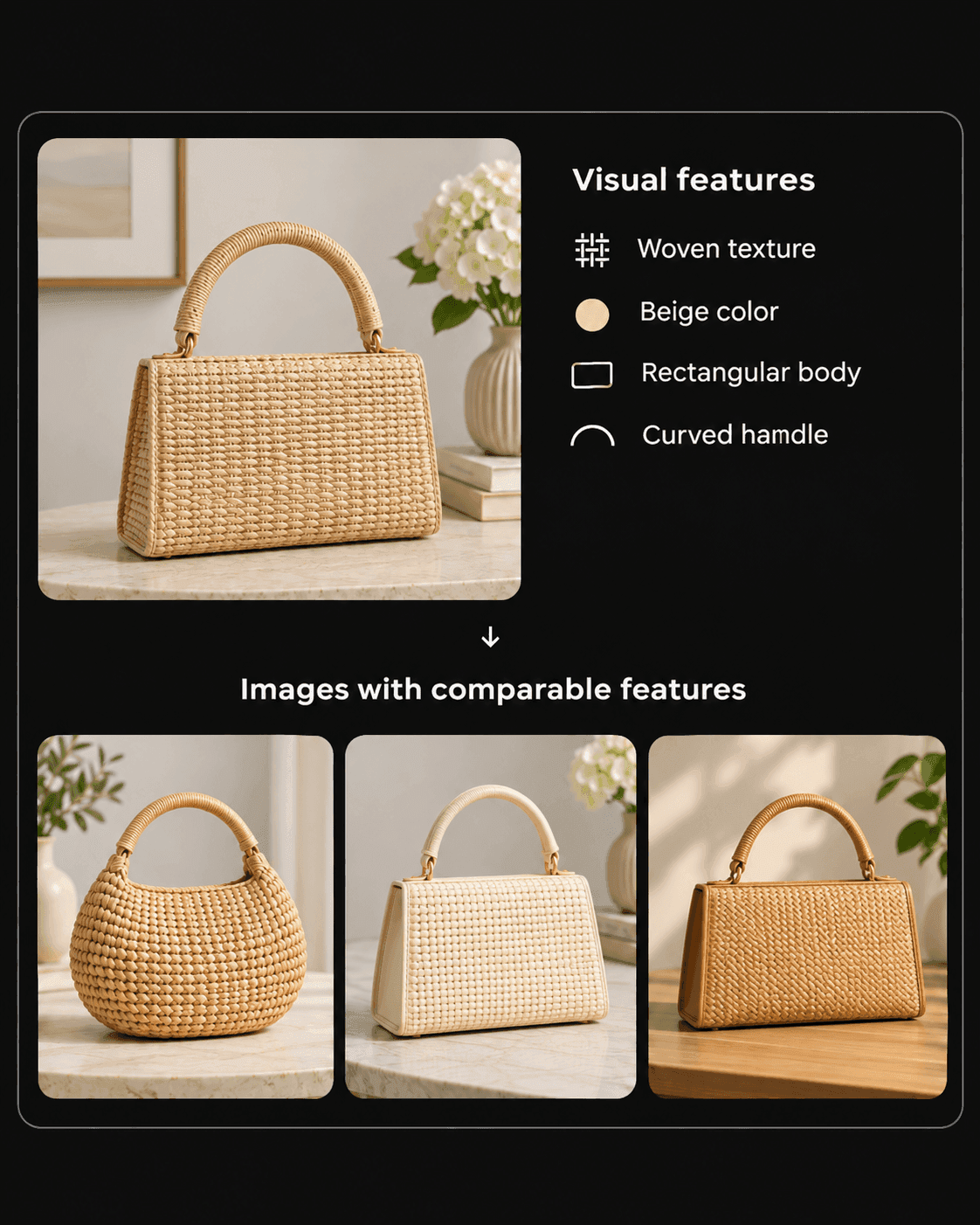
Figure 2: A simplified illustration of how visual characteristics can connect an input photograph with different images that resemble it.
An AI image search may recognize the handbag's woven texture, beige color, rectangular body, and curved handle.
It can then retrieve photographs of other handbags with comparable features, even when their shapes, colors, or designs differ slightly.
For example, it might find a rounded woven bag, a cream-colored handbag with a similar handle, or a tan handbag with a comparable rectangular design.
These images do not have to show the same product.
They simply share visual characteristics that make them relevant to your search, even when the webpages describe them using different words.
However, not every image search tool uses the same collection of images or ranking methods.
One tool might find a closely matching handbag available for purchase, while another returns a broader collection of visually similar bags for design inspiration.
Images that remain private, have never been indexed, or have only recently appeared online may not be found at all.
Important: Image search results depend on your input photograph and the provider's searchable index. Visual similarity alone does not prove that two images show the same product, come from the same source, or belong to the same copyright owner.
So, what does all of this mean for your own image search?
It means that the photograph you choose, the details you keep visible, and the type of results you explore can all influence what you find.
Now that you understand how AI recognizes visual similarities, let's put that knowledge to work.
We'll walk through the complete search process, starting with preparing your photograph and finishing with refining the results to find images that genuinely match your needs.
How to Find How to Find Similar Images With AI in 5 Steps
Finding similar pictures is straightforward once you understand which results to look for.
The following five steps take you from preparing your image to refining the matches you receive.
Step 1: Choose the Best Version of Your Image
Start with the clearest available version of the picture.
An original photograph generally contains more useful visual information than a screenshot that has been resized, compressed, or captured from a small preview.
For this example, imagine that you want to find chairs similar to the one in the photograph below.
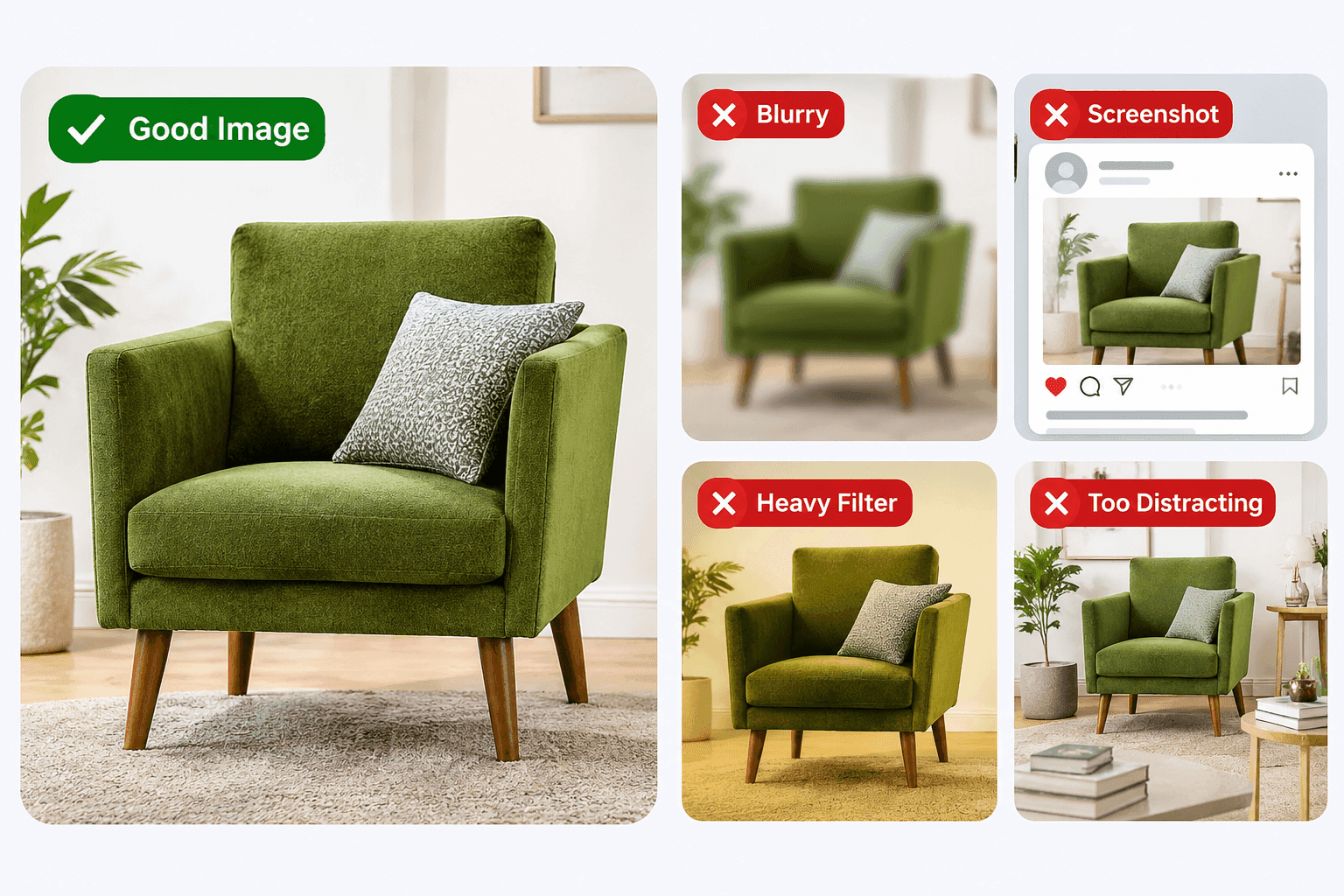
Figure 3: A reference photograph of an olive-green upholstered armchair with wooden legs, square arms, and a patterned cushion in a living room setting.
The armchair is clearly visible, with enough detail to identify its color, upholstery, shape, armrests, and tapered wooden legs.
These characteristics give an AI image search system useful visual information to find comparable chairs.
However, the photograph also contains a side table, framed artwork, flowers, and a coffee table.
Depending on how the search tool interprets the image, these surrounding objects may influence the results.
Before uploading your image, check whether:
- The main subject is clearly visible.
- Important details, such as the shape, color, and texture, are sharp enough to recognize.
- Unnecessary text, watermarks, or borders obscure the subject.
- Surrounding objects distract from the item you want to find.
- Heavy filters have changed the original colors or appearance.
In this example, the full photograph is a suitable starting point because the armchair occupies a large portion of the image.
If the search returns too many general living room photographs rather than similar chairs, you can crop the image around the armchair to help the search tool focus on the intended subject.
You do not necessarily need an extremely high-resolution file.
A sharp, well-lit photograph with a recognizable subject is often sufficient.
Tip: Keep a copy of the original image before cropping or editing it. You may want to compare the results from both the full photograph and the cropped version to see which produces more relevant matches.
Step 2: Upload the Image to CopyChecker
Once your image is ready, open CopyChecker's AI-powered visual search tool.
- Visit CopyChecker AI Reverse Image Search.
- Upload your photograph, drag it into the upload area, or paste its image URL.
- Review the consent requirement and agree if you have permission to use the image.
- Click Search with AI to begin the search.
- Open the Similar results category.
- Compare the displayed photographs with your original image.
- Open promising source pages to learn more about the matches.
CopyChecker supports PNG, JPG, WebP, and GIF images.
If your photograph is already available online, you can also search using its image URL.
The tool organizes results into categories such as Similar and Duplicates, helping you focus on the type of match you need.
Once the search finishes, open Similar results to explore different images that resemble your reference photograph.
Here is an example of how to interpret a collection of similar armchair photographs.
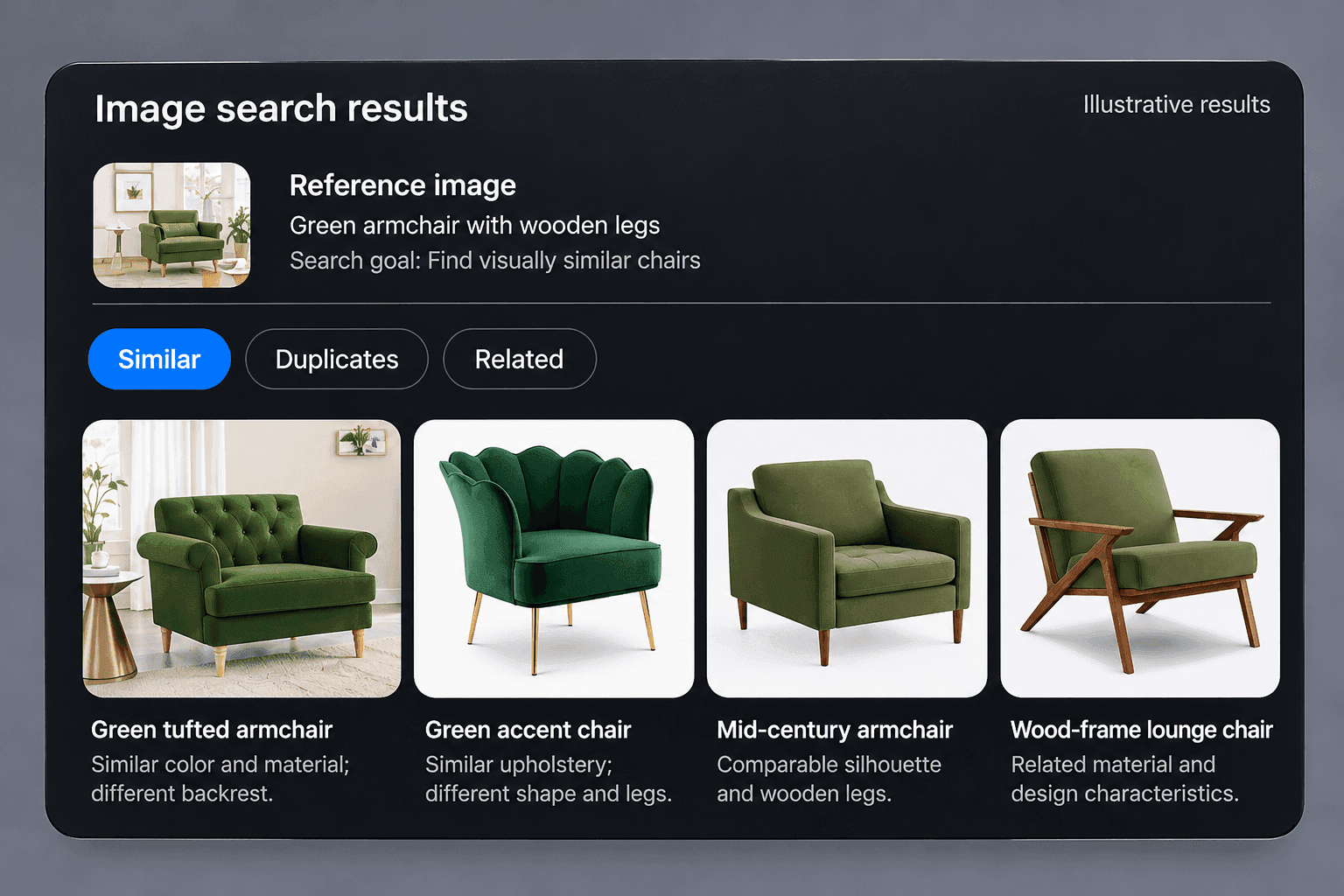
Figure 4: Illustrative visual matches demonstrating how different photographs can share an object's color, shape, material, and style without representing the same product.
Notice that the chairs in this example share some visible characteristics with the reference photograph.
However, their armrests, backrests, legs, and construction differ.
That is what makes similar image search useful: you can discover alternatives without knowing every product name in advance.
If you want the exact chair rather than alternatives, you will need to check the linked product listings and compare the model information.
Step 3: Separate Similar Results From Duplicates
This is where the purpose of your search becomes particularly important.
Suppose you upload a photograph of a mountain lake surrounded by dramatic peaks.
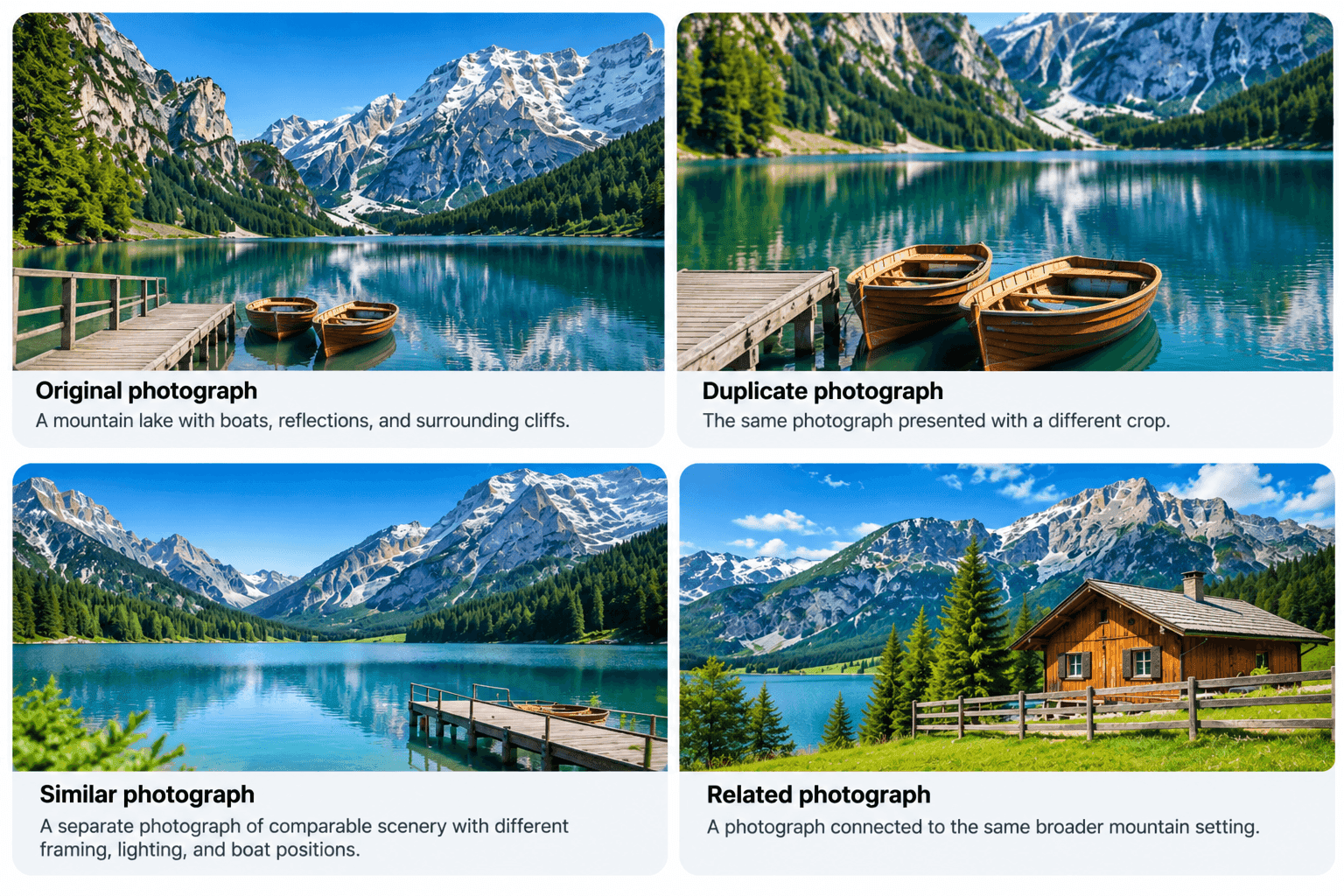
Figure 5: Visual examples of how duplicate, similar, and related photographs differ, using an alpine landscape as the reference.
A duplicate result might show the same photograph with its corners cropped, a different color filter, or a website's promotional text added to it.
A similar result might show another photograph of the same lake taken from a different angle, or a completely different lake with comparable visual features.
Neither result is necessarily better. Each serves a different purpose.
If you're trying to find the original source of an image, duplicate results are generally more useful because they can reveal other appearances of the same photograph.
If you're collecting travel inspiration or landscape photography references, different photographs with comparable scenery may be more helpful.
So now the question is how can you tell whether two images are duplicates or not?
For that, let’s look for details that are unlikely to match by coincidence.
| Visual Detail | Duplicate Image | Similar Image |
|---|---|---|
| Object positions | Remain consistent | May change |
| Shadows and reflections | Usually match | May differ |
| Background details | Remain recognizable | Often differ |
| Camera angle | Usually the same | Can be completely different |
| Underlying photograph | The same | A different photograph |
These details are often more reliable than the overall appearance alone.
For instance, two photographs may depict the exact same landmark, but changes in the position of boats, clouds, shadows, and reflections can reveal that they were taken at different times.
Our previous image-search testing: In our review of AI reverse image search tools, we tested an original Nike sneaker photograph and a cropped version.
TinEye returned 20 matches for the full photograph and three for the cropped version, demonstrating that a modified input can still lead to existing copies of an image, although the number of matches may change.
Step 4: Crop the Image to Its Main Subject
Sometimes a visual search tool recognizes something in your picture, just not the thing you intended to search for.
Imagine searching a living room photograph because you want to find the green armchair.
The photograph also contains a coffee table, a side table, decorative items, a window, and other furniture.
A full-image search might retrieve similar living rooms rather than similar armchairs.
Cropping helps narrow the visual information available to the search system.
So, to do that, you can follow this process:
- Search the original, uncropped photograph first.
- Identify the particular object you want to find.
- Crop away unrelated objects, interface elements, and distracting backgrounds.
- Upload the cropped version.
- Compare its results with the original search.
Make sure your crop retains enough information to identify the subject.
For the armchair, this might include its complete silhouette, armrests, upholstery, and legs. Cropping too aggressively could remove useful identifying details.
Does cropping actually improve similar image search results?
Cropping can improve the relevance of your results, particularly when the original photograph contains several recognizable objects.
Consider how an image search might respond to a complete living room photograph compared with a cropped version that isolates the green armchair.
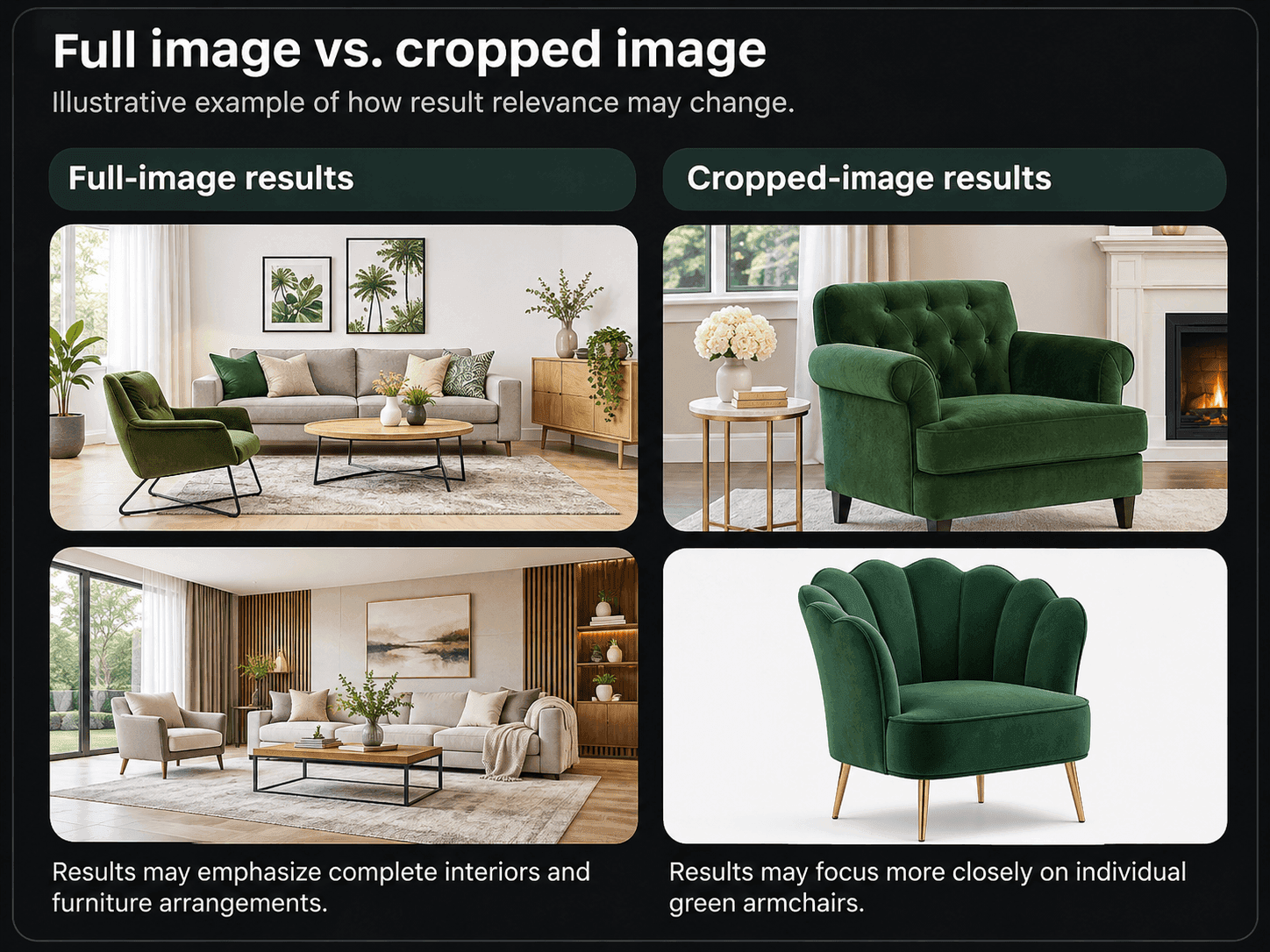
Figure 6: An illustrative comparison of how a full-image search may return broader interior matches, while a cropped-image search may focus more closely on individual green armchairs.
As the illustration shows, searching the complete photograph may produce results featuring similar living room layouts, furniture combinations, and decorating styles.
Searching a cropped version of the same photograph, however, may return individual armchairs with comparable colors, upholstery, shapes, or design features.
The difference comes down to the visual information available to the search system.
| Comparison Factor | Full-image Search | Cropped-image Search |
|---|---|---|
| Visual focus | Entire living room | Individual green armchair |
| Potential matches | Similar interiors and furniture arrangements | Visually similar armchairs |
| Background influence | Surrounding objects may influence results | Fewer competing visual elements |
| Product identification | May require additional filtering | May produce more focused product matches |
| Context preservation | Retains the original setting | Removes surrounding details |
| Best suited for | Interior design and decorating inspiration | Finding comparable chairs and products |
Cropping is particularly useful when the object you want to find occupies only a small portion of the photograph or when several objects compete for the search system's attention.
However, cropping does not always improve a search.
The surroundings may contain important clues, especially when identifying a landmark, a building, or a product in its original setting.
Removing those details could make the image harder to identify.
That is why keeping both versions is important.
Tip: If your first search produces results that are too broad, try cropping the image around your main subject and searching again. If the cropped version removes useful context, return to the original photograph.
The goal is not to crop every image automatically.
It is to determine which version produces results that better match your search purpose.
Step 5: Refine the Search With Additional Context
Cropping helps a visual search tool focus on a particular object, but sometimes you need to be even more specific.
AI can recognize visual patterns within an image, such as its colors, shapes, materials, and textures.
However, it cannot always determine which of those characteristics matter most to you.
For example, suppose you like the green armchair in your reference photograph, but you specifically want to find alternatives with velvet upholstery and wooden legs.
A regular image search might return green chairs with metal legs, leather upholstery, or completely different designs.
Although these results may be visually similar, they might not meet your actual requirements.
If your image search tool supports text refinement, adding a short description can help narrow the results.
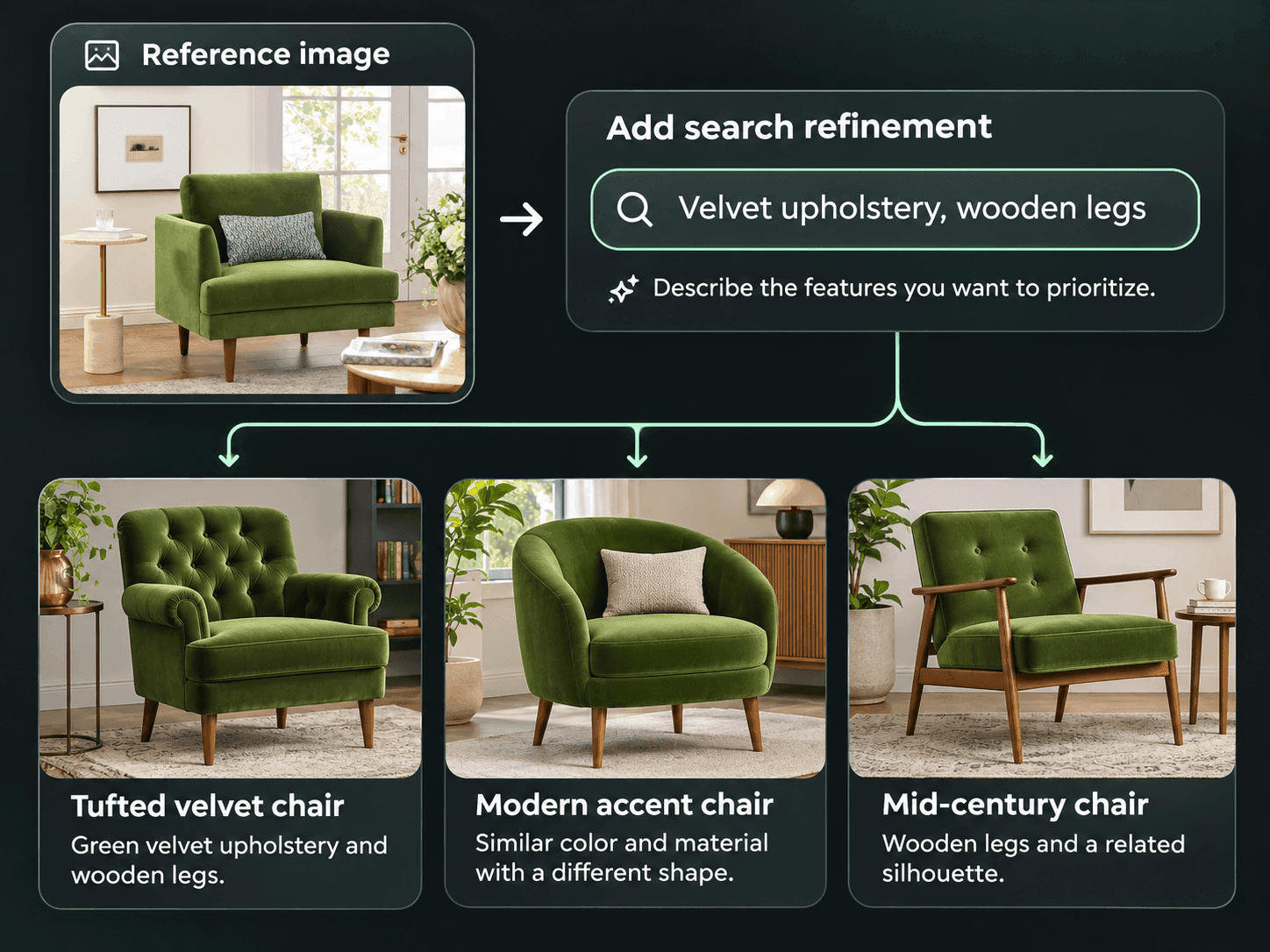
Figure 7: Combining a reference photograph with a descriptive search term can help narrow the visual characteristics you want to find.
In the example above, the reference photograph provides the visual starting point, while the words “velvet upholstery, wooden legs” communicate the specific features you want the search system to prioritize.
Instead of looking for any visually similar green chair, the search can focus more closely on chairs that share those additional characteristics.
So, if you want to refine an image search with text, then follow these steps when your image search tool supports text-based refinement:
- Upload your original or cropped reference image.
- Review the initial visual matches.
- Identify which important characteristics are missing from the results.
- Add a short description of those characteristics using the available text search field.
- Review the refined results and adjust your description if necessary.
Keep your description short and specific.
Adding too many requirements at once may unnecessarily narrow the results and exclude useful matches.
Here are some examples of how you can combine a reference image with additional search terms.
| Your Image | Useful Refinement |
|---|---|
| Green armchair | Velvet upholstery, wooden legs |
| Ceramic vase | Matte white, sculptural design |
| Mountain landscape | Alpine lake, autumn colors |
| Vintage poster | Art deco, geometric patterns |
| Brown leather bag | Crossbody, minimalist design |
| Wooden table | Walnut, round dining table |
Start with one or two meaningful characteristics that distinguish the images you want from the broader results.
If you are looking for a particular material, specify it.
And if you want a different color, add that color.
Then again, if you are exploring design inspiration, describe the style rather than simply repeating the object's name.
Google Lens, for example, supports combining an image with additional text to refine a visual search.
Other image search tools may provide filters for categories, image types, or other search characteristics.
However, these capabilities vary between providers, and not every tool supports text refinement.
Tip: If adding a description produces fewer useful results, simplify your search terms or remove one requirement at a time.
Now, there's one practical detail to keep in mind before you try this yourself.
Not every image search tool supports text-based refinement.
Some rely on visual matching and result categories, while others allow you to combine an image with additional search terms.
Google Lens, for example, supports combining a reference photograph with a text description, making it a useful option when you want to refine your search around a particular material, color, style, or product feature.
We've already learned how to prepare an image, explore different result categories, crop distracting elements, and identify the characteristics we want to find.
Let's now put those techniques together and see how they work in another visual search tool.
How to Find Similar Images With Google Lens
Google Lens offers another way to find visually similar pictures, particularly when searching for products, everyday objects, plants, landmarks, or specific details within a photograph.
Unlike a traditional keyword search, Google Lens lets you use an image as your starting point.
You can also add descriptive words to help narrow the results toward the characteristics you want to find.
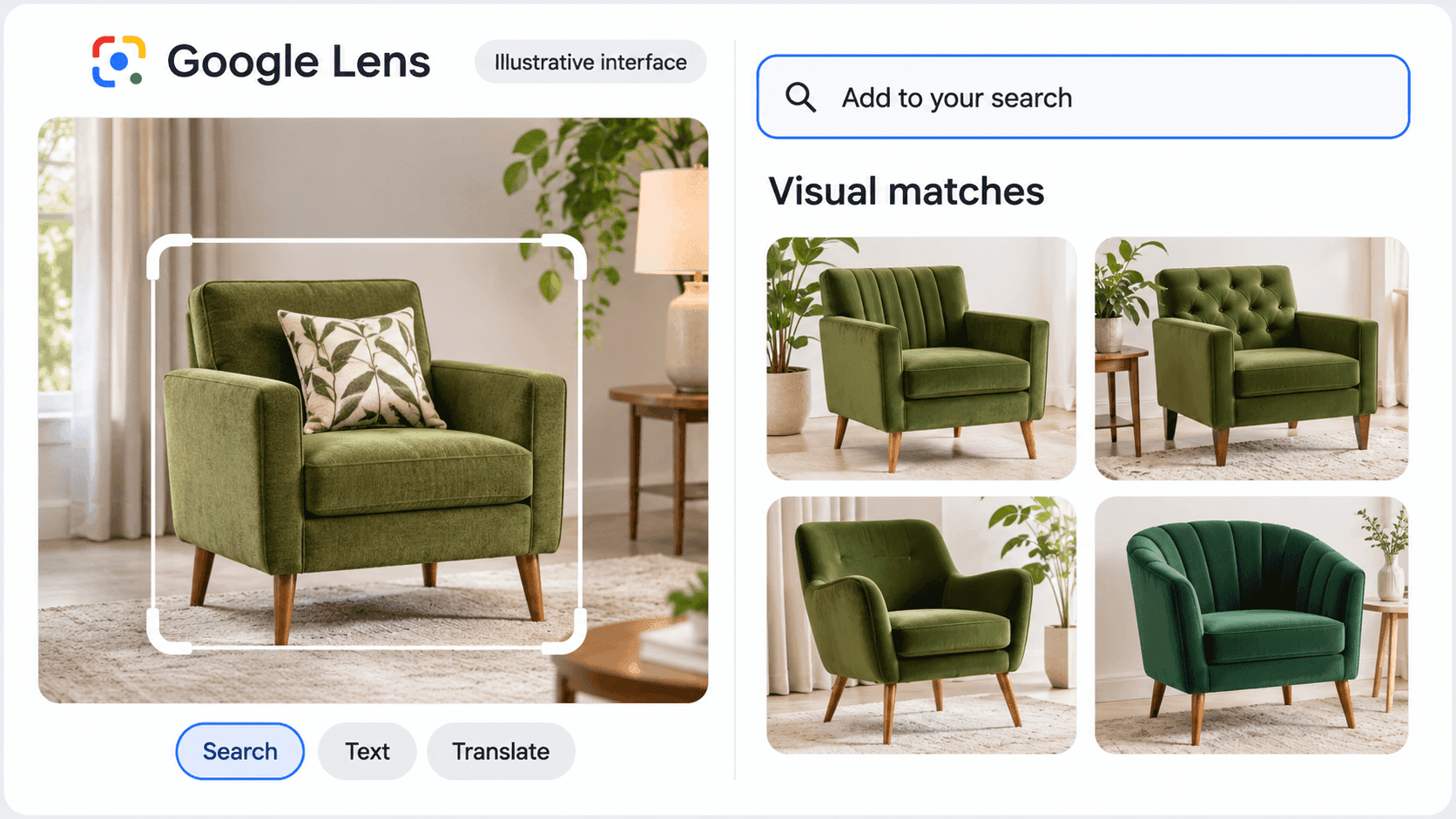
Figure 8: Google Lens allows users to search with a reference image and discover visually similar pictures, products, and relevant webpages.
Follow these steps to perform a visual search:
- Open Google in your web browser.
- Click the Search by image icon in the search bar.
- Upload a photograph, drag an image into the search box, or paste an image URL.
- Adjust the selection to focus on the entire photograph or the specific object you want to find.
- Review the visual matches, product results, and relevant webpages.
- Use the Add to your search field to include additional descriptive words when you want more specific results.
- Open promising webpages to check whether the images or products meet your requirements.
On a phone, you can access Google Lens through the Google app or other supported Google apps.
You can either upload an existing photograph or use your camera to search for an object in front of you.
According to Google Search Help, image-based searches can return information about objects, visually similar pictures, and websites containing the same or comparable images.
Let's return to the green armchair photograph used in the previous steps.
There are two ways you could approach this search.
You could upload the photograph alone to discover chairs with a comparable appearance, or you could combine the photograph with a short description to focus on particular features.
Suppose you want a green armchair with velvet upholstery and wooden legs.
An image-only search may return chairs that share the original photograph's color, silhouette, or general design.
However, some of these chairs might have metal legs, different upholstery, or other characteristics that do not match your preferences.
Adding the phrase “green velvet chair with wooden legs” to the search provides additional context.
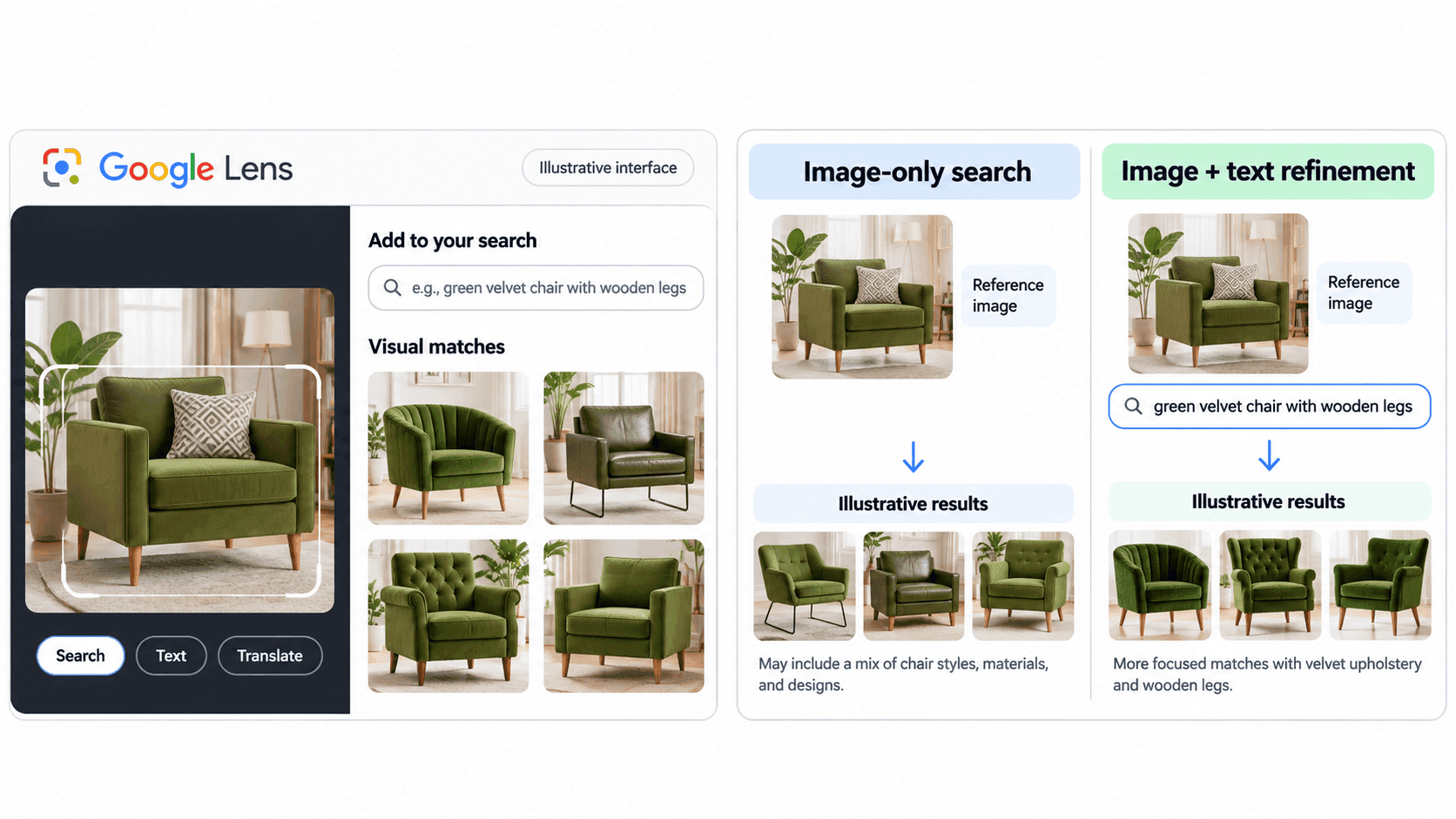
Figure 9: Illustrative comparison showing how adding a descriptive phrase may narrow a broad image search toward more specific product characteristics.
In this example, the photograph provides the visual reference, while the additional words communicate which features matter most.
This approach can be particularly useful when you want to find a particular material, design style, color combination, or variation of a product.
However, adding descriptive words does not guarantee that every result will match your requirements.
You should still open relevant product pages and check details such as the upholstery material, leg construction, dimensions, and overall design.
For a closer look at different image-search workflows, see our guide to AI reverse image search vs Google Lens.
So far, we've focused on finding different photographs and products that share visual characteristics with our original image.
But what if your search goal changes?
Imagine that, instead of finding another green armchair, you want to locate the original chair photograph itself.
Perhaps you've found a cropped version and want to discover the full image, identify where it appeared, or find a higher-resolution copy.
In that situation, searching for visually similar pictures may take you further away from what you actually need.
What you're looking for is no longer a similar image, but another version of the same photograph.
And that brings us to a different type of image search tool.
When TinEye Is Better for Exact or Edited Copies
What if you aren't looking for a different image at all?
Perhaps you have a low-resolution photograph and want to find a larger version, or you suspect someone has cropped your original artwork and published it elsewhere.
In these situations, TinEye can be particularly useful.
According to TinEye's official FAQ, the tool specializes in finding exact and altered versions of an image, including cropped, resized, and color-adjusted copies.
This makes it useful for investigating where a photograph has appeared online, locating higher-resolution versions, and discovering modified copies.
However, finding an exact or edited copy is different from finding a visually similar image.
Imagine you upload a photograph of a red road bicycle.
TinEye may help you discover other appearances of that particular photograph, even if someone has resized it or changed its colors.
A similarity-focused image search, on the other hand, may return photographs of different red bicycles with comparable frames, handlebars, wheels, or overall designs.
The illustration below shows the difference between these two search goals.
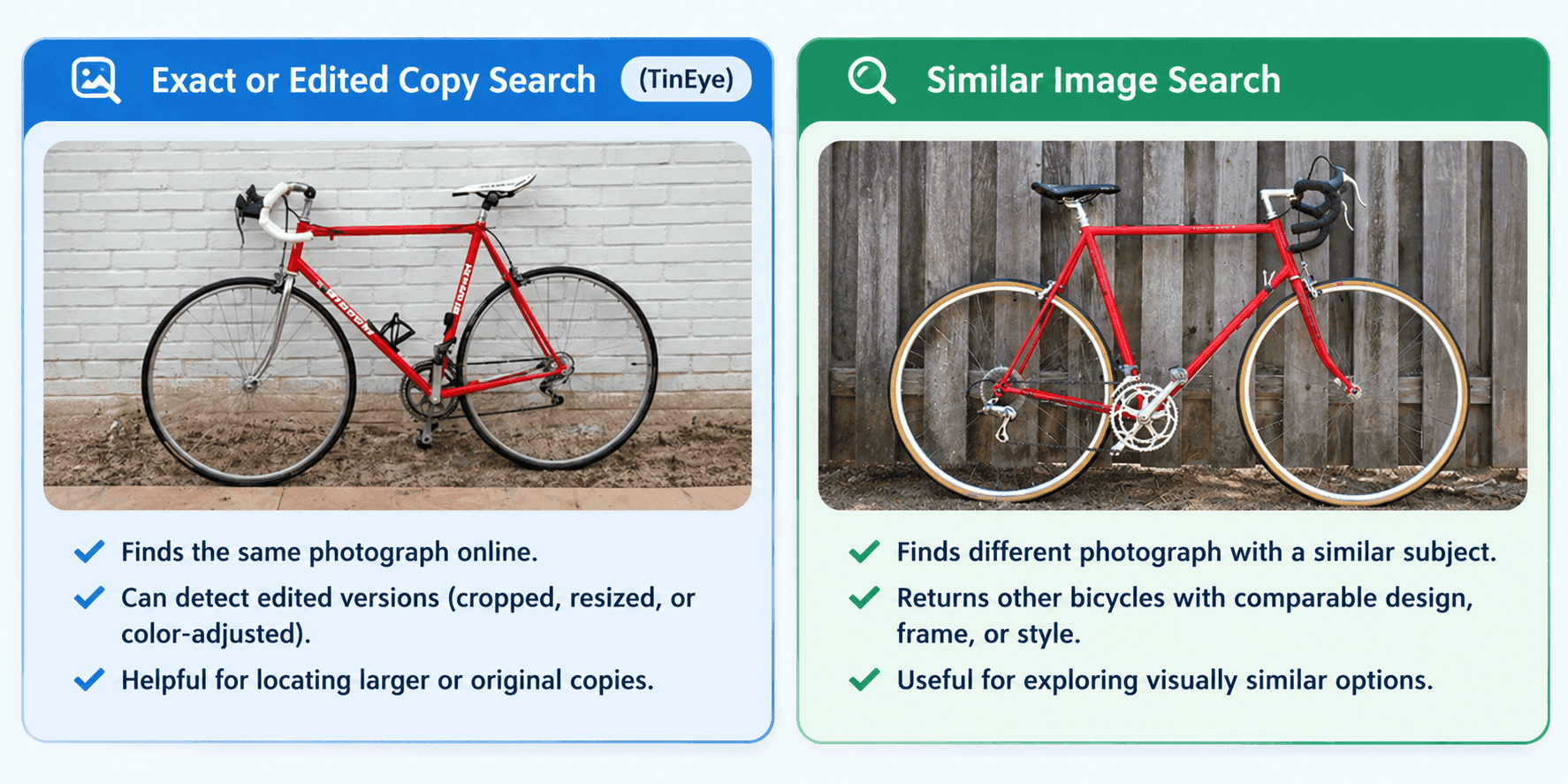
Figure 10: An illustrative comparison showing how exact-copy searches focus on finding other versions of the same bicycle photograph, while visual similarity searches discover different bicycles with comparable characteristics.
The distinction is important because the best tool depends on what you want to find.
| Search Goal | Recommended Search Type |
|---|---|
| Find where a photograph has appeared online | Exact or edited-copy search |
| Locate a higher-resolution version of an image | Exact or edited-copy search |
| Discover cropped or color-adjusted copies | Exact or edited-copy search |
| Find bicycles with comparable designs | Similar image search |
| Explore alternative products or visual inspiration | Similar image search |
Choose an exact-copy search when the identity of the original photograph matters.
Choose a similarity-focused search when you want to explore different images that resemble its subject.
You can also use both approaches when your search has multiple goals.
For example, you might start with TinEye to investigate where a bicycle photograph has appeared and then use a visual similarity tool to discover other bicycles with a comparable design.
Important: When sorting TinEye results by oldest, remember that the earliest result represents the oldest version TinEye has discovered, not necessarily the first time the photograph was published online.
This brings us back to one of the most practical reasons for finding similar images in the first place: discovering products you want to buy.
We've already seen how searching for our green armchair can reveal visually comparable furniture, and how adding context can help narrow those results.
We've also learned how an exact-copy search might lead us back to an original product photograph.
Now, let's take that a step further.
How to Find Similar Product Images
One of the most practical uses of AI image search is finding products when you don't know their names.
Suppose you discover a minimalist desk lamp in a home office photograph.
You like its curved neck and brass finish, but the post doesn't identify the manufacturer.
You can use the photograph to search for the same product or visually similar alternatives.
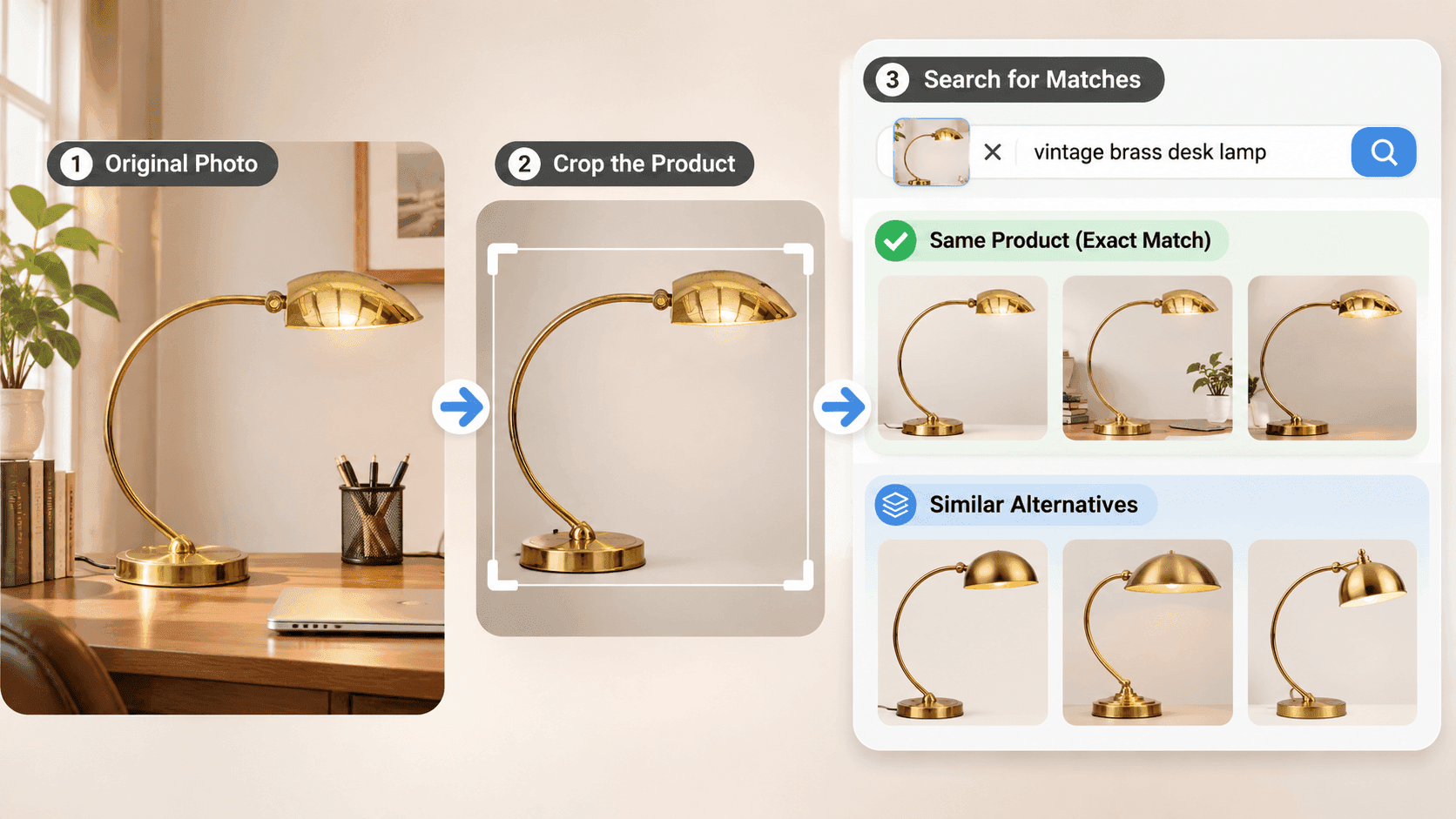
Figure 11: An illustrative photograph of a vintage brass desk lamp featuring a curved arm, dome-shaped shade, and circular base.
Start by searching the full photograph.
If the results focus on the office rather than the lamp, crop around the lamp and search again.
Pay particular attention to the features that distinguish it from similar products:
- The shape of the lampshade.
- The curve and thickness of the neck.
- The shape of the base.
- The material and finish.
- Visible switches, joints, and other distinctive features.
If your search tool supports additional text, you could refine the search with a phrase such as “vintage brass desk lamp with curved arm and dome shade.”
When a promising result leads to an online store, open the product listing and compare its specifications with the features visible in your reference photograph.
For example, finding a lamp that looks similar does not necessarily mean you have found the same product.
Consider three brass desk lamps that share some visual characteristics but differ in their construction and design.
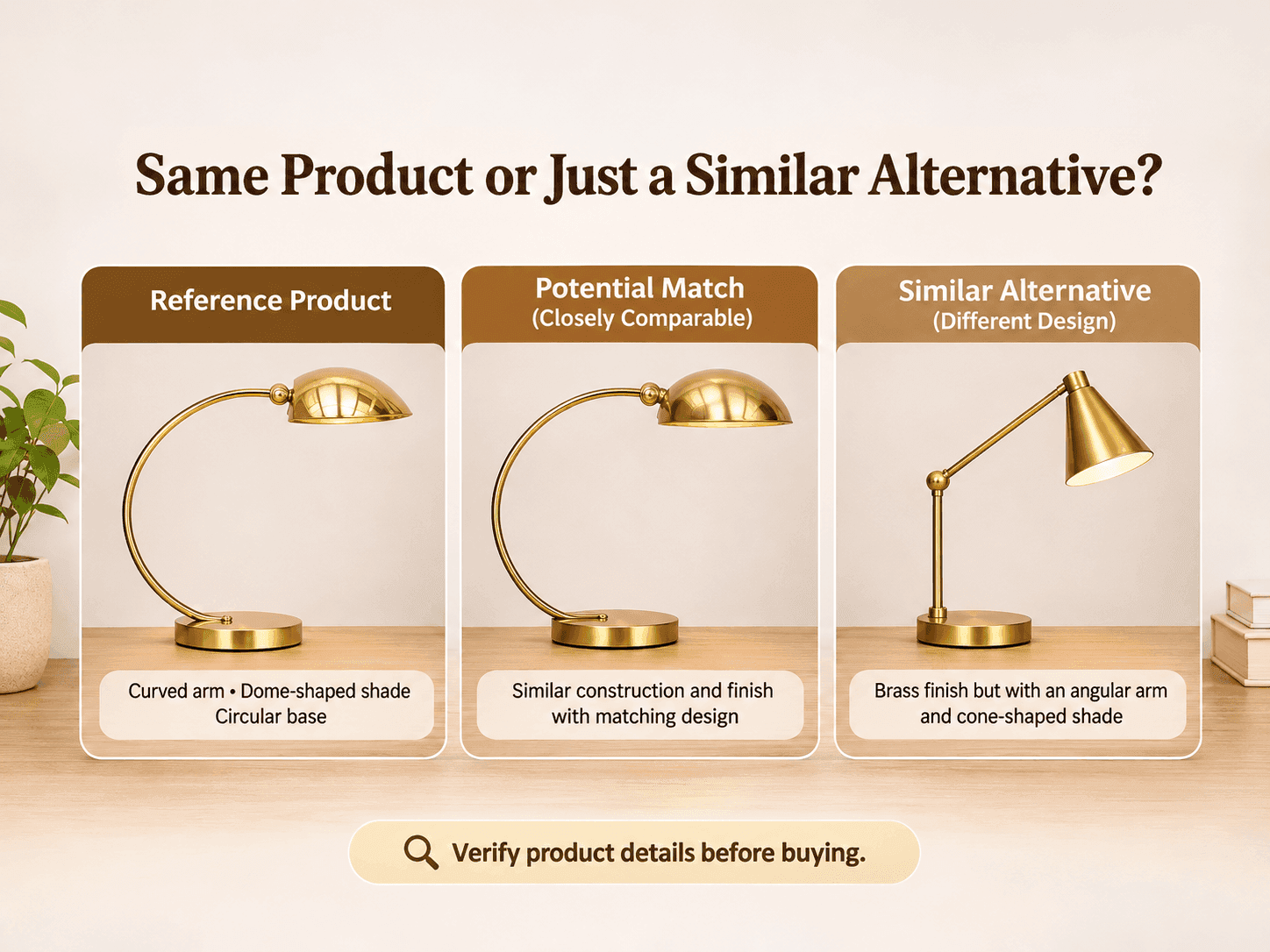
Figure 12: An illustrative comparison of a reference brass desk lamp, a potential visual match, and a similar alternative with a different arm and shade design.
The first lamp is your reference product. It features a curved brass arm, dome-shaped shade, and circular base.
The second lamp closely resembles the reference, sharing a similar finish, curved arm, and shade design.
It may be worth investigating further, but visual resemblance alone cannot confirm that it is the same model.
The third lamp shares the brass finish and circular base but has an angular arm and cone-shaped shade.
These differences make it a visually similar alternative rather than an obvious match for the original product.
| Feature | Reference Product | Potential Match | Similar Alternative |
|---|---|---|---|
| Finish | Polished brass | Comparable brass finish | Brass finish |
| Arm shape | Curved | Similar curved design | Angular |
| Lampshade | Dome-shaped | Dome-shaped | Cone-shaped |
| Base | Circular | Circular | Circular |
| Overall design | Vintage curved-arm lamp | Closely resembles the reference | Different design with similar styling |
| Product model | Not identified | Requires verification | Appears to be a different design |
| Classification | Reference image | Unconfirmed match | Visual alternative |
These differences matter when you are purchasing a product.
Two lamps may look almost identical in photographs but have different dimensions, finishes, adjustment mechanisms, or lighting features.
However, finding the exact model is not always necessary.
If your goal is to discover alternatives, visual similarity search can help you explore products with comparable designs that better suit your budget, available space, or personal preferences.
In our previous AI reverse image search tools test, Google Lens identified a Nike sneaker's specific model and style code, while other results included visually relevant sneakers and shopping pages.
This illustrates an important distinction: product identification and visual resemblance are related but different outcomes.
Tip: If you want to purchase the exact product shown in a photograph, verify its model and specifications. If you simply want something with a similar appearance, focus on the design characteristics that matter most to you.
For more everyday applications of these techniques, explore our guide to the uses of reverse image search.
So far, we've used visual similarity to discover furniture, identify product features, and compare potential alternatives.
But finding similar images isn't always about purchasing something.
Sometimes, what catches your attention isn't the product itself, but the way it looks.
You might love the color palette of a photograph, the composition of a poster, or the geometric patterns in an illustration.
In those situations, you're not necessarily trying to find the original item or an exact copy.
You're looking for new images that help you explore and develop a visual idea.
And that opens up another exciting possibility for AI image search -
How to Find Similar Images for Design Inspiration
We've just seen how visual similarity search can help us find products and compare alternatives.
But what if the appearance of an object interests you more than the product itself?
Think back to the brass desk lamp from our previous example. Perhaps you aren't interested in buying that particular lamp.
Instead, you love its vintage aesthetic and want to create a home office with a similar look and feel.
In this case, your search takes on a different purpose.
Rather than identifying a specific product, you're looking for images that help you explore a visual idea.
The same approach works for graphic design, photography, interior decorating, and other creative projects.
Imagine you're working on a poster design and have a reference image featuring muted colors, geometric shapes, and a minimalist layout.
You like the overall appearance but aren't quite sure how to describe the style or find more examples of it.
This is where AI image similarity search can give you a useful starting point.
Start by uploading the complete reference image.
This allows you to discover other designs with comparable compositions, color palettes, and visual arrangements.
As you explore the results, you might notice that certain elements appeal to you more than others.
Perhaps it's the geometric pattern, the typography, or the way the colors work together.
Remember the cropping technique we explored earlier?
You can apply it here, too.
Crop a distinctive element, such as a decorative pattern, illustration, or typography treatment, and search again to discover more examples of that particular feature.
If you want to narrow your search further, try adding descriptive terms such as:
- Minimalist editorial layout.
- Vintage botanical illustration.
- Scandinavian interior design.
- Muted earth-tone photography.
- Geometric art deco patterns.
Each description helps you explore a particular aspect of the original image rather than limiting your search to one specific design.
As you find useful references, save their source URLs alongside the images themselves.
The original pages may contain valuable information about the designer, creative process, project, or licensing conditions.
Over time, these references can help you build a mood board, explore different creative directions, and develop a clearer vision for your own project.
However, there's an important distinction to remember: inspiration and reproduction are not the same thing.
The goal is to understand what makes a design appealing and use those insights to develop your own ideas, not copy someone else's finished work.
By now, we've explored several ways to find similar images, from searching for furniture and identifying products to discovering new design ideas.
In each case, we've used the reference photograph, cropping, and additional context to guide the search toward a particular goal.
But even when you follow all these steps, things don't always go as planned.
You might upload a clear reference image and still receive results that share very little resemblance to what you're looking for.
Or perhaps the matches capture the right color but completely miss the shape, style, or subject that matters to you.
So, why does this happen?
Before we look at ways to improve those results, let's understand what might be causing the problem in the first place.
Why Are Your Image Search Results Not Similar Enough?
You upload a photograph of a ceramic bowl, expecting to find bowls with a similar shape and design.
Instead, you get photographs of dinner tables, kitchen shelves, and restaurant interiors.
Why does this happen?
A visual search system may recognize several elements within your photograph, including the bowl, plates, glasses, flowers, and surrounding furniture.
It may prioritize some of these features rather than the particular object you want to find.
The collection of images available in the search provider's index also influences the results it can retrieve.
Consider the example below.
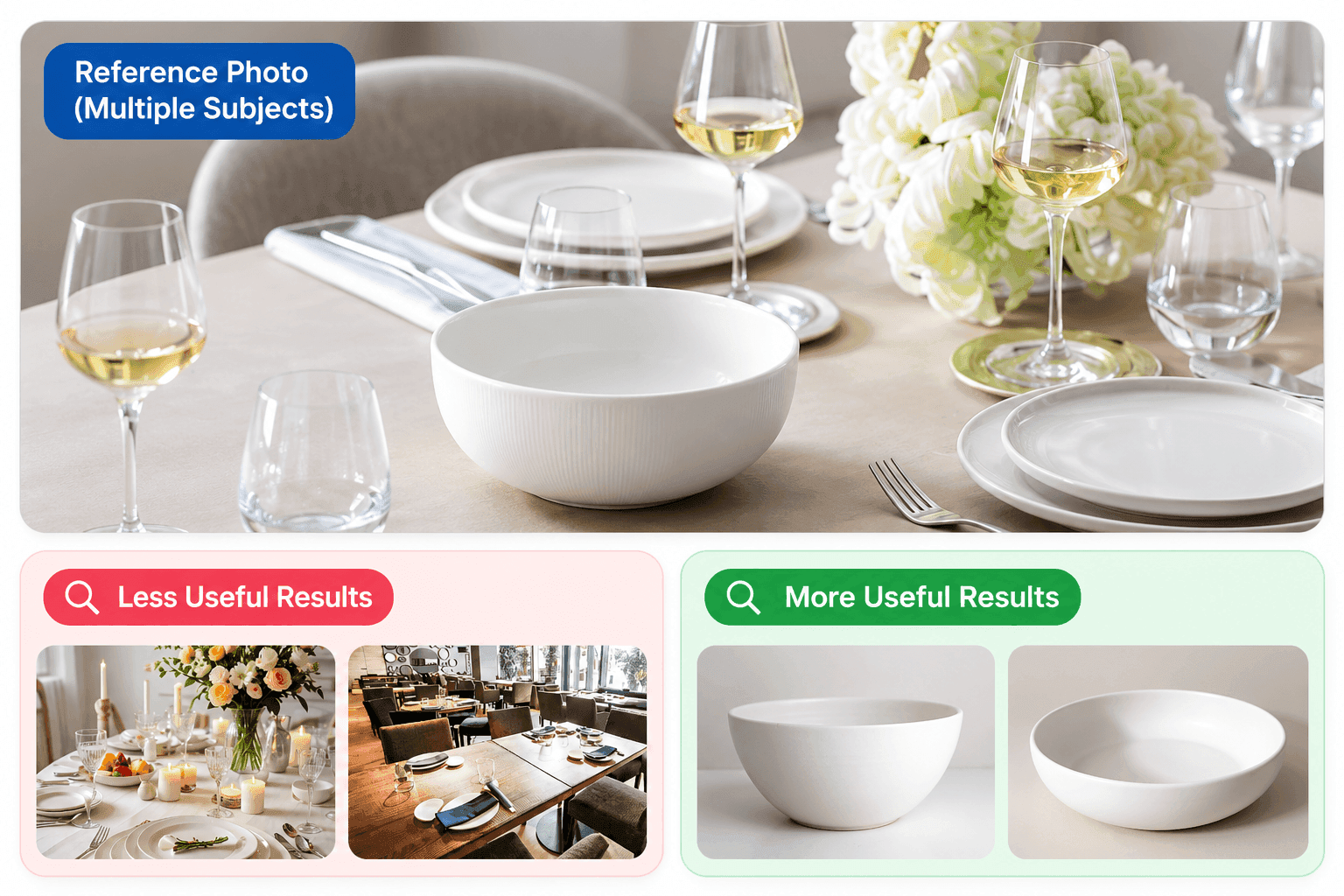
Figure 13: A busy reference photograph can contain several competing visual subjects, leading to broader matches than the reader intended.
In the illustration, the reference photograph contains a white ceramic bowl surrounded by tableware, glasses, and decorative flowers.
The less useful results focus on the dining table arrangement and restaurant interiors.
Although they share visual characteristics with the original photograph, they do not directly address the goal of finding similar bowls.
The more useful results focus on individual white ceramic bowls, making it easier to compare their shape, material, and appearance.
This is why isolating the intended subject can help improve the relevance of your image search.
However, competing visual elements are only one reason why your results may not be similar enough.
Here are some other common problems and what you can do about them.
| Problem | Why it Happens | What to Try |
|---|---|---|
| Unrelated objects appear | Multiple subjects compete for attention | Crop to the intended object |
| Results focus on the background | The background occupies most of the image | Remove surrounding distractions |
| Matches are too generic | The subject lacks distinctive features | Search for a recognizable detail |
| Similar text appears | Captions or overlays dominate the picture | Use the original without added text |
| Few matches appear | The image may be poorly indexed | Try another provider |
| Cropped results become worse | Useful context was removed | Use a wider crop |
| Broad thematic matches appear | Results are related rather than visually close | Change the result category |
| Results miss specific details | The image is blurry or compressed | Upload a clearer version |
If your initial search produces results that are too broad, try cropping the image, adding a short descriptive phrase, or using another image search tool.
For example, cropping the dining table photograph around the ceramic bowl and adding a description such as “white ceramic bowl with rounded sides” may help the search system focus on the characteristics you want to find.
However, sometimes the tool simply cannot locate a closer match because the particular image or object is not well represented in its searchable collection.
Important: A limited result set does not necessarily mean that your photograph is fake, unique, or unavailable elsewhere. It only reflects what the search provider was able to retrieve for that particular search.
Now that you know why visual searches sometimes produce unexpected results, the next question is how to improve them without repeatedly uploading different images and hoping something works.
Instead of starting over every time, you can follow a simple troubleshooting process that builds on the techniques we've already explored.
How to Improve Weak AI Image Search Results
Before abandoning a search, change one variable at a time. That makes it easier to understand what improves the results.
Use the following troubleshooting sequence.
- Return to the Original Photograph: Use the clearest available version instead of a compressed screenshot.
- Compare the Full and Cropped Images: Keep the surroundings when they help identify the subject and remove them when they distract.
- Remove Unnecessary Visual Clutter: Borders, captions, buttons, and unrelated interface elements can affect the matches.
- Search A Distinctive Feature: A particular handle, pattern, logo, or unusual shape may provide better information than the entire object.
- Add A Specific Keyword: Try a material, product type, location, color, or design style.
- Check Other Result Categories: The image you want may appear under Duplicates rather than Similar, or vice versa.
- Try A Different Photograph: Another angle may reveal details that are hidden in the original.
- Try Another Search Provider: Different image indexes may uncover results that were missing from your first search.
You don't necessarily need to follow every step for every image.
Sometimes, a simple crop is enough. In other situations, you may need to combine several techniques before finding useful matches.
For example, if our ceramic bowl search continues to return dining room photographs, we could first crop around the bowl.
If the results still don't capture its distinctive shape, we could add a short description such as “white ceramic bowl with rounded sides.”
The idea is to identify what's holding your search back and make the adjustment that addresses that particular problem.
One of the simplest adjustments, and one that's especially useful when searching with images saved from social media, is removing unnecessary screenshot clutter.
Let's take a closer look at how that can work in practice.
Improving a Search by Removing Screenshot Clutter
Imagine you've saved a screenshot of a ceramic vase from a social media post.
You want to find vases with a similar shape and design, but the screenshot contains more than just the photograph.
It also includes the account name, caption, engagement buttons, and other interface elements.
These additional details can introduce visual information that isn't relevant to your search.
Instead of uploading the entire screenshot, crop it to retain the photograph of the vase and remove the surrounding interface.
Consider how these two versions of the same image might influence a visual search.
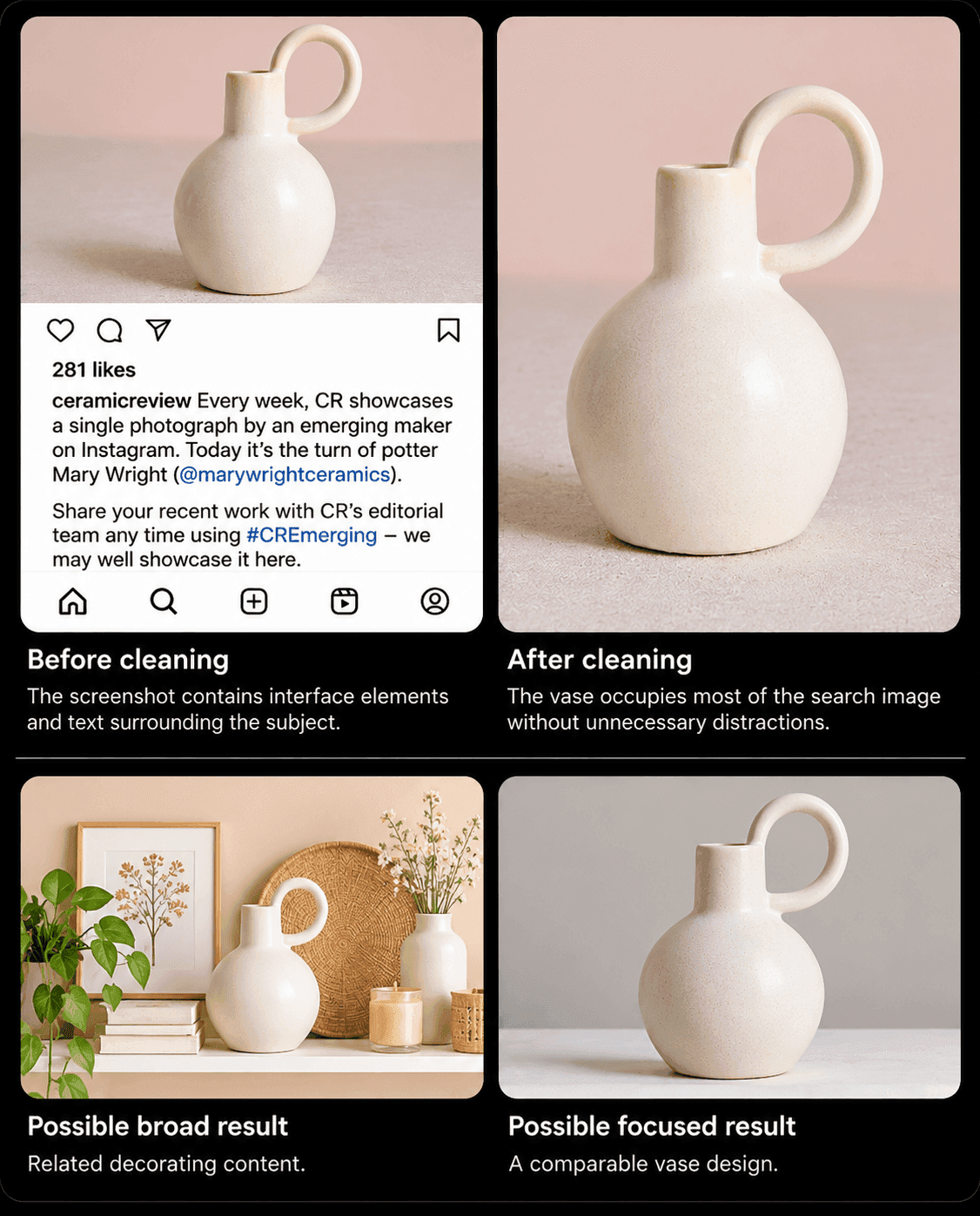
Figure 14: Illustrative comparison showing how removing surrounding screenshot elements may help a visual search focus on the desired object.
In the illustration, the original screenshot contains a white ceramic vase along with social media text and interface elements.
The cleaned version retains the same vase photograph while removing those distractions, giving the search system a clearer view of its rounded body, curved handle, color, and surface texture.
A search using the cluttered screenshot may return broader results, such as decorating ideas, shelves displaying ceramic objects, or other related interior photographs.
The cleaned version may help the search system retrieve photographs of individual vases with more comparable design characteristics.
Now the question is how to prepare a screenshot for similar image search?
For that, before uploading a screenshot to an AI image search tool:
- Identify the object you want to find.
- Crop away account names, captions, buttons, and other interface elements.
- Remove unrelated photographs or surrounding content.
- Make sure the object's important visual features remain visible.
- Upload the cleaned image and review the results.
If the original photograph is available separately, use that version instead of a screenshot whenever possible.
It may provide better image quality and preserve details lost during screenshot compression.
However, removing distractions does not guarantee that closer matches will appear.
Some image search tools may already recognize the primary object within a screenshot.
Others may still return limited results because the object is not well represented in their searchable image collection.
If the results remain limited, try a reverse image search across different search engines. Each provider may offer a different collection of matching pictures.
For a broader walkthrough, see our guide on how to do a reverse image search.
Tip: Keep the original screenshot as well as the cleaned version. Comparing both can help you determine which input produces results that better match your search goal.
By now, we've explored the entire process of finding similar images, from choosing a reference photograph and interpreting different result categories to refining searches and improving weak matches.
But finding the right image isn't necessarily the end of the journey.
Imagine that your vase search finally returns a photograph you love.
You want to use it in a blog post, add it to a design project, or share it on your website.
Can you simply download the photograph and use it?
Not necessarily.
Just because an image appears in your search results doesn't mean you have permission to reuse it.
And even if it closely resembles your original photograph, it may belong to a completely different creator with different licensing conditions.
So, before putting any of the images you've discovered to use, there's one final thing we need to understand.
Are Similar Images Free to Use?
Finding an image through an AI search does not automatically give you permission to publish, modify, or commercially use it.
A photograph may appear on dozens of websites while remaining protected by copyright.
Likewise, two visually similar photographs may belong to different photographers and have entirely different licensing conditions.
Before using an image you discover, determine whether its license permits your intended use.
For example, some licenses allow commercial use but require attribution. Others permit noncommercial use only or restrict modifications.
An Image Copyright Checker can help you investigate where an image appears online and locate possible sources.
It cannot, by itself, establish that you have legal permission to reuse the image.
Google Images also provides usage-rights filters, but you should confirm the actual license with its provider.
If ownership or permission remains unclear, choose another image with verified usage rights.
For a more detailed explanation, go through this guide to check if an image is copyrighted.
FAQs
What Is the Best Way to Find Similar Images?
Upload a clear photograph to an AI reverse image search tool and explore the Similar results. If the matches are too broad, crop the main subject or add a descriptive keyword.
Can AI Find Images That Are Not Exact Copies?
Yes. AI can find different images that share visual characteristics such as colors, shapes, textures, and composition, even when they depict different objects or scenes.
What Is the Difference Between Similar and Related Images?
Similar images share visual characteristics, while related images are connected by subject or context. For example, another green armchair is visually similar, while a furniture showroom is contextually related.
Can I Search for Similar Images Using a Screenshot?
Yes. Crop out unnecessary text, buttons, and interface elements before uploading. Use the original photograph whenever possible for better image quality.
Can a Cropped Image Find Better Results?
Yes. Cropping can help isolate the main subject and remove distractions. However, removing important visual details may reduce relevance, so compare both versions.
Which Tool Is Best for Finding Exact Duplicates?
TinEye specializes in finding exact and altered copies, while CopyChecker offers a dedicated Duplicates category. Searching across multiple tools can help uncover additional matches.
Can AI Find the Same Product From a Photo?
Yes. AI image search can help identify products and visually similar alternatives. Always verify the manufacturer, model number, and specifications before purchasing.
Why Are My Image Search Results Unrelated?
Distracting backgrounds, poor image quality, competing subjects, or limited index coverage can affect results. Try cropping the image, adding context, or using another search provider.
Can I Reuse the Similar Images I Find Online?
Not automatically. Check the image's original source, copyright ownership, and licensing conditions before using it. Visual similarity does not grant permission to reuse an image.
Find the Images You Want Without Guessing
Finding similar images with AI is not just about uploading a photograph and selecting the first result.
It starts with knowing what you want to find.
Use a clear reference image, choose the appropriate result category, and compare the actual visual details.
If the matches are too broad, crop the main subject or refine the search with additional context.
CopyChecker's AI Reverse Image Search provides a dedicated workflow for exploring similar and duplicate images.
When the results are limited, another search provider may offer a different selection.
Most importantly, open the source pages and verify what you find.
A little refinement can turn an unidentified photograph into useful product information, creative inspiration, or a better understanding of the image itself.