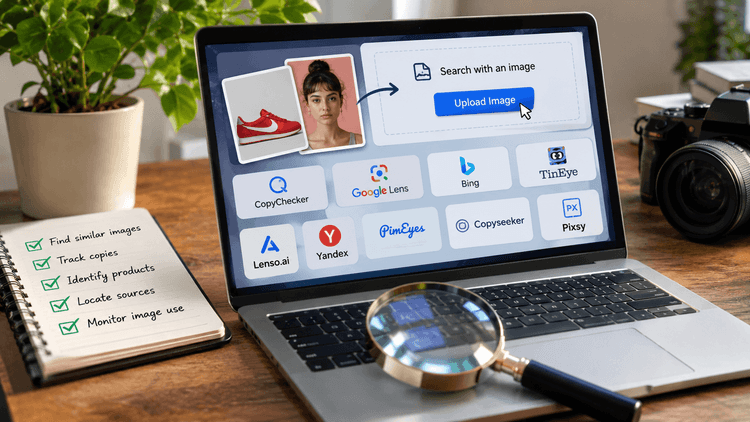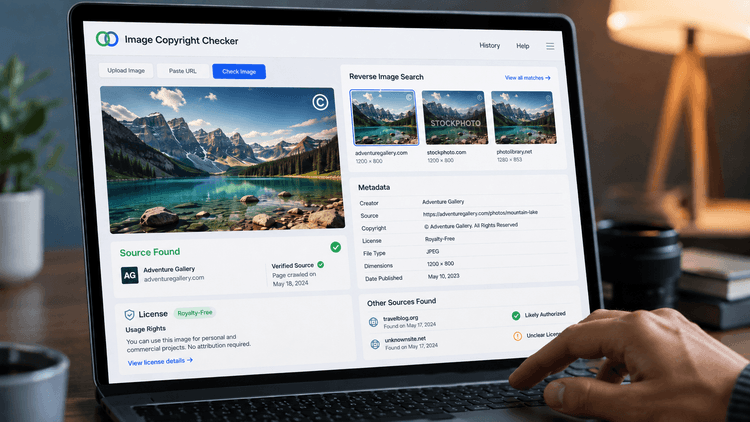
You've found a photo online, but where did it come from?
Maybe you want to identify a pair of sneakers, find a higher-quality version of a picture, or check whether someone has reused your work.
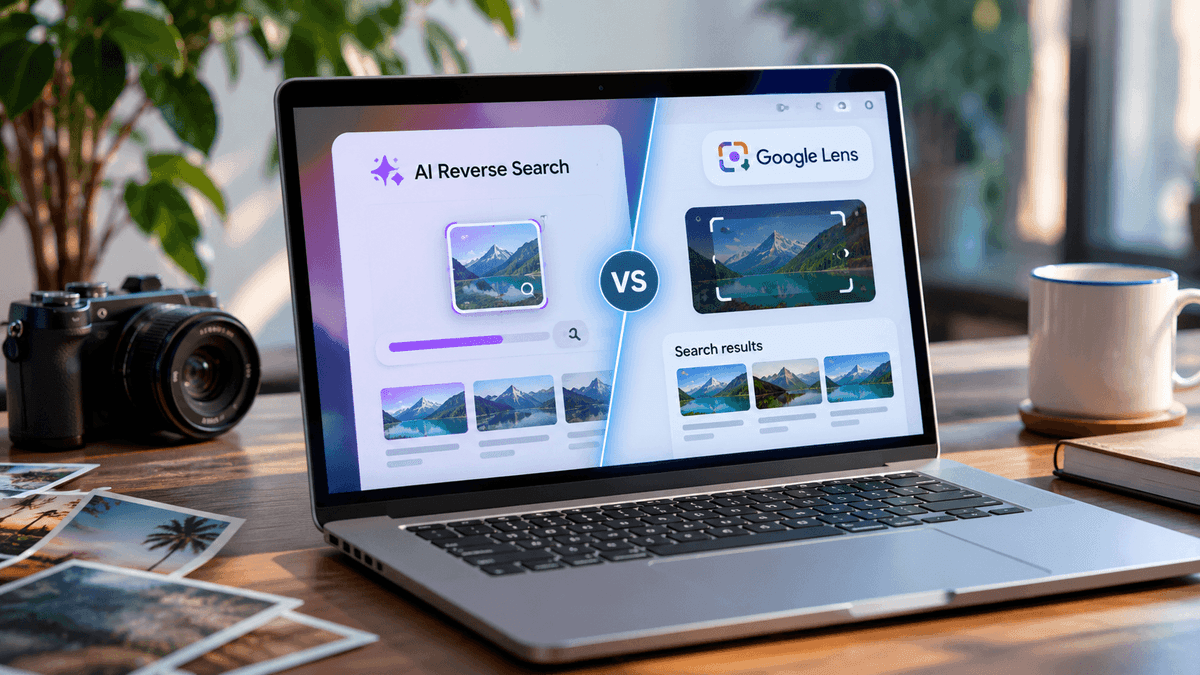
Google Lens and dedicated AI reverse image search tools can both help, but they approach these searches differently.
Google Lens is particularly useful for identifying objects, finding products, and understanding what's inside a picture.
Tools like CopyChecker's AI Reverse Image Search offer a dedicated workflow for finding matching images, visually similar photos, and possible source pages.
The better choice depends on what you're trying to discover.
This guide compares their capabilities, explains what existing image-search tests reveal, and walks you through searching for duplicates, edited images, products, faces, and original sources.
You'll also learn when using both tools makes more sense than relying on either one.
Before looking at the individual features and test results, it helps to understand what each tool is designed to do.
Although both let you search using an image, the information they return can be quite different.
One might identify what's in your photo, while the other helps you discover where similar images appear online.
Here's a quick side-by-side comparison to show those differences before we explore how they perform in real-world searches -
AI Reverse Image Search vs Google Lens at a Glance
Google Lens and CopyChecker's AI Reverse Image Search share a common purpose, but they offer different ways to explore an image.
Both can help you discover related visuals and potential sources.
However, their features differ when it comes to identifying objects, finding products, locating duplicate photographs, or reading text within an image.
To make these differences easier to understand, the table below shows which option may be more useful depending on what you want to find -
| Goal | Recommended Option |
|---|---|
| Identify objects or landmarks | Google Lens |
| Find products and shopping links | Google Lens |
| Search with a phone camera | Google Lens |
| Investigate duplicate photographs | Try both |
| Discover visually similar pictures | Both |
| Find websites containing an image | Both |
| Investigate public portrait reuse | Compare results cautiously |
| Extract or translate text | Google Lens |
| Use a dedicated image-search interface | CopyChecker |
| Verify an important image source | Use both and inspect source pages |
These recommendations give you a starting point, but they don't tell the whole story.
Two tools may support the same search task while offering different features, search options, and limitations.
To understand why one might be more useful than the other, let's check out -
CopyChecker AI Reverse Image Search vs Google Lens Feature Comparison
To be honest, choosing the right tool also depends on the features available and how you prefer to search.
For example, both tools let you upload images and explore visual matches, but they differ in camera search, text recognition, pricing, and other options.
Let's take a closer look at these features side by side to understand what each tool offers and where their limitations begin.
| Feature | CopyChecker | Google Lens | Better Choice | Evidence |
|---|---|---|---|---|
| Upload an image | Yes | Yes | Both | Documented |
| Paste an image URL | Supported | Supported on desktop | Both | Documented |
| Camera search | Not confirmed | Yes | Google Lens | Documented |
| Search part of an image | Advertised | Yes | Both offer selection | Documented |
| Refine with text | Not confirmed | Yes | Google Lens | Documented |
| Find exact copies | Supported search purpose | Matching images possible | Not established | Head-to-head test pending |
| Find similar images | Yes | Yes | Depends on task | Documented |
| Find source pages | Yes | Yes | Not established | Head-to-head test pending |
| Search faces | Face-related search advertised | Can return related images | Not established | Head-to-head test pending |
| Find products | Product-related matching | Shopping results and prices | Google Lens for shopping | Documented |
| Recognize objects | Visual matching | Dedicated object recognition | Google Lens | Documented |
| Identify landmarks | Related-image discovery | Landmark information | Google Lens | Documented |
| Extract text | Not confirmed as equivalent | Yes | Google Lens | Documented |
| Translate text | Not confirmed | Yes | Google Lens | Documented |
| Find websites using an image | Yes | Yes | Not established | Test pending |
| Desktop support | Web-based | Web and browser integration | Both | Documented |
| Mobile support | Web-based | Google app and supported browsers | Google Lens for camera use | Documented |
| Free usage | Limited monthly searches | Free core search | Google Lens for frequent free use | Published terms |
| Account requirement | Initial free access advertised | Depends on entry point | Depends | Published terms |
| Paid plans | Yes | No separate core Lens subscription | Depends on usage | Published terms |
| Privacy controls | Published processing and deletion policy | Google Account activity controls | Depends on preferences | Policy documentation |
| Best use case | Dedicated image investigation | General visual discovery | Task-dependent | Feature-based |
| Main limitation | Free limits and paid access | Cannot guarantee original-source discovery | Neither is universal | Documented limitations |
Now that we've compared their features, let's look at how each tool works individually.
We'll start with CopyChecker's AI Reverse Image Search, including what it's designed to find and how you can use it to investigate an image.
So let’s find out about -
What Is CopyChecker AI Reverse Image Search?
CopyChecker AI Reverse Image Search is a web-based tool that lets you search using a picture instead of keywords.
Imagine finding a photograph on Pinterest with no photographer credit.
Searching for "mountain landscape at sunset" might return thousands of unrelated pictures.
Uploading the actual photograph gives the search tool a more specific visual reference.
With CopyChecker, you can upload an image, drag it into the search area, or use an image URL where supported.
The tool processes the picture and searches for visually related results.
Its advertised capabilities include duplicate-image discovery, similar-image matching, source investigation, and searches involving products, logos, and faces.
These categories serve different purposes.
An exact match may help you locate another copy of a photograph, while a similar-image result might show an entirely different picture of the same subject.
CopyChecker also offers limited free usage, with paid plans for additional searches.
Its published free allowance is three searches per month, although limits should be checked before purchasing.
The main drawback is that a dedicated reverse-image tool isn't necessarily the most convenient option for every visual task.
If you want to translate a restaurant menu or identify a plant using your camera, Google Lens offers a more direct workflow.
While CopyChecker focuses on helping you explore image matches and possible sources, Google Lens takes a broader approach by helping you identify, understand, and interact with what appears in a picture.
Let’s find out about -
What Is Google Lens?
Google Lens is Google's visual search technology.
Instead of typing what you're looking for, you can take a photograph, upload an image, or select something already visible on your screen.
Suppose you notice an unfamiliar chair in a hotel lobby.
You don't know its brand or model, but you want something similar for your home.
With Google Lens, you can photograph the chair and explore visually related products, shopping listings, and websites.
Its usefulness extends beyond shopping.
You can photograph a landmark to learn about it, select text from a screenshot, or translate writing on a sign.
On supported devices, Lens also lets you narrow the search to a particular object within a larger image.
Another useful feature is text refinement.
If Lens finds a jacket but you want it in black instead of brown, you can add descriptive words to narrow the results.
Google Lens is accessible through the Google app, Google Search, Chrome, and supported devices. Its core visual search functions are free.
However, Lens isn't a dedicated image copyright-monitoring service.
It may find websites containing a photograph, but it cannot guarantee that the earliest result is the original publication or that every reuse has been discovered.
That distinction becomes important when your goal is image verification rather than identification.
So far, we've explored what both tools are designed to do and where their features differ.
But having a feature doesn't always tell us how useful it will be in practice.
For that, we need to look at how each tool handles actual images, from finding duplicates and identifying products to recognizing landmarks and tracing possible sources.
Before getting into those results, let's explain -
How We Evaluate CopyChecker and Google Lens
A fair comparison isn't about which tool displays the most results. It's about whether those results help you find what you're looking for.
If you're investigating a photograph's origin, a matching image with a useful source link may matter more than dozens of similar pictures.
But if you're shopping for sneakers, identifying the correct model and finding relevant retailers could be more valuable than locating copies of the product photo.
That's why we tested CopyChecker's AI Reverse Image Search and Google Lens with different types of images, looking at how well each tool handled a specific search task.
How We Conducted the Tests
We used seven real-world image searches covering duplicate photographs, cropped images, visually similar objects, products, public portraits, landmarks, and documents containing text.
The same reference image was submitted to both tools for each test, and we examined the visible results for relevance, identification details, matching images, and useful source links.
| Test | Image Used | What We Evaluated |
|---|---|---|
| 1. Exact and duplicate images | NASA's Earthrise photograph | Recognition, matching photographs, and source information |
| 2. Cropped images | Cropped red fox photograph | Subject recognition and recovery of the original photograph |
| 3. Visually similar images | Metropolitan Chair | Similar designs versus identification of the exact chair |
| 4. Product search | New Balance 574 Core sneaker | Product identification, related images, and shopping results |
| 5. Public portraits | Historical Marie Curie portrait | Matching photographs and relevant source pages |
| 6. Landmark recognition | Statue of Liberty photograph | Landmark identification and visually related results |
| 7. Text and documents | French banquet menu from 1900 | Document recognition, matching images, and available text features |
Our conclusions reflect the results visible in these tests, not a comprehensive accuracy benchmark.
We didn't calculate detection rates, compare search speeds, or verify that either tool found every available copy of an image.
Features such as translation accuracy, recognition of heavily edited photographs, and private-person identification were also outside the scope of these tests.
Disclosure: CopyChecker is our product. We've reported the observed results for both services, including cases where Google Lens provided more useful information.
With that established, let's begin with one of the most common reasons people use reverse image search: finding another copy of a photograph.
Test 1: Finding Exact and Duplicate Images
Suppose you're a photographer who discovers one of your pictures on an unfamiliar website.
You want to know whether the same photograph appears elsewhere, who published it, and whether the pages contain any information about its origin.
An exact duplicate is the same photograph appearing in another location, even if its filename or dimensions have changed.
Both CopyChecker and Google Lens can help investigate image matches, but the useful result isn't simply another thumbnail.
It's a relevant webpage where you can inspect the photograph and its publication details.
Even then, finding an older webpage doesn't necessarily prove that it was the original source.
Photographs can be republished, licensed, or removed from earlier websites.
For important investigations, compare multiple source pages, check photographer credits, and look for reliable publication information.
If you're investigating image ownership, understanding the ways of finding the original artist of an image can help you do that properly.
Test Result
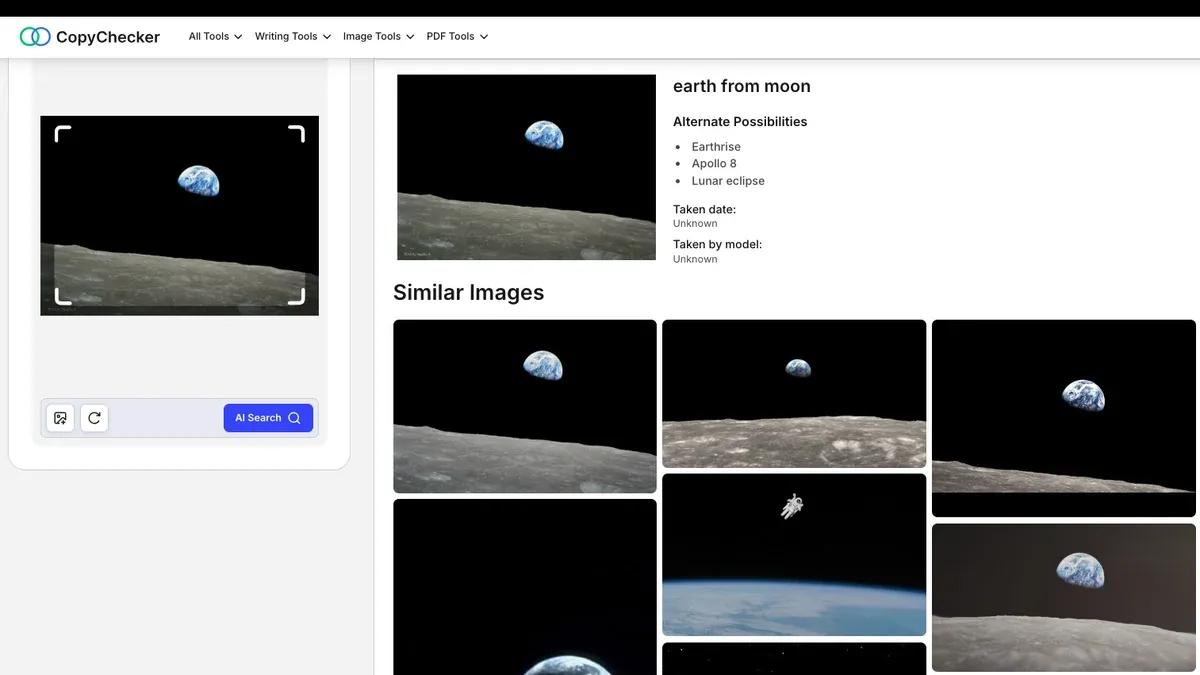
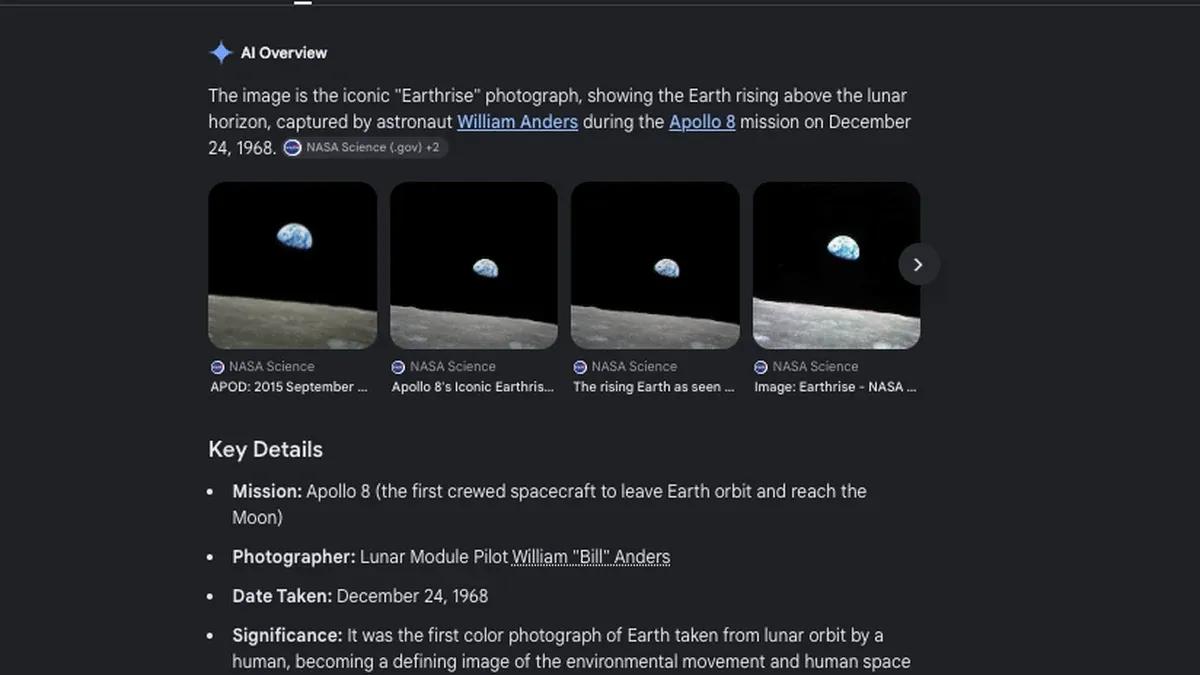
We uploaded NASA's Earthrise photograph to both tools.
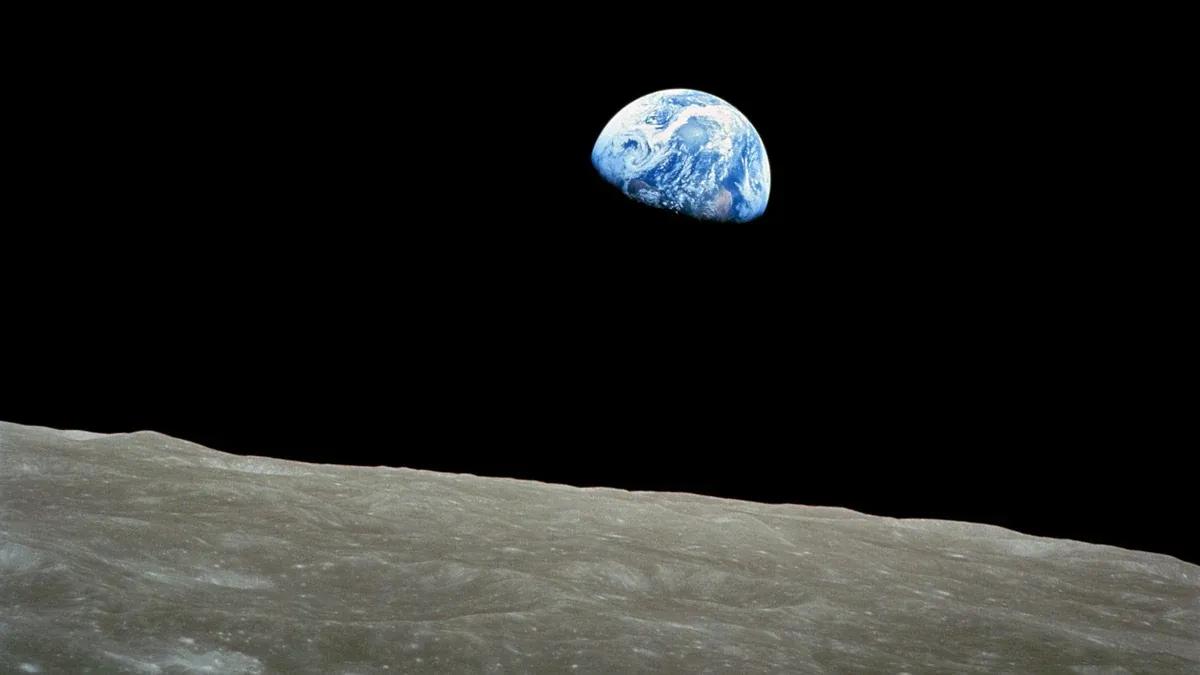
CopyChecker recognized the image as Earth viewed from the Moon, suggested related terms including "Earthrise" and "Apollo 8," and displayed visually similar photographs.
Google Lens identified the photograph, associated it with astronaut William Anders and the December 24, 1968 capture date, and displayed NASA source links.
Verdict
Google Lens provided more useful identification details and source information in this test. CopyChecker recognized the subject and returned related images.
However, the visible results weren't sufficient to determine how many exact duplicates either tool found or which webpage first published the photograph.
Finding a recognizable photograph is one challenge. But what happens when the picture has been cropped or altered?
Test 2: Finding Cropped or Edited Images
Not every copy of a photograph looks identical.
Someone might remove part of the background, add text, adjust the colors, or resize the image before publishing it elsewhere.
These changes can make matching more difficult because the search tool has less of the original visual information to work with.
Google Lens allows users to select a particular region of an image, while CopyChecker also advertises image-region selection capabilities.
But selecting a region and successfully finding the original photograph are two different things.
To examine that distinction, we tested a cropped photograph of a red fox.
Test Result
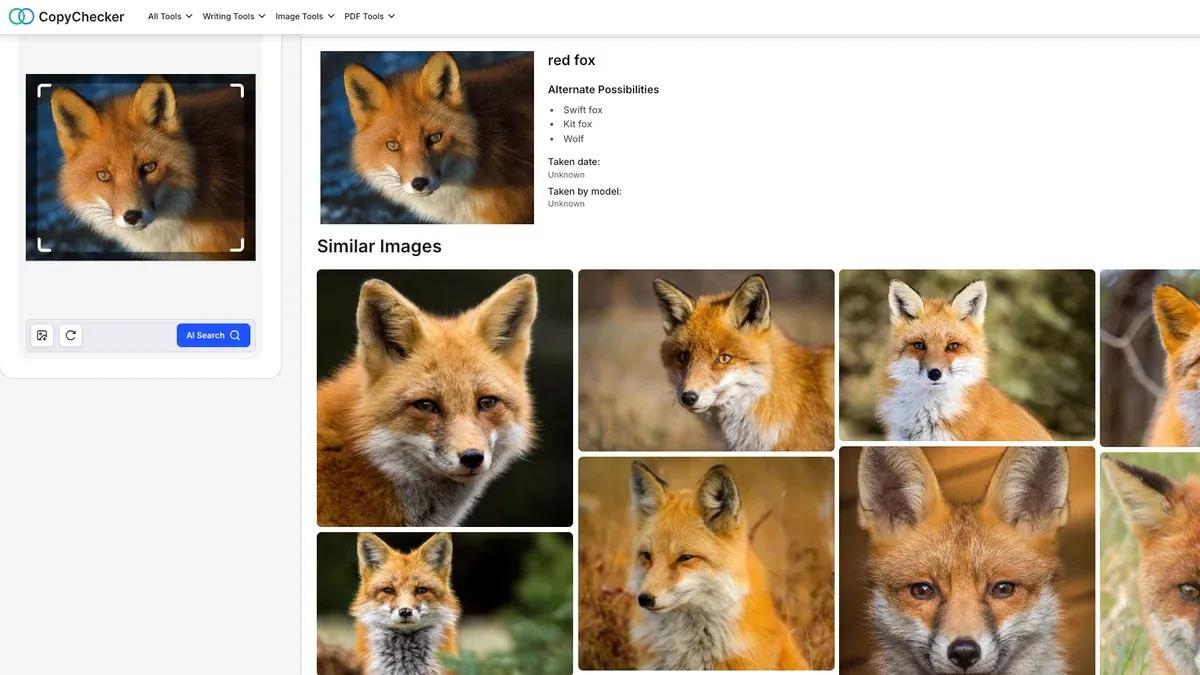
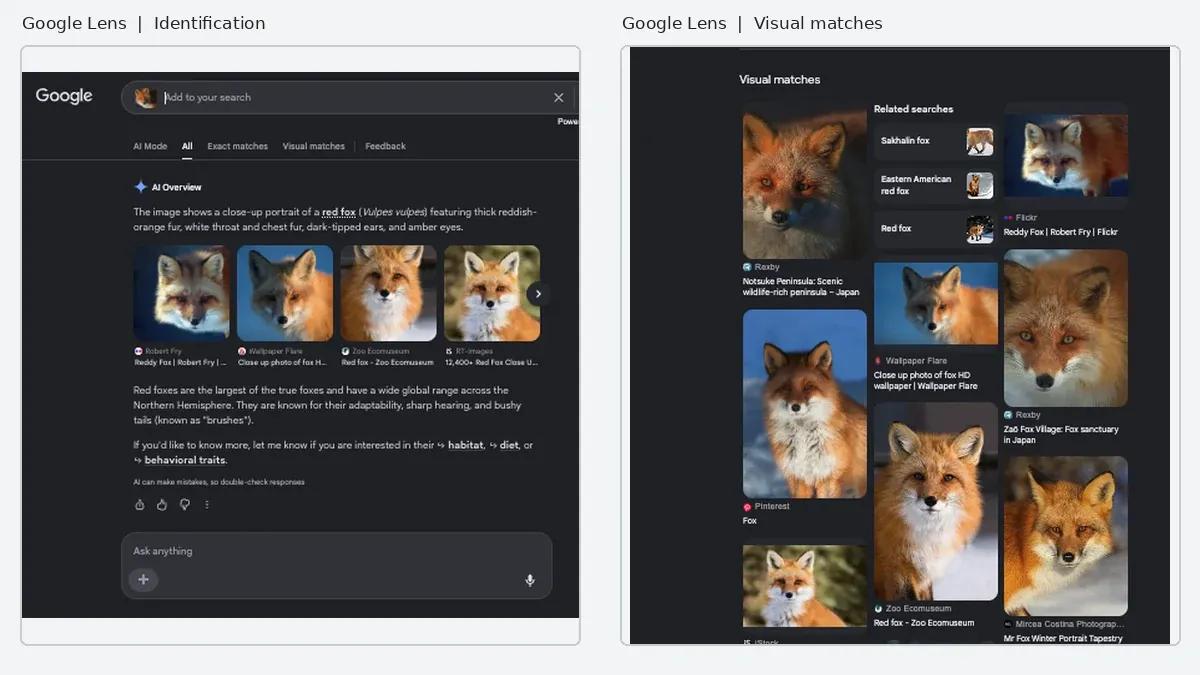
We uploaded a cropped photograph of a red fox photograph to both tools.

CopyChecker correctly recognized the animal and displayed several similar fox photographs, but no exact match to the original image was visible in the results we examined.
Google Lens also identified the red fox and returned related photographs with source links. However, the original photograph wasn't clearly located in its visible results either.
Verdict
Both tools recognized the subject despite the changed framing, but neither visibly recovered the original photograph.
Google Lens provided source links for related results, while CopyChecker returned visually similar fox images.
This test covered cropping only, so it doesn't establish how either tool handles color changes, text overlays, or other edits.
That leads to another important distinction. Sometimes you don't need the same photograph at all. You want images that simply look similar.
Test 3: Finding Visually Similar Images
The word "similar" can mean different things depending on your search.
A photograph of a chair might lead to the same model photographed from another angle, a different chair with a comparable shape, or furniture with similar materials and colors.
All three can be useful, but they answer different questions.
For clarity, it's worth separating exact matches, modified versions of the same photograph, and visually similar images showing different subjects or objects.
If you're creating a design mood board, broadly related furniture might be exactly what you need.
But if you're trying to identify a particular chair, the model name and designer may matter more.
We used a photograph of the Metropolitan Chair to see how each tool approached these different possibilities.
Test Result
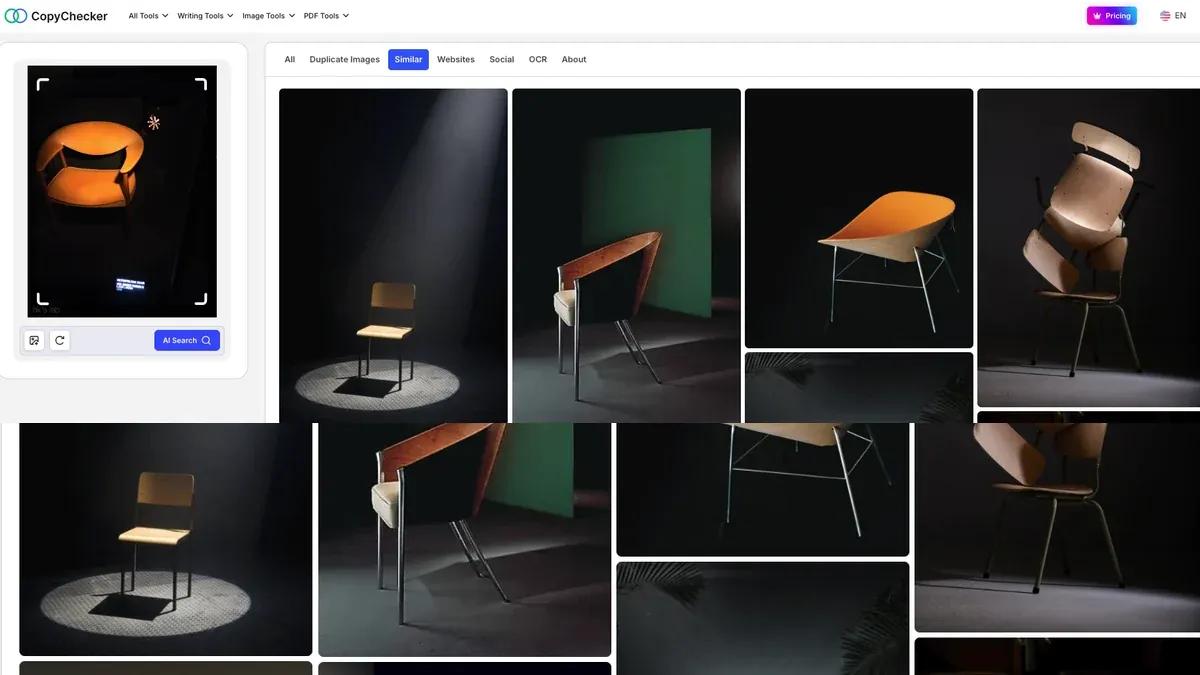
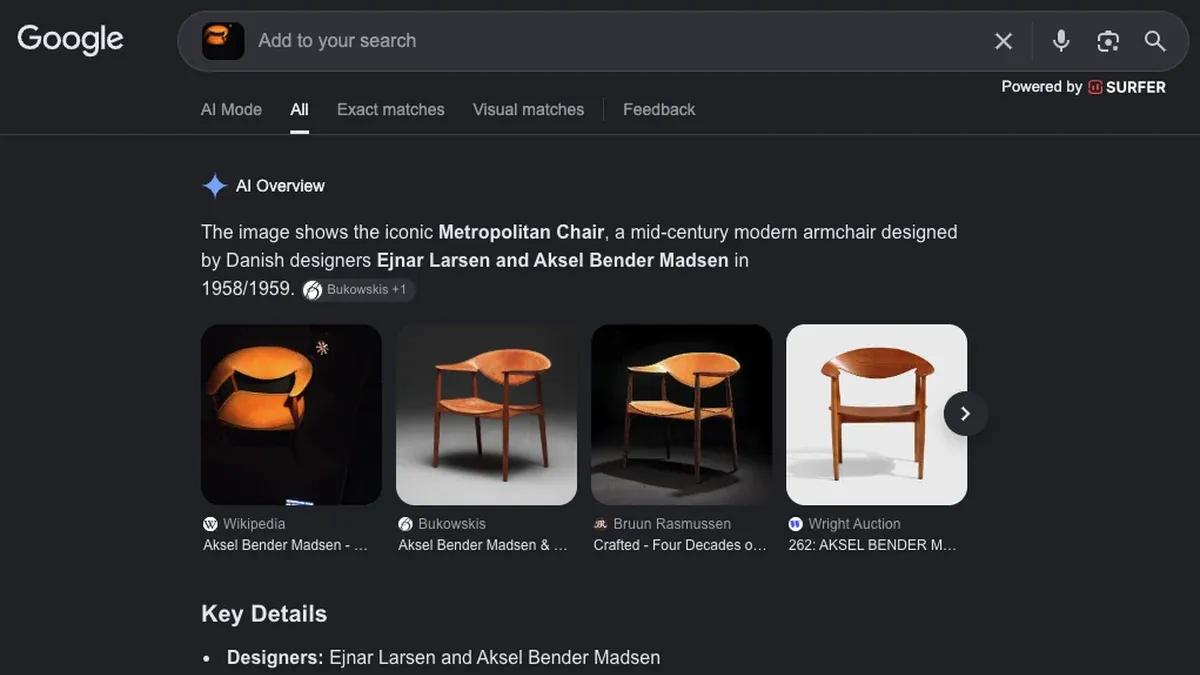
We uploaded a photograph of the Metropolitan Chair to both tools.
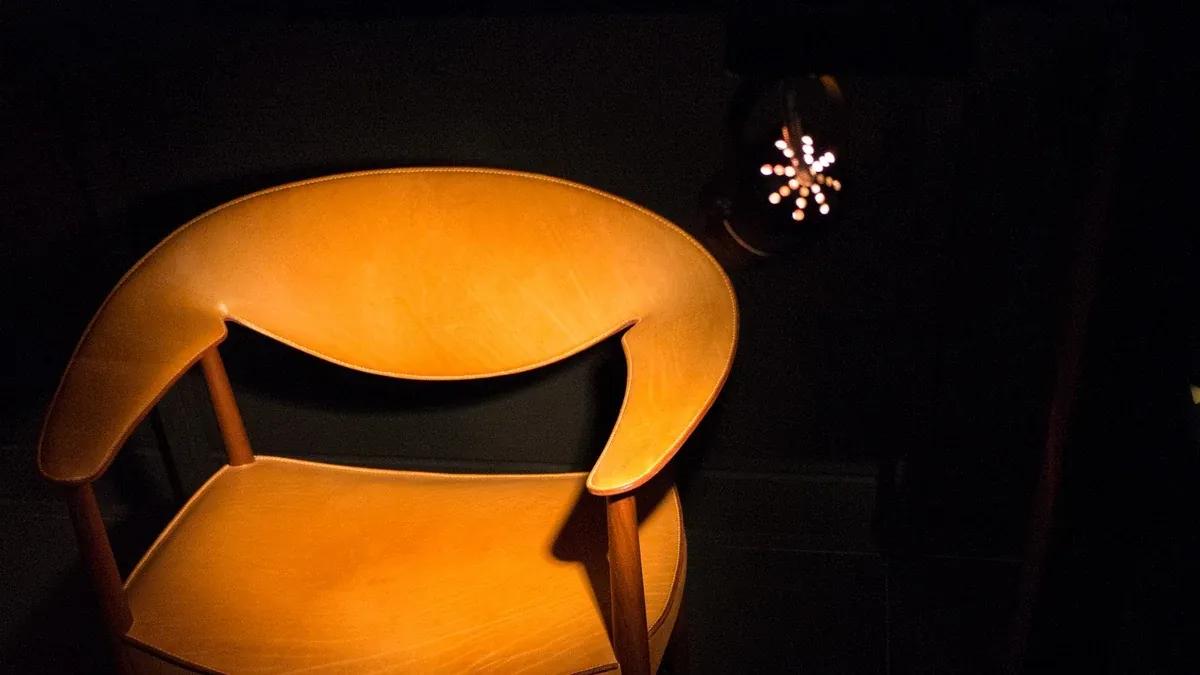
CopyChecker returned visually similar furniture, including modern chairs with curved wooden frames and comparable designs.
Google Lens identified the Metropolitan Chair, named its designers, Ejnar Larsen and Aksel Bender Madsen, and displayed photographs of the same chair model from different sources.
Verdict
CopyChecker produced useful alternatives for exploring similar chair designs.
Google Lens was more helpful for identifying the specific chair and finding information about it.
Both results had value, but for different purposes. The test doesn't establish that either tool is universally better at finding similar images.
Now consider a situation where identifying the exact item becomes more important because you want to buy it.
Test 4: Finding Products From a Photo
You've spotted a pair of sneakers in a photograph, but the caption doesn't mention the model.
You want to know what they're called, where they're sold, and whether the listings show the same version.
Google Lens combines visual recognition with product discovery, including shopping listings and retailer information where available.
CopyChecker can also recognize product-related imagery and return matching or visually similar results.
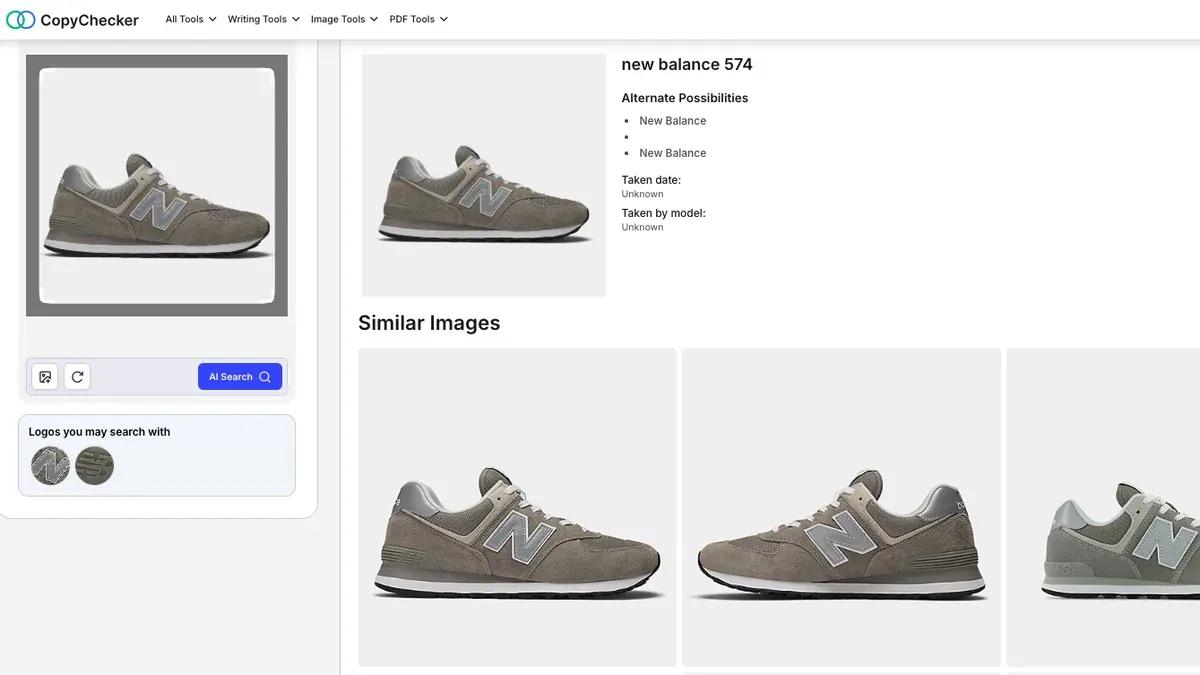
To see the difference, we searched using a photograph of the gray New Balance 574 Core sneaker.
Test Result
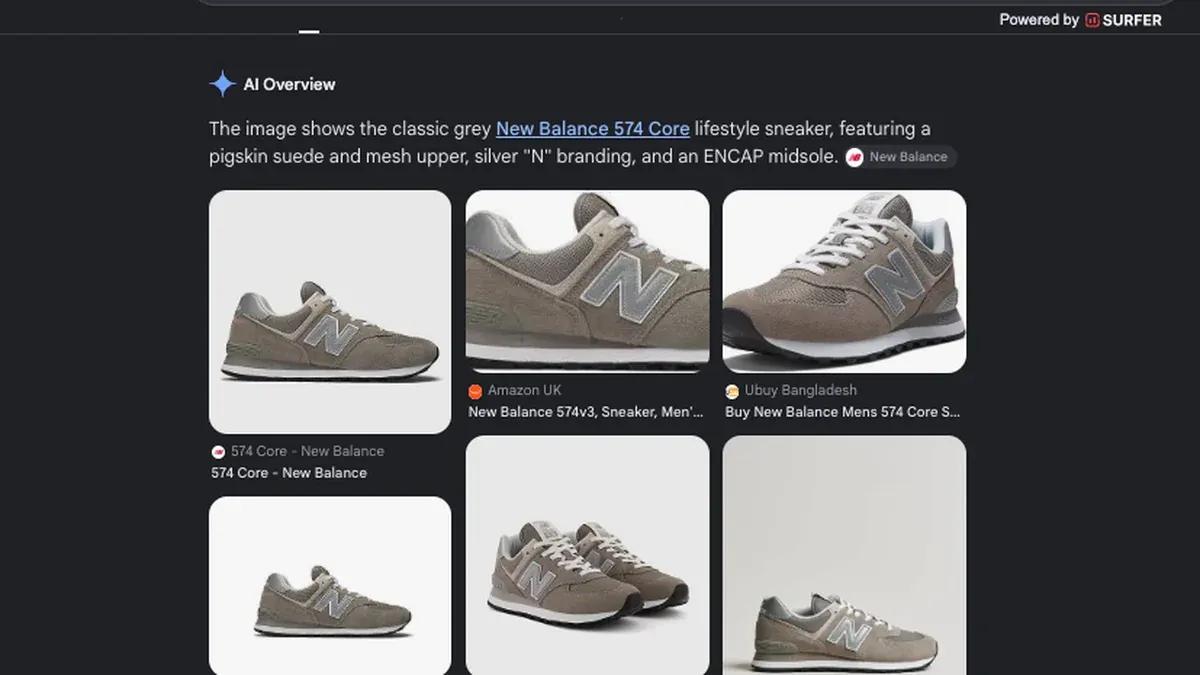
We uploaded a photograph of the gray New Balance 574 Core sneaker to both tools.
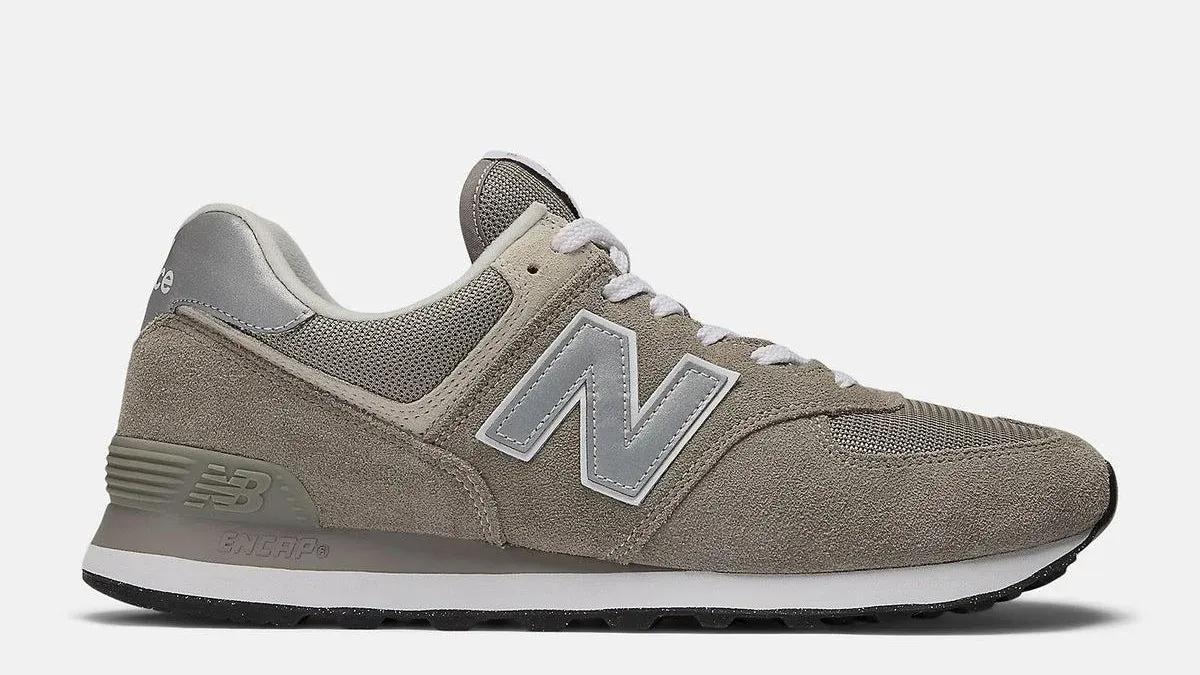
CopyChecker correctly identified the New Balance 574 model and displayed several matching and visually similar sneakers, including logo-search options.
Google Lens identified the specific 574 Core model and returned product listings from New Balance and other retailers.
Verdict
Both tools recognized the sneaker, but Google Lens provided more useful shopping information through its product identification and retailer listings.
CopyChecker was useful for exploring related sneaker images and visual matches.
For someone trying to purchase the exact model, Google Lens was the stronger choice in this test.
For investigating where a product photograph appears online, additional source checking would still be necessary.
Products are relatively straightforward to compare. Searching with people's photographs, however, requires more care.
Test 5: Searching Faces and Public Portraits
A portrait search can return copies of the same photograph, visually similar faces, or webpages containing related images.
But a visual resemblance doesn't prove that two photographs show the same person.
That's especially important when investigating suspicious profiles, reused portraits, or possible impersonation.
For this comparison, we focused on a historical public portrait rather than attempting to identify an unknown private individual.
The goal was to see whether the tools could locate matching photographs and provide useful public source information.
Test Result
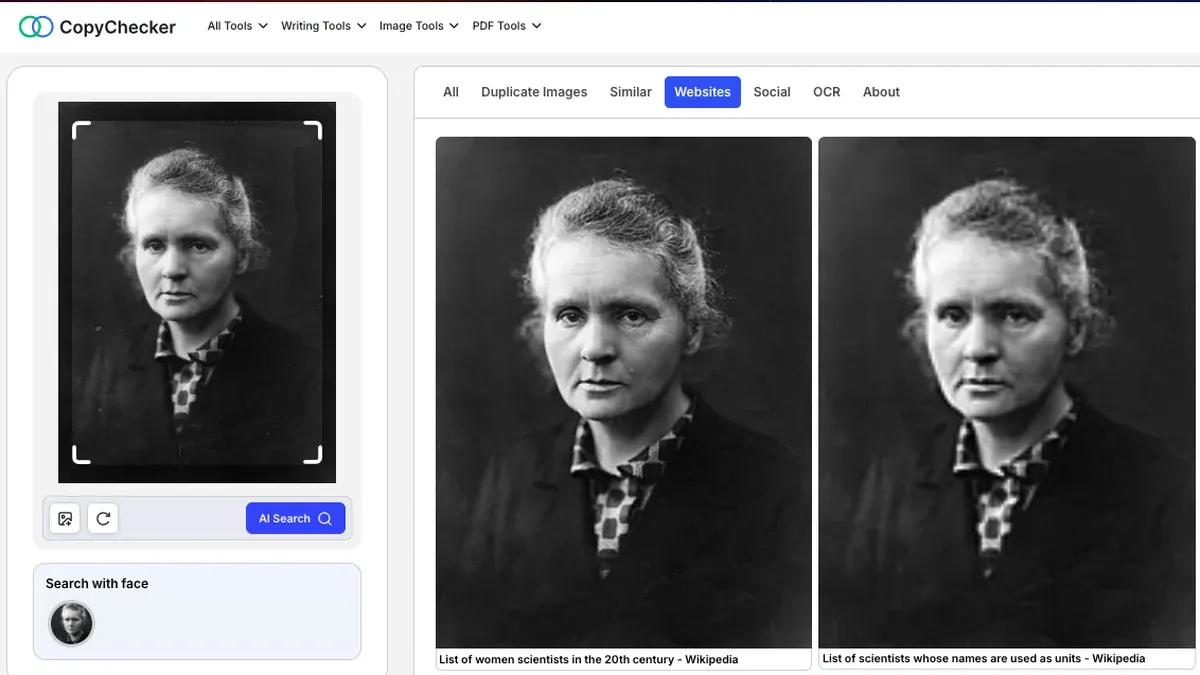
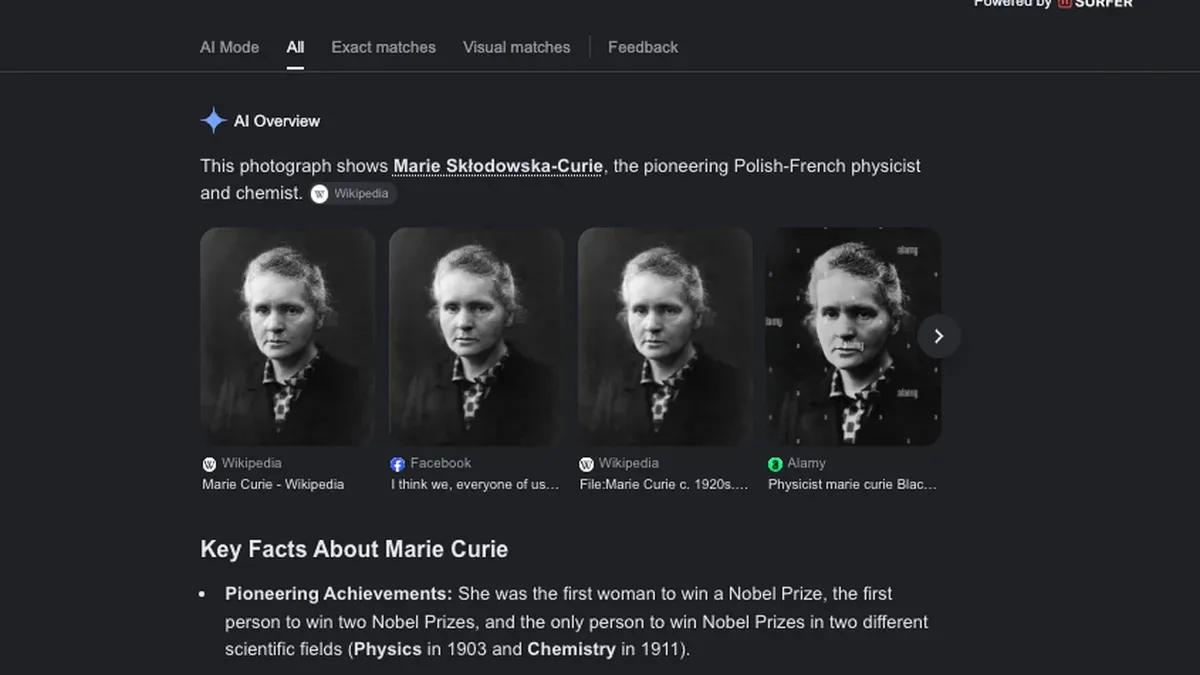
We uploaded a historical portrait of Marie Curie to both tools.
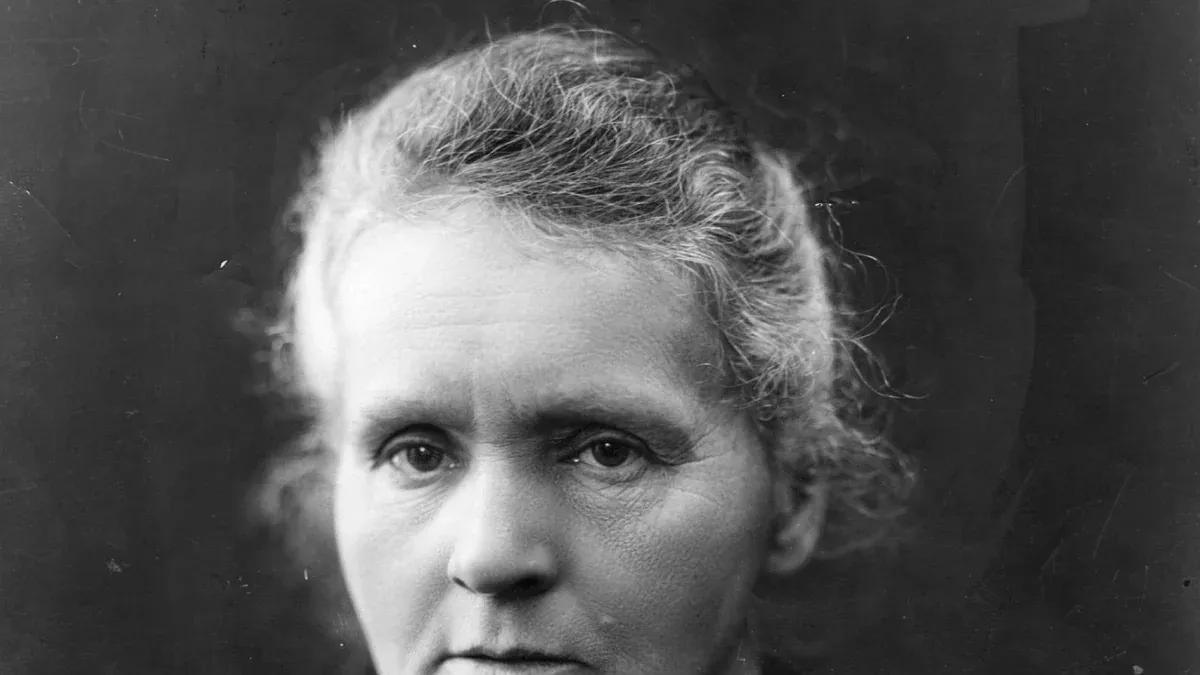
CopyChecker found multiple matches of the same photograph across Wikipedia pages, including articles about women scientists.
Google Lens also found matching portraits, correctly identified Marie Curie, and provided biographical information alongside source links.
Verdict
Both tools found relevant matches for the historical portrait.
CopyChecker helped locate webpages containing the photograph, while Google Lens provided additional information about the pictured subject.
Neither result independently established the photograph's original publisher.
This test also doesn't demonstrate either tool's reliability for identifying unknown individuals.
With portraits, the photograph itself may be the focus of the investigation. With landmarks, the question is often much simpler: what place am I looking at?
Test 6: Recognizing Logos, Objects, and Landmarks
Imagine finding a travel photograph of an unfamiliar monument.
You might want to know its name, where it's located, or what other photographs show the same place.
These questions involve visual identification, which is different from tracing the exact photograph's origin.
Google Lens is designed to recognize many types of objects and landmarks and connect them with relevant information.
CopyChecker may also surface recognizable subjects through visually related photographs, even when it doesn't directly name them.
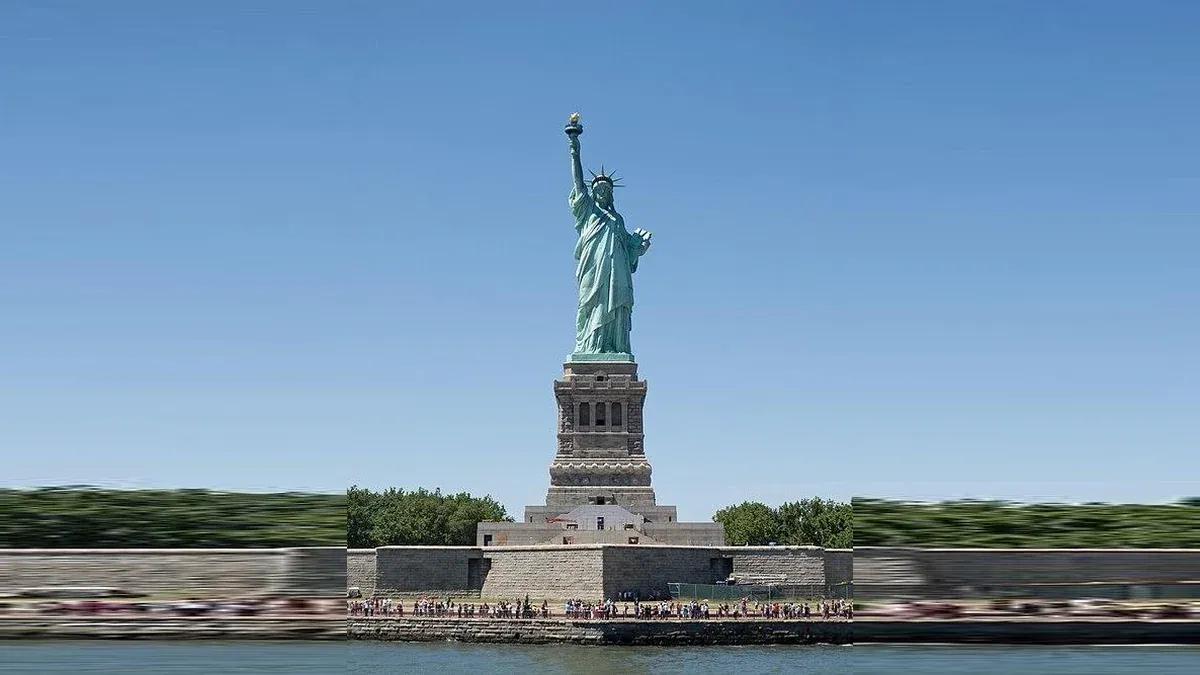
For this test, we used a photograph of the Statue of Liberty.
Test Result
We uploaded a photograph of the Statue of Liberty to both tools.
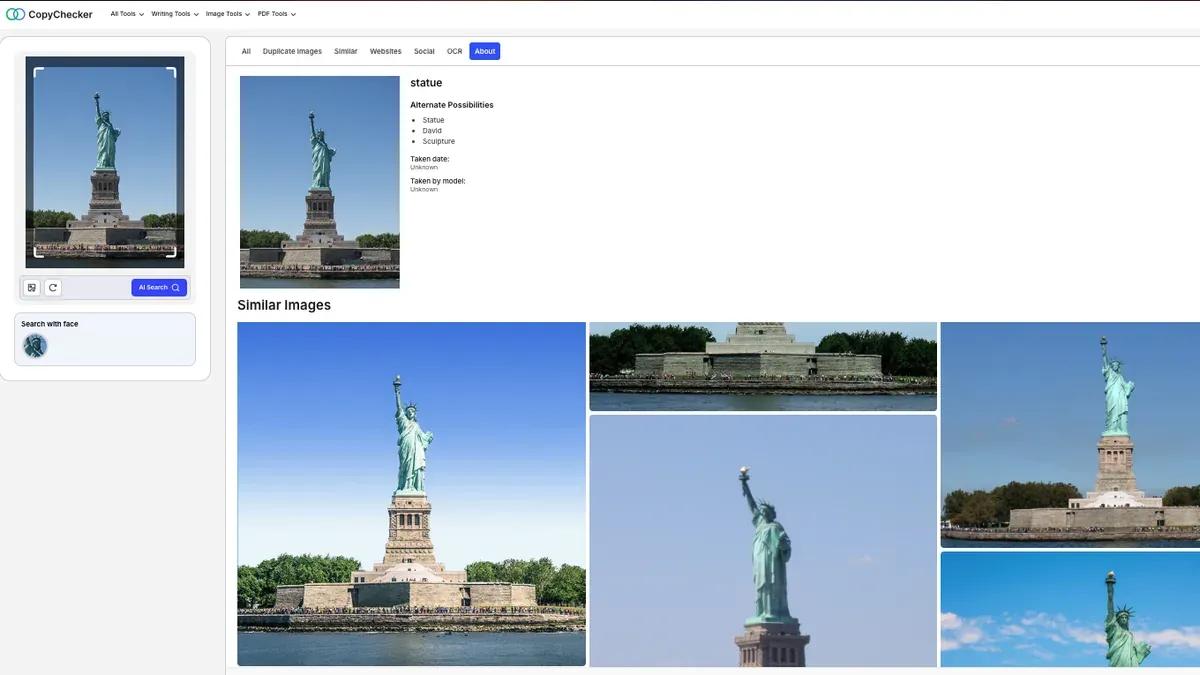
CopyChecker described the subject broadly as a statue and returned several photographs showing the same landmark.
However, the visible results didn't clearly identify its name or location.
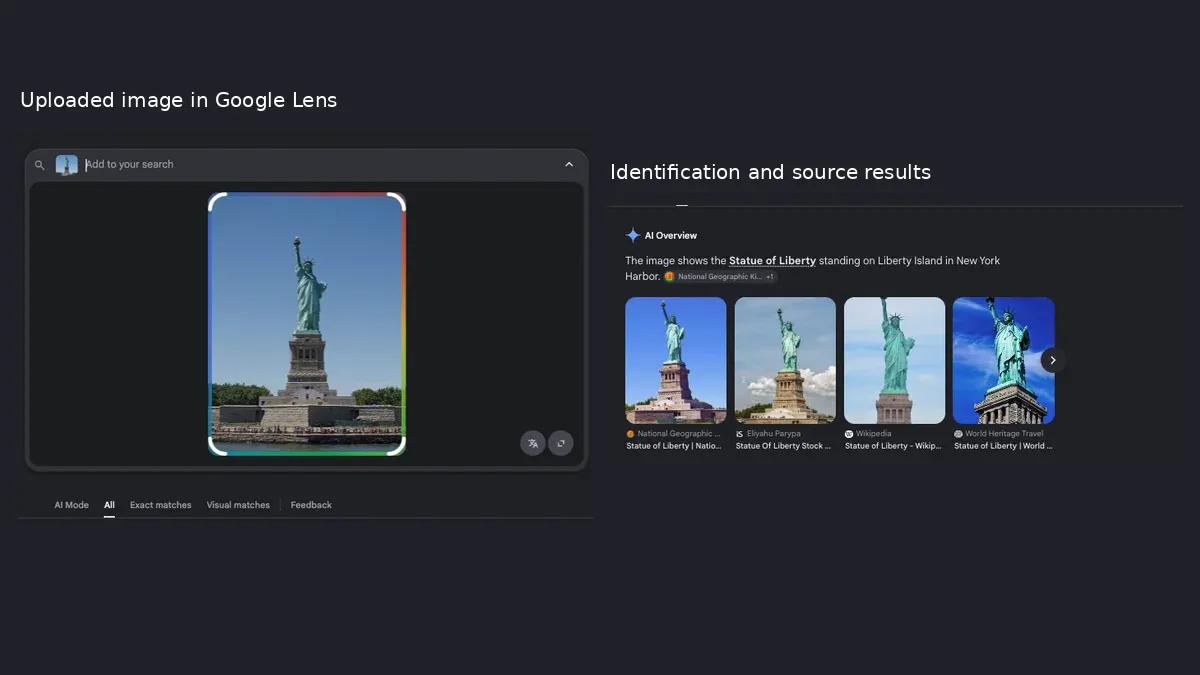
Google Lens correctly identified the Statue of Liberty, located it on Liberty Island in New York Harbor, and displayed relevant images with source links.
Verdict
Google Lens was more useful for landmark identification because it provided the correct name, location, and supporting information.
CopyChecker found visually related photographs of the same landmark but offered less descriptive information.
Although this section also discusses logos and objects, the actual head-to-head test used a landmark. It shouldn't be treated as evidence of either tool's accuracy in recognizing brands or logos.
So far, we've focused on what appears visually in a photograph. Our final test looks at a different challenge: finding information inside an image containing written text.
Test 7: Extracting Text, Screenshots, and Translations
Suppose someone sends you a screenshot of an article without its original link.
You could search using the screenshot itself, hoping to find a matching image or webpage.
Alternatively, you could extract a distinctive sentence and search for those words.
Google Lens offers text selection and translation features that can help with this second approach.
CopyChecker's AI Reverse Image Search primarily focuses on image matching and source discovery.
Its equivalent text extraction and translation capabilities weren't established in this comparison.
To explore these differences, we used a historical French banquet menu from 1900.
Test Result
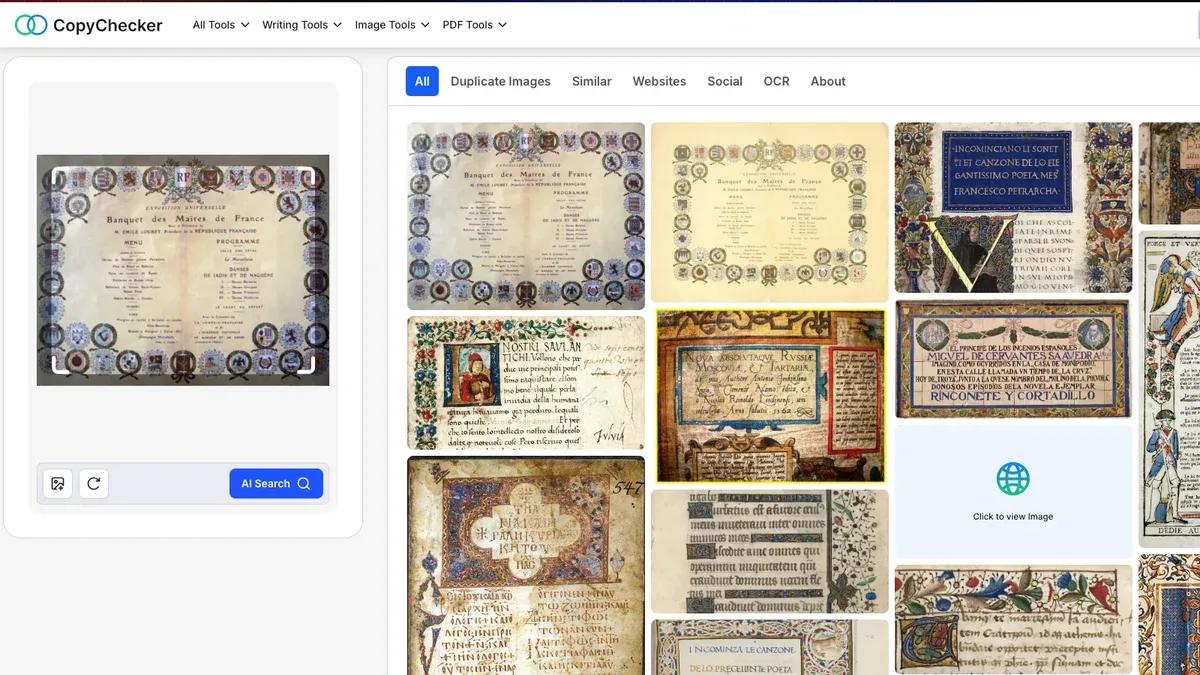
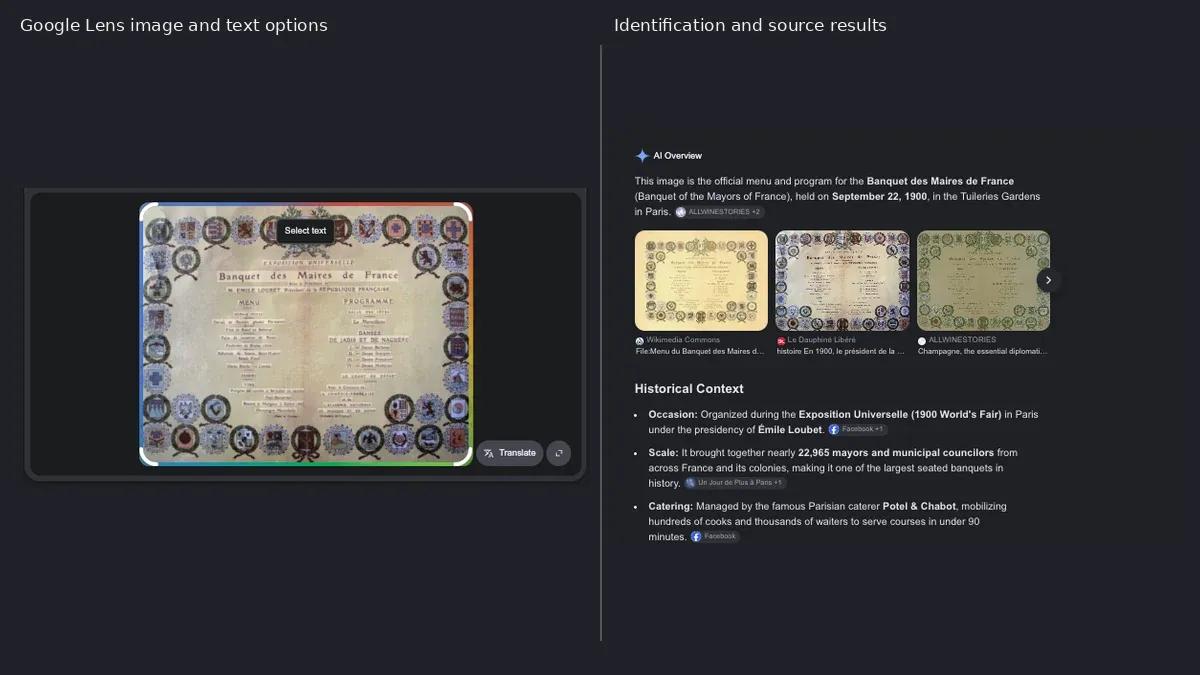
We uploaded a historical French banquet menu from 1900 to both tools.
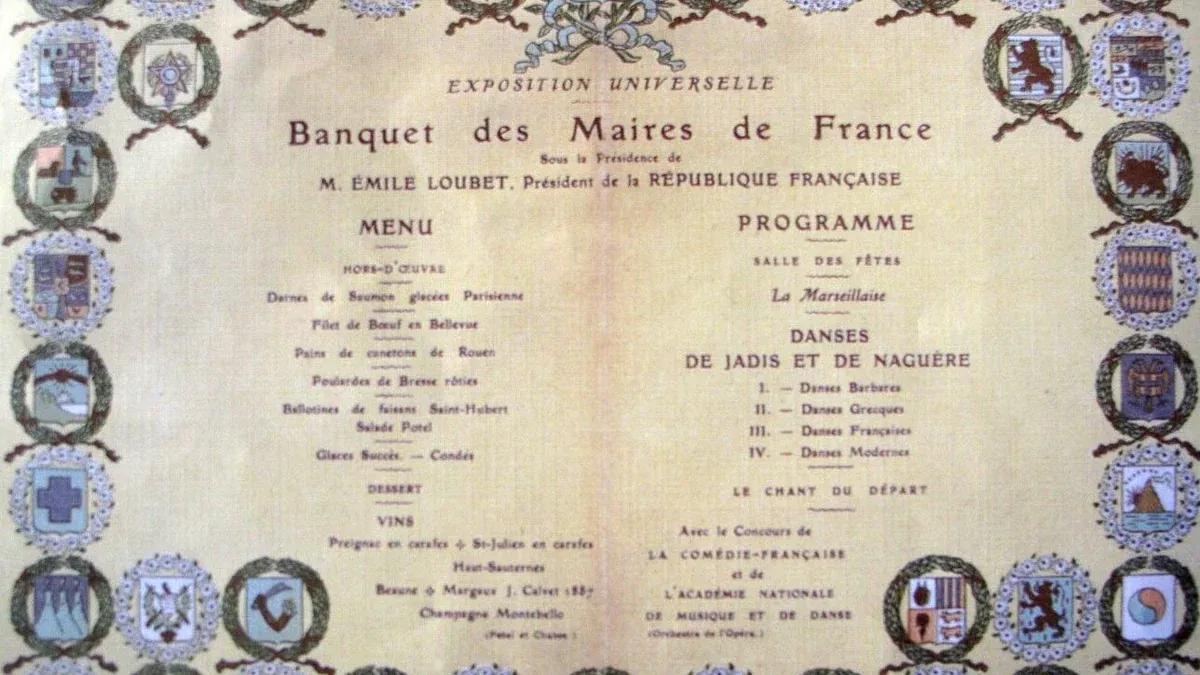
CopyChecker returned matching versions of the menu alongside other historical documents. Its visible results didn't demonstrate text extraction or translation.
Google Lens identified the banquet, displayed historical context and relevant source links, and offered controls for selecting and translating the French text.
Verdict
Google Lens provided more useful contextual information and visible text-related options for this document.
CopyChecker was useful for locating matching menu images and related documents.
However, we didn't verify the accuracy of extracted text or a completed translation.
The test confirms that Google Lens displayed those options, not how accurately they performed on this particular menu.
Across these seven tests, we've seen how both tools can be useful for different purposes.
Google Lens provided more detailed identification and contextual information in several searches, while CopyChecker helped us explore matching and visually related images.
But finding useful results is only one part of choosing an image search tool.
There's also the question of what happens to the images you upload, especially when they contain personal photographs, sensitive documents, or information you wouldn't want shared.
That's why it's worth looking at how both services handle privacy before deciding which one to use.
CopyChecker vs Google Lens for Privacy
Before uploading an image to any search service, consider what the photograph contains.
A picture of a public monument is very different from a screenshot showing private messages, a medical document, or someone's identification card.
Both CopyChecker and Google process submitted images to provide search results, but their published privacy information and user controls differ.
How CopyChecker Handles Uploaded Images
CopyChecker's privacy policy states that information uploaded to its tools is temporarily stored for processing and deleted after the relevant function is completed.
Its AI Reverse Image Search page also states that uploaded images aren't stored or shared beyond the search process.
Those are the company's published statements.
They should not be interpreted as an independent security audit or a guarantee that every aspect of processing is risk-free.
How Google Lens Handles Search Activity
Google provides account controls for managing search history and related visual-search information.
Its documentation describes Visual Search History controls and newer Search Services History settings, including options affecting saved media.
The controls available may vary as Google updates account settings.
Depending on your configuration, images and related activity may be saved to your Google Account.
You can review applicable settings through Google My Activity and your Google Account's Data & Privacy section.
Turning off one history setting doesn't necessarily disable every form of data processing or activity storage.
Which Is More Private?
Neither service should automatically be described as completely private.
Before uploading an image, review the applicable policy and remove unnecessary personal information.
Avoid submitting confidential business documents, private photographs of other people, or sensitive screenshots unless you have appropriate permission and understand the service's handling of that data.
For ordinary public images, choose the service whose functionality and privacy terms fit your needs.
Privacy is worth considering, but it isn't the only factor in making your choice.
As our tests showed, both tools have their strengths, and neither is the best option for every image search.
So, how do you decide which one to use?
Let's bring together the test results, available features, and privacy considerations to help you choose -
Which Tool Should You Use Between AI Reverse Image Search vs Google Lens?
After comparing their features, testing seven different images, and looking at privacy considerations, one thing is clear. Neither tool is the best choice for every search.
Google Lens was more helpful for identifying specific objects, finding products, and understanding image content in several of our tests.
CopyChecker, meanwhile, offered a useful way to explore matching photographs, similar visuals, and potential source pages.
So, rather than choosing one tool for everything, think about what you want to discover from your image.
Let's start with different situations -
Choose Google Lens for Everyday Visual Searches
Google Lens is a sensible starting point when you want to identify an object, find a product, recognize a landmark, or translate text.
Its camera-based workflow is particularly convenient when you're searching for something directly in front of you.
It's also useful when you want to refine a product search with descriptive words, such as changing a color or specifying a particular style.
Choose CopyChecker for a Dedicated Image-Search Workflow
If you already have a photograph and want to investigate visually related images, matching copies, or possible source webpages, CopyChecker offers a focused place to start.
This can be useful for creators checking their own photographs, researchers investigating image reuse, or marketers reviewing public brand imagery.
Its main practical limitation is the restricted free allowance and paid access for more extensive searching.
You can try CopyChecker's AI Reverse Image Search to see whether its available results answer your particular question.
Use Both When Source Verification Matters
For important image investigations, relying on one set of results can leave gaps.
Suppose a photograph is being shared with a misleading caption.
You could use Google Lens to identify its subject and search for related coverage, then use CopyChecker to investigate other appearances of the image.
Compare the results, open the relevant pages, and look for reliable publication context.
Remember that a search result isn't proof of authorship, ownership, or authenticity.
For a wider range of approaches, try to follow any proper guide to the uses of reverse image search.
Choose Neither for Sensitive or Unauthorized Images
If you don't have permission to upload a photograph, or it contains confidential information, don't submit it simply because a search service accepts the file.
The safest search is sometimes the one you don't perform.
Now that you know when each tool makes sense, let's look at how to use them.
We'll start with CopyChecker and walk through how to upload an image, run a search, and explore the results.
Then we'll cover Google Lens so you can follow the same process with either tool.
How to Search With CopyChecker AI Reverse Image Search
You don't need to know the image's subject before beginning. Start with the picture you want to investigate.
- Open the Tool: Visit CopyChecker AI Reverse Image Search.
- Add Your Image: Upload a file, drag and drop it into the search area, or paste an image URL when the option is available.
- Review the Consent Notice: Read the relevant information about processing your uploaded image before proceeding.
- Start the Search: Allow the tool to process the photograph and return available matches.
- Examine the Results: Look for exact copies, modified versions, visually similar pictures, and source webpages where available.
- Verify Promising Sources: Open relevant webpages and check whether they actually contain the image.
If the results are too broad, try using a clearer photograph or focusing on a distinctive part of the picture.
For example, a photograph containing several products may be easier to investigate when you isolate the one you care about.
If you're primarily interested in traditional image-search methods, CopyChecker also provides a separate reverse image search workflow.
How to Search With Google Lens
Google Lens offers several ways to begin, depending on whether you're using a phone or computer.
- Open Google Lens: On mobile, open the Google app and select the Lens icon. On a computer, use Google Search's image-search option or Lens in Chrome.
- Choose Your Image: Take a photograph, upload an existing file, or select an image already displayed on a webpage.
- Select the Relevant Area: Adjust the selection box if you only want to search for one object within the picture.
- Review the Results: Look through related images, websites, product information, or object descriptions.
- Refine Your Search: Where supported, add words or a question to clarify what you're looking for.
- Open the Original Webpages: Don't rely on thumbnails alone when checking image sources or product details.
For example, if Lens identifies a sneaker, use the model name to confirm its details on the manufacturer's website before purchasing.
If the image results aren't useful, try adjusting the selection area or searching with a higher-quality version of the photograph.
FAQs
Is Google Lens the Same as Reverse Image Search?
Not exactly. Google Lens can find matching and similar images, but it also identifies objects, finds products, extracts text, and translates languages. Traditional reverse image search mainly focuses on finding image matches and their sources.
Is CopyChecker a Google Lens Alternative?
Yes. CopyChecker is a Google Lens alternative for finding similar images, duplicates, and potential source websites. However, Google Lens offers additional features like camera-based search, text extraction, and translation.
Can Google Lens Find the Original Source of an Image?
Google Lens can find websites containing the same or similar images, which may help you trace the original source. However, the results don't guarantee who published the image first, so check credits and publication details.
Which Tool Is Better for Finding Similar Images?
Both tools can find visually similar images. Google Lens is useful for discovering related objects and products, while CopyChecker focuses on image matching and source discovery. The better choice depends on your search goal.
Can Google Lens or CopyChecker Identify a Person?
Both tools may find matching or similar portraits, but neither can reliably confirm someone's identity. A visual match alone isn't proof that two photos show the same person.
Which Tool Is Better for Product Search?
Google Lens is generally better for shopping because it identifies products and displays retailer listings. CopyChecker can help find visually similar products and websites using the same product images.
Can Both Tools Find Cropped Images?
Yes, both support searching selected image regions, but results vary depending on the crop. Images with distinctive details are generally easier to match than heavily cropped or edited pictures.
Is Google Lens Free?
Yes. Google Lens offers free visual search, object recognition, text extraction, and translation. CopyChecker also provides limited free AI reverse image searches, with paid plans for additional usage.
Should I Use More Than One Image-Search Engine?
Yes, especially when verifying an image's source or authenticity. Different search engines may return different matches and websites, helping you uncover information that one tool might miss.
Final Words
Google Lens and CopyChecker can both help you search using images, but they serve different needs.
Choose Google Lens when you want to identify an object, shop for a product, recognize a landmark, or extract and translate text.
Try CopyChecker when you want to investigate matching photographs, visually similar images, or possible source pages through a dedicated reverse-image workflow.
For important source investigations, use both and verify the webpages behind the results.
Neither tool can guarantee that it has found the original creator or every copy of an image.
Have a photograph you want to investigate?
Upload it to CopyChecker AI Reverse Image Search and compare what you find.