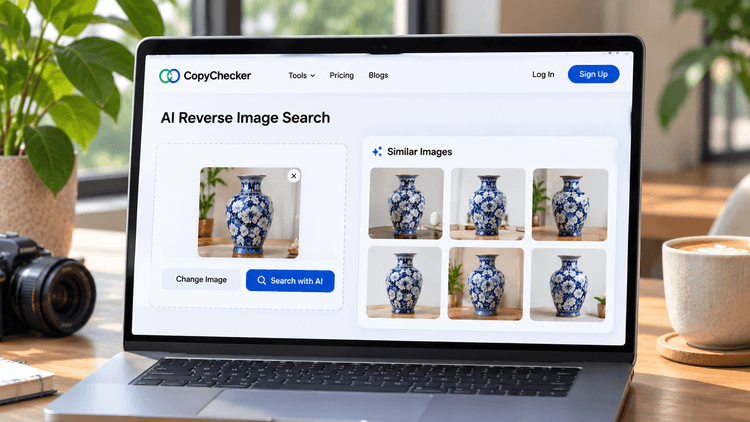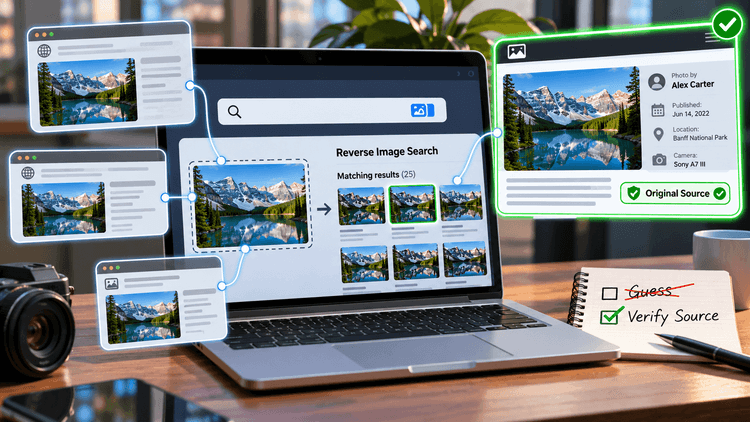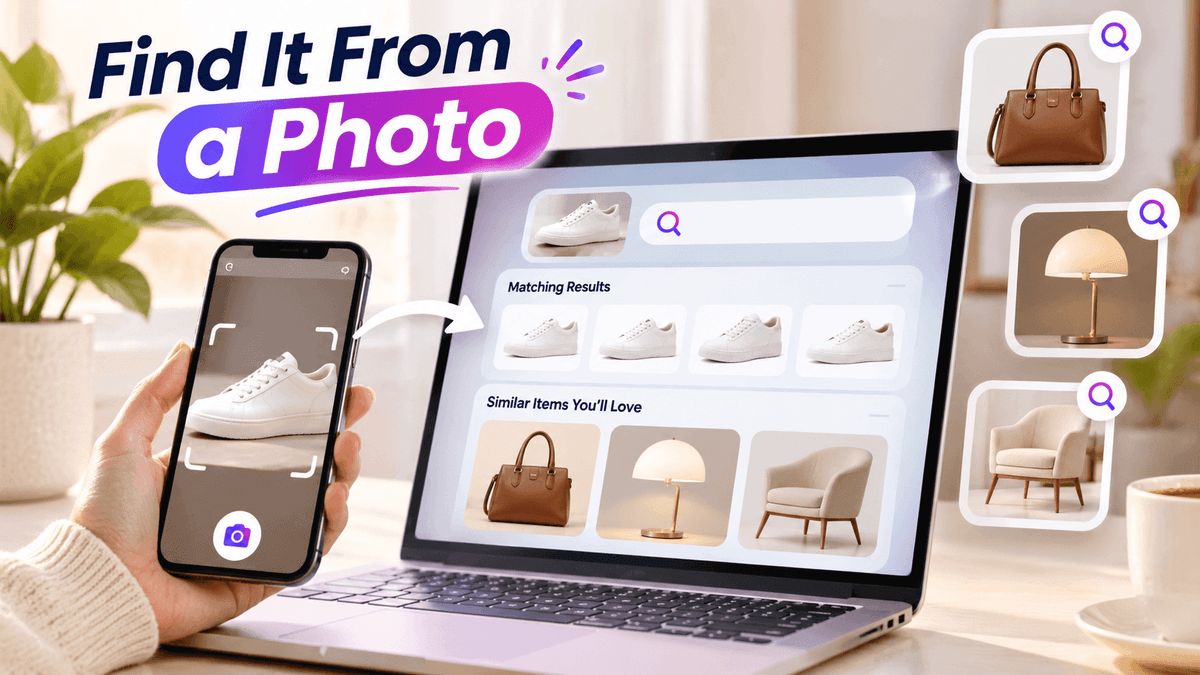
You see a pair of sneakers in a TikTok video.
The design is exactly what you've been looking for, but the creator hasn't mentioned the brand.
There's no shopping link, and searching for "white sneakers with blue stripes" brings up hundreds of unrelated shoes.
Sound familiar?
Fortunately, you don't need to know a product's name to look for it online.
To search for a product using a picture, upload the photo to an AI reverse image search tool or Google Lens, crop around the item, and review the matching results.
You can then compare identifying details to find the exact product, discover similar alternatives, and locate stores that might sell it.
This is particularly useful for clothing, shoes, furniture, accessories, and electronics discovered through social media.
The important part isn't simply finding something that looks similar. It's knowing how to tell whether you've found the right product and where you can safely buy it.
But before getting into the steps, there's something worth understanding -
Can You Find a Product Using Only a Picture?
Yes. A photograph or screenshot can provide enough visual information to help identify a product, even when its name, brand, or model number is unknown.
Image search tools analyze characteristics such as shapes, colors, patterns, logos, textures, and distinctive components.
They use that information to find related images and webpages.
For example, imagine you have a screenshot of a brown leather handbag from Pinterest.
If the post has no product details, searching beyond Pinterest may reveal additional places where the photograph appears.
A picture search might reveal the same photograph on several websites, a different photograph of what appears to be the same bag, or dozens of similar designs from other brands.
These results aren't necessarily interchangeable.
There are four kinds of matches worth understanding:
| Match Type | What it Means | How Useful it is |
|---|---|---|
| Exact image match | The same photograph appears elsewhere online | Useful for tracing listings and image sources |
| Possible exact product match | A different photograph appears to show the same model | Useful when identifying the item, but requires verification |
| Visually similar product | An item shares the same general design or appearance | Useful for finding alternatives |
| Related source or retailer | A webpage contains the photograph or associated product information | Useful for investigating brands, sellers, and availability |
So, if your handbag search brings up ten similar designs, don't assume you've found the original just yet.
The right match should have identifying details that you can verify.
And it's not just handbags.
People are increasingly using pictures to look up everything from sneakers and outfits to furniture and electronics, often because they've seen something they like but don't know what it's called.
That growing habit helps explain why visual search has become such a useful part of online shopping.
Why Searching With a Picture Is Becoming Popular?
Shopping often starts with seeing something rather than knowing what to search for.
According to Google's published search-trends research, Google Lens handles more than 25 billion queries per month, and approximately one in five Lens searches shows commercial intent.
It's easy to see why.
Someone might spot a jacket in a YouTube video, a stylish lamp in a home tour, or a backpack in an Instagram post without ever learning the product's name.
Instead of trying to describe every detail in a text search, they can simply use the picture to look for a match.
But there's a catch.
Not every picture will lead to the exact product you're looking for.
A blurry screenshot, a busy background, or an image that hides important details can make it harder to find a reliable match.
Results also depend on whether relevant product photographs and listings are available online.
Fortunately, you can improve the starting point before running a search.
A few simple adjustments can help the tool focus on the product rather than everything surrounding it.
Let's start with preparing your picture.
How to Choose the Right Picture for Product Search
The picture you choose can make a difference in what you find.
A clear photo that focuses on the product gives an image search tool more useful details to work with, while a blurry screenshot or cluttered background may lead to unrelated results.
For example, if you're trying to find a handbag from an Instagram photo, the search may focus on other objects in the scene.
And if the handbag's logo or distinctive design is blurry, it can be harder to tell which results show the same item.
Fortunately, you don't need professional photography or editing skills to improve your picture.
A few simple adjustments can make the product easier to recognize and help you narrow down potential matches.
Start with the most important one.
1. Use the Clearest Version of the Picture
Start with the original photograph if you have it.
Otherwise, use the highest-quality screenshot available.
When the picture is on your phone, searching from your camera roll can save you from repeatedly resaving it.
A blurry image might still show the overall shape of a handbag, but it could hide the logo, stitching, or hardware that distinguishes it from similar designs.
For example, two pairs of running shoes might look nearly identical from a distance.
Their sole patterns, tongue labels, or small logos may reveal that they're different models.
Avoid adding filters or repeatedly enlarging a low-resolution picture.
These changes can distort useful identifying details.
2. Crop Out Unrelated Objects
Imagine you've saved a photograph of a brown leather handbag from a café, but the picture also includes a coffee cup, flowers, furniture, and other background details.
If you search using the entire photograph, the tool might focus on those surrounding objects instead of the handbag you're trying to identify.
To avoid this, crop the picture so the handbag becomes the main subject.
Make sure its handles, straps, buckle, and other distinctive details remain visible.
The example below shows how removing unnecessary background elements can help you focus your search on the product itself.
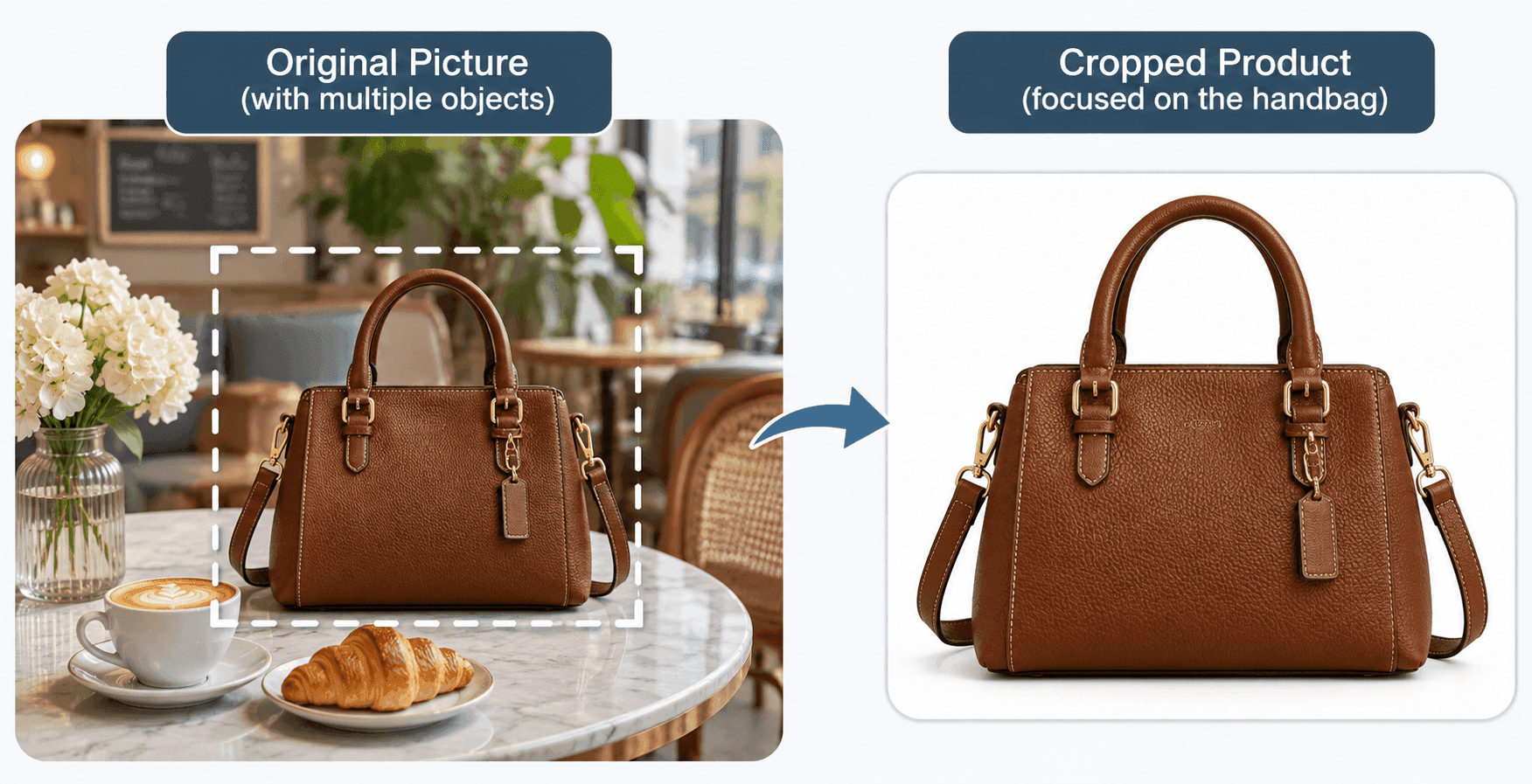
Figure 1: Cropping away unnecessary objects helps focus a picture search on the product you're trying to identify.
Once you've cropped the picture, you can use it for your initial search.
But if the results still aren't specific enough, there's another simple adjustment worth trying.
3. Save a Second Crop Showing a Distinctive Detail
Sometimes, the overall product shape isn't enough to find the right match.
A close-up of a brand logo, jacket button, furniture joint, shoe sole, or bag buckle may reveal something not immediately noticeable in a full-product photo.
For this reason, try keeping two versions of the picture: one showing the entire product and another focusing on its most recognizable detail.
If there's a visible label or model number, make sure the text remains readable.
You can also search for that information separately if the image results don't lead to a clear match.
Once you've prepared your picture, the next step is actually to search for the product online.
There are several tools that let you search using an image instead of typing a product name.
We'll walk through two options: CopyChecker AI Reverse Image Search and Google Lens, starting with CopyChecker.
How to Search for a Product Using CopyChecker AI Reverse Image Search
If you've saved a product picture from Instagram, Pinterest, TikTok, or a shopping website, CopyChecker AI Reverse Image Search can help you find matching photographs, visually similar products, and related webpages.
You don't need to know the brand or product name beforehand. Simply upload the picture you've prepared and examine the available results.
Here's how to do it, step by step.
Step 1: Open CopyChecker AI Reverse Image Search
Go to CopyChecker's AI Reverse Image Search on your phone or computer.
On the main page, you'll find an image upload area where you can select a photograph from your device.
You can also paste an image URL if the picture is already available online.
The tool supports common formats, including JPG, PNG, WEBP, and GIF.
As shown below, both options are available in the upload section, so you can choose whichever is more convenient for your picture.
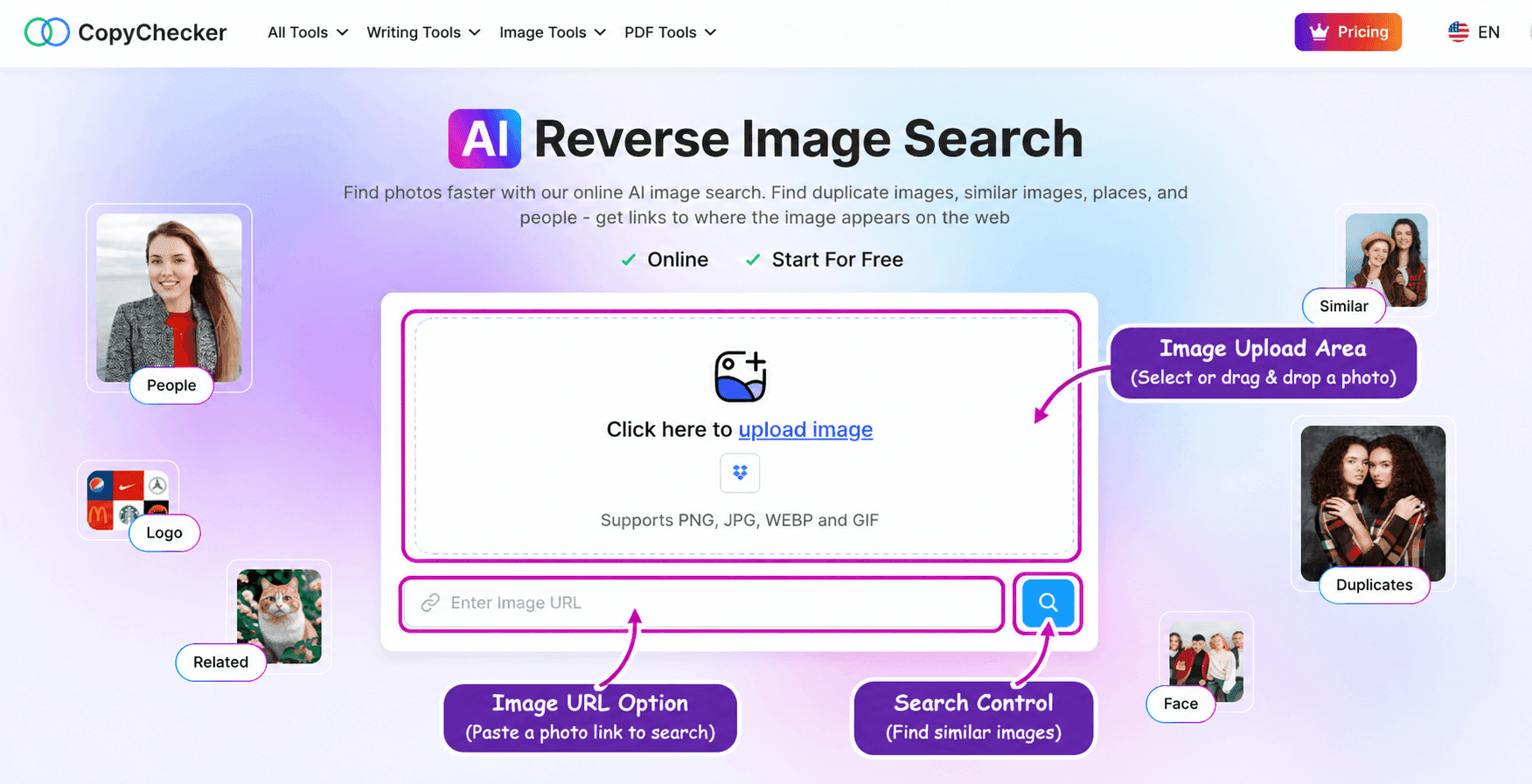
Figure 2: Open CopyChecker and upload the photograph of the product you want to find.
Once you've opened the tool, you're ready to upload the product picture you prepared earlier.
Step 2: Upload Your Product Picture
Click the upload option and select your saved photograph.
If prompted, complete the required image consent step, then select AI Search to begin.
For example, suppose you've saved a picture of a pair of white sneakers but don't know their exact model.
You can upload that photograph to CopyChecker and look for images showing the same shoes or similar designs.
In our example, we used a photograph of a white Nike Air Force 1 sneaker.
Its recognizable Swoosh, perforated toe box, and distinctive sole provide useful visual details for identifying possible matches.
Once the search is complete, the next step is to examine the results and see whether they lead to the product you're looking for.
Step 3: Look Through the Matching Results
Once the search is complete, CopyChecker displays the available results across different categories, including duplicate images, visually similar images, and websites.
Start by exploring these categories to see whether any results resemble the product you're looking for.
For example, when we searched for the white Nike Air Force 1 sneaker, the Websites tab displayed several photographs of similar-looking white sneakers, along with links to related webpages.
Some results appeared to show the same sneaker design, while others featured slightly different versions of the Nike Air Force 1.
As shown in the screenshot below, you can examine the product photographs and webpage titles to identify possible matches and sources worth investigating.
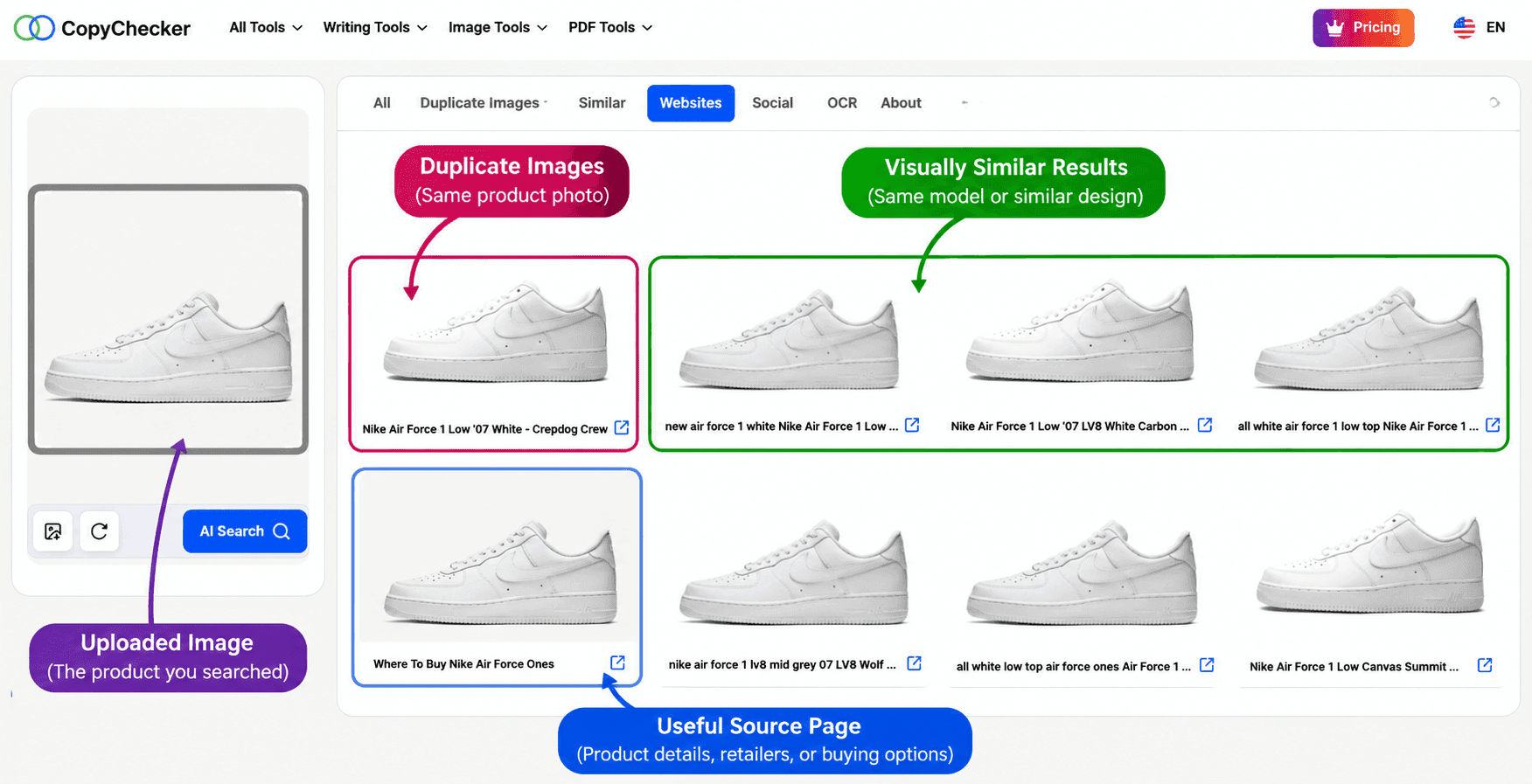
Figure 3: Review the available image matches and source pages to identify possible products and sellers.
However, don't assume that every white sneaker appearing in the results is the exact model you searched for.
Look beyond the overall color and shape.
Compare recognizable details such as the Nike Swoosh, perforated toe box, sole design, and any available product information.
A matching photograph can help you discover where an image appears online, while a visually similar result might lead you to another version of the sneaker.
But finding a convincing picture is only the beginning.
To determine whether you've identified the right product, you'll need to examine the information on the linked webpage.
Step 4: Open Relevant Product or Source Pages
When you notice a promising match, open its linked webpage in a new tab.
Look for identifying information such as the brand, official product name, SKU, model number, color, and specifications.
Compare those details with your original photograph.
For clothing and accessories, pay attention to stitching, labels, hardware, and patterns. For electronics, compare ports, dimensions, and model markings.
Step 5: Repeat the Search With a Different Crop if Needed
If the results contain lots of unrelated items, try searching again.
For instance, a broad search for a sneaker might reveal hundreds of shoes with the same color combination.
A closer crop showing the shoe's logo or sole pattern might provide a more distinctive visual clue.
You can also try a different photograph of the same item.
Changing the crop is also useful when you need to find similar images with AI, since a close-up can emphasize details that the full picture hides.
Once you find a promising match, open the product page and compare its brand, model, and design details with your original picture.
This will help you determine whether you've found the same item or just something similar.
Want to try it with your own picture?
Search your product image with CopyChecker and explore the matching results.
But what if you want to search for a product you've spotted while browsing on your phone or computer, without going through a separate upload process?
That's where Google Lens offers another convenient option.
It lets you search for products directly from your camera, saved pictures, or webpages.
How to Find a Product Using Google Lens
Google Lens lets you search for products using your phone's camera, a saved photograph, or an image displayed on a webpage.
This can be particularly useful when you come across something interesting on Instagram, Pinterest, or a shopping website but don't know its name or brand.
Instead of trying to describe the item in words, you can select it from a picture and let Google Lens look for visually related images, possible product matches, and relevant webpages.
For example, imagine spotting a brown leather handbag in a café photograph.
Even though the picture contains other objects, you can use Google Lens to focus on the handbag and explore similar designs.
Here's how to do it on your phone or computer.
How to Search by Image on an iPhone or Android
Suppose you've saved a photograph of a brown handbag but don't know where it's sold.
You can use Google Lens to investigate it in a few steps:
- Save a clear screenshot of the lamp or photograph it directly.
- Open the Google app and tap the Google Lens camera icon.
- Choose the image from your gallery or use your camera.
- Adjust the selection area so it focuses on the lamp.
- Review the images, related information, and available shopping results.
- Open promising product pages to check the details.
If Google Lens returns too many unrelated handbags, try refining the search using a descriptive phrase.
For example, you could search for brown structured top-handle handbag with gold clasp and detachable shoulder strap.
Adding these details may help narrow down the results, especially when several handbags share a similar color and shape.
Google's official image-search instructions explain the available methods, although the interface and shopping features may vary by device and location.
You can also perform a similar search on your computer, which is particularly convenient when the photograph is already saved there.
How to Search by Image on a Desktop
If the product picture is already on your computer, you can search without transferring it to your phone.
To search a saved image:
- Open Google.com.
- Click the camera-shaped Search by image icon.
- Upload the photograph containing the product.
- Adjust the image selection if that option is available.
- Review the matching images and related webpages.
For our example, we uploaded a café photograph showing a brown leather handbag.
Google Lens returned several visually similar handbags from different websites.
Some shared the handbag's structured shape, brown color, and gold hardware, while others had noticeable differences in their handles, clasps, or overall design.
The screenshot below shows the selected handbag in the search bar and the related image results displayed by Google.
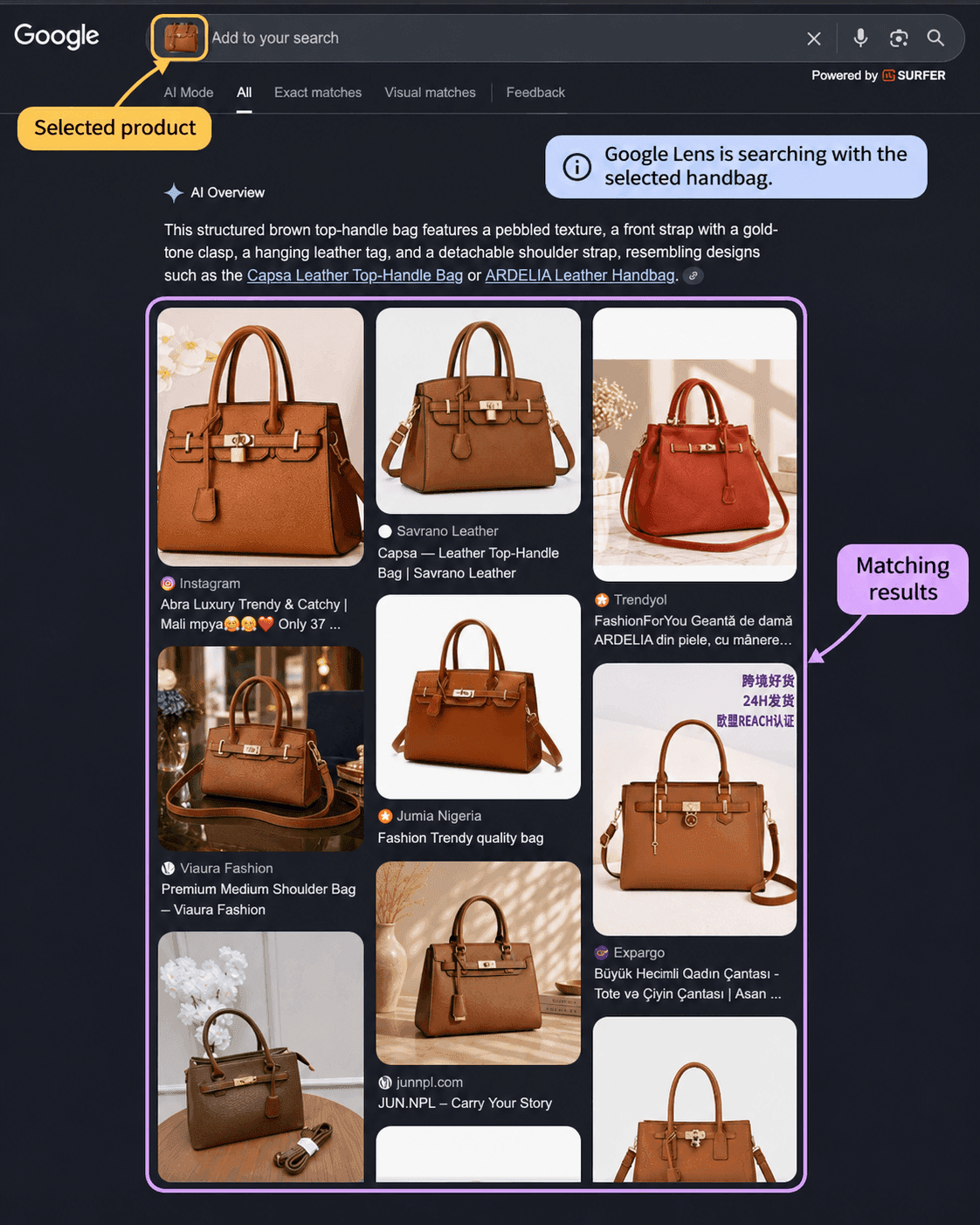
Figure 4: Google Lens displays visually similar handbags and related webpages after searching with a selected product image.
These results provide useful starting points for investigating possible products, but they don't automatically confirm the handbag's brand or exact model.
If the product appears on a webpage you're browsing with Chrome, you can also use Search with Google Lens to investigate it without first saving the image.
Chrome's Lens feature can let you select a specific portion of a webpage, making it useful when a photograph contains several products.
For the desktop selection controls, refer to Google's official Search with Google Lens in Chrome instructions.
By now, you've seen how to search for a product using both CopyChecker and Google Lens, whether you have a saved picture or want to investigate something you've spotted online.
But since both tools can help you discover matching and visually similar products, you might be wondering which one is more suitable for your situation.
The answer depends on where your picture comes from and what you're trying to find.
Which Should You Use: CopyChecker or Google Lens?
Both approaches can help you investigate an unknown product, but they offer different workflows.
Google Lens is convenient for selecting objects from your phone's camera, saved photographs, or webpages.
CopyChecker is an alternative when you want to upload an image and investigate visually similar photographs, duplicates, and potential source webpages.
A useful strategy is to start with whichever fits your situation.
If you're browsing on your phone, try Lens.
If you have a saved photograph and want to investigate where matching images appear, try CopyChecker.
When the first search doesn't identify the item reliably, use the other service to gather more evidence.
The differences between AI reverse image search and Google Lens are easier to understand when you compare their image-upload, selection, and result-review workflows.
Whichever tool you use, finding a picture that looks like your product is only part of the process.
Two items can have almost identical colors and designs while belonging to completely different brands or product lines.
So, before you follow a shopping link or decide you've found the right item, it's worth taking a closer look at what makes the products identical or different.
How to Tell an Exact Product Match From a Similar Item
Finding a product that looks like the one in your picture is a good start, but it doesn't necessarily mean you've found the exact item.
Two products can share the same color, shape, and overall design while having different model numbers, materials, or construction details.
Remember the white Nike Air Force 1 sneakers we searched for earlier?
Several shoes may look similar in image-search results, but that doesn't mean they're all the same model or colorway.
The same applies to handbags, furniture, clothing, and electronics.
So, before treating a search result as an exact product match, compare its identifying information and at least three distinctive physical details.
Here's what to check.
Look for Brand and Model Information
Start by looking for the manufacturer's name, model number, or SKU on the product listing.
These details can help distinguish products that look nearly identical, especially when a brand offers several versions of the same design.
For example, when we searched for the white Nike Air Force 1 sneaker using Google Lens, we found related sneaker results and then checked the official Nike product listing for verification.
The listing identified the product as Nike Air Force 1 '07, with the White/White colorway and style code CW2288-111.
As illustrated below, comparing the search result with the manufacturer's listing provides more useful evidence than relying on the sneaker's appearance alone.
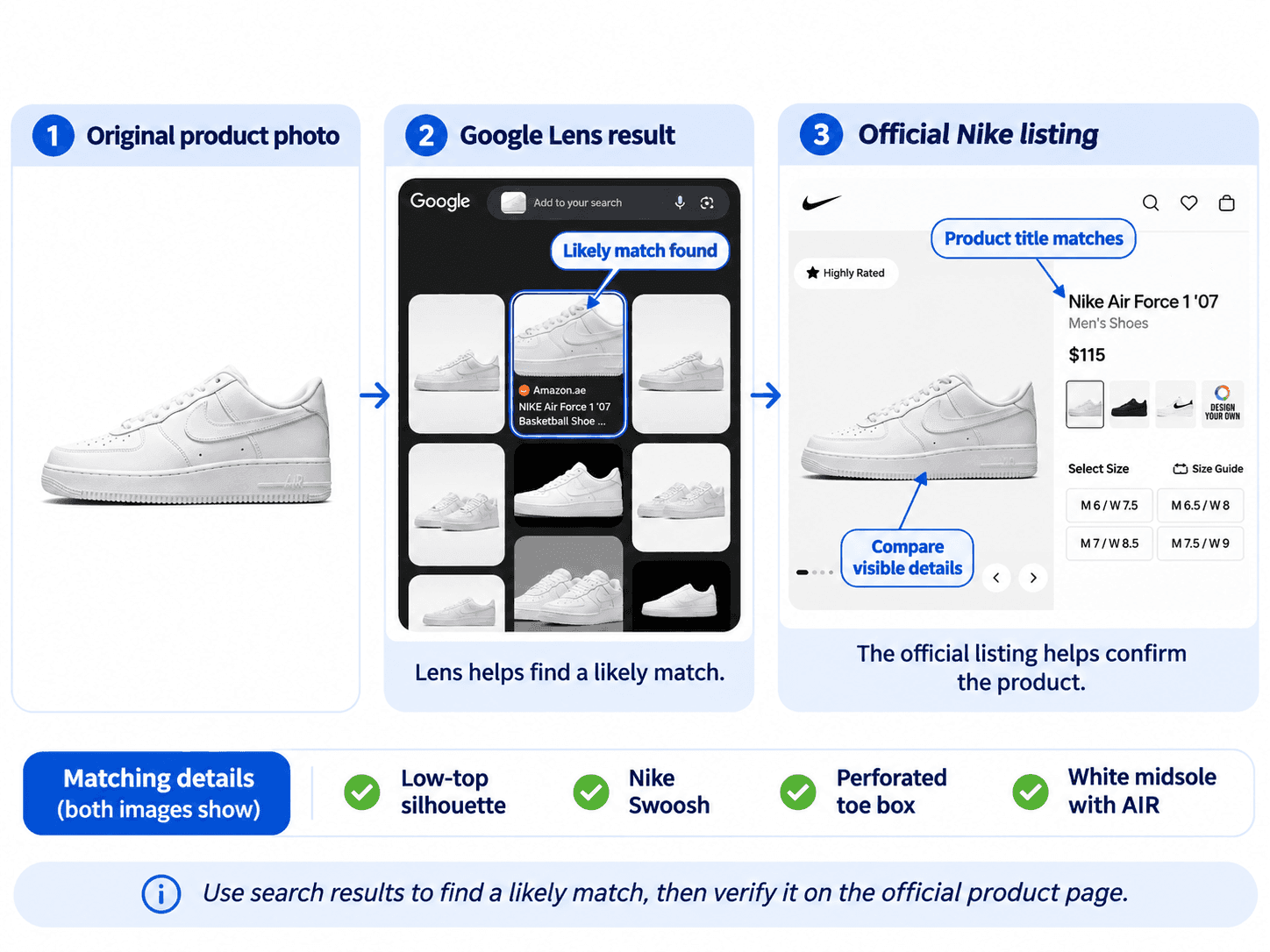
Figure 5: Product identity is more convincing when model information and distinctive physical details agree.
If you find a possible model number for another product, search it separately and check whether the manufacturer's specifications match the item you're trying to identify.
Compare the Product's Physical Details
Once you've found a possible model, take a closer look at the product's design.
Don't rely only on its overall shape or color. Small differences are often what separate one product from another.
For example:
- Clothing: Compare collars, stitching, seams, buttons, and fabric patterns.
- Shoes: Examine the outsole, tongue label, eyelets, and logo placement.
- Handbags: Check buckles, zippers, strap attachments, stitching, and hardware.
- Electronics: Compare ports, buttons, dimensions, and component placement.
To see why these details matter, consider the two brown handbags shown below.
Both have a similar structured shape, top handles, and brown finish. At first glance, they might appear to be the same style.
However, one features gold-colored hardware and a particular front-panel design, while the other has a different buckle arrangement and stitching pattern.
These differences suggest that the bags shouldn't be treated as the same model simply because they look alike.
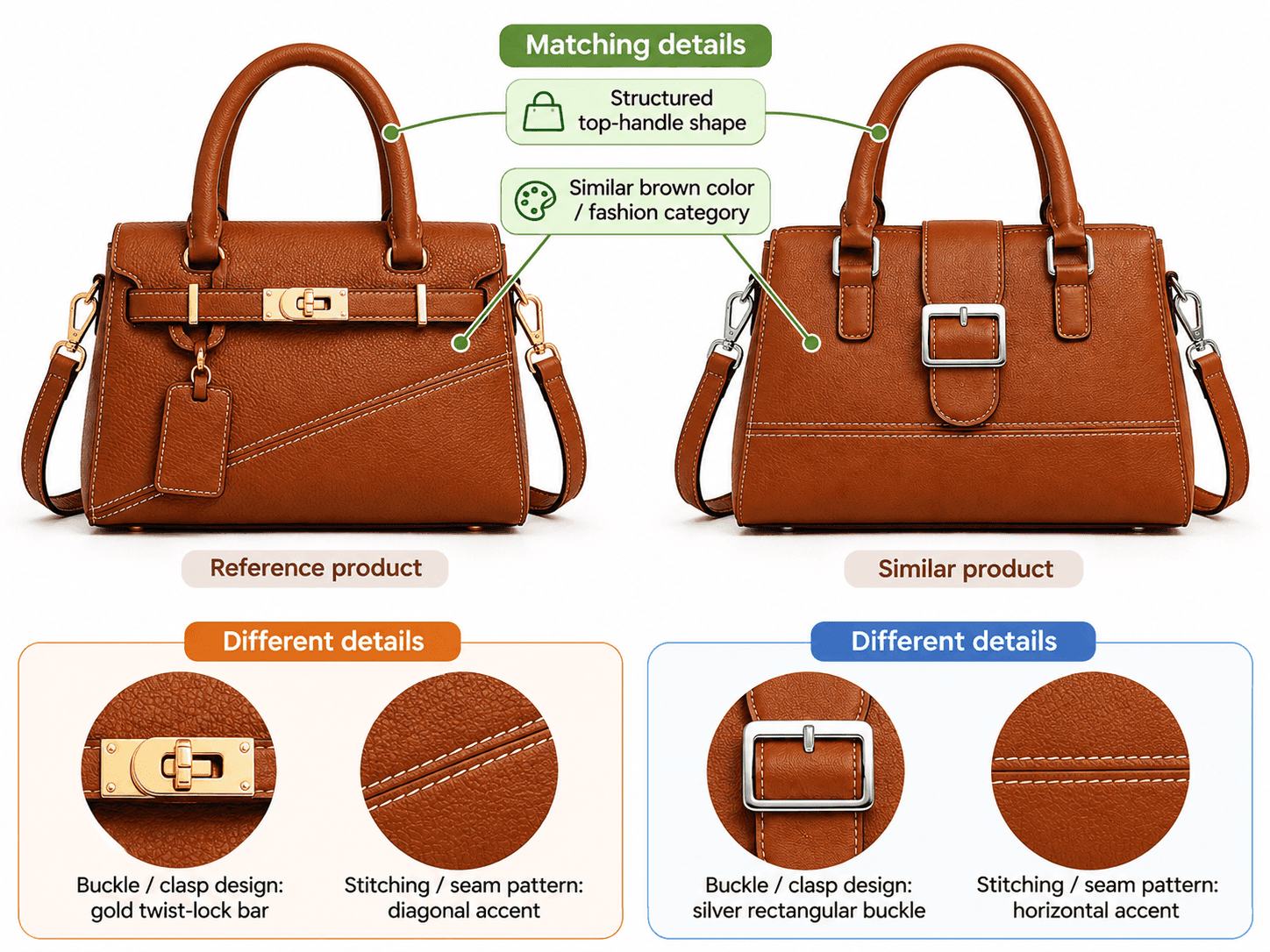
Figure 6: Similar colors and shapes do not necessarily mean two items are the same model.
This is an illustrative comparison of two product designs, not a verified comparison of real retailer listings.
When examining your own search results, use the same approach: identify the features that match, then look for differences that could indicate another model or variation.
Check Measurements and Materials
Visual details are useful, but they don't always tell the whole story.
Two chairs might look nearly identical in photographs but have different dimensions, materials, or construction.
Similarly, a handbag that appears to be made of genuine leather might actually use a synthetic material, while two comparable tables could differ significantly in size.
If a product listing provides measurements, materials, weight, or other specifications, compare them with any reliable information you have about the original item.
The more identifying details that agree, the stronger the evidence that you've found the right product.
However, remember that even a convincing visual match doesn't automatically establish a product's authenticity or the reliability of the seller.
Once you've identified a likely match, the next step is finding out where it's sold, whether it's available, and whether the retailer can be trusted.
How to Find Where a Product Is Sold, Its Price, and Availability
Once you've identified a possible match, the next step is to find a reliable place to buy it.
An image search might reveal the same item on a brand's website, an online marketplace, a reseller's store, or even an old catalog.
However, appearing in image results doesn't mean a product is currently available.
Here's how to narrow down the options.
Start With the Official Brand Website
If you can identify the manufacturer, visit its official website and search for the model.
This can help you confirm the product name, specifications, and available variants.
It may also reveal that the product has been discontinued or replaced with a newer model.
Compare the Exact Product Variant
Imagine finding the jacket you wanted on two different websites.
One offers the navy version from your screenshot. Another sells the same style in black.
The product name may be identical, but the colorway isn't.
Check the size, color, material, product number, and other available options before making a decision.
Check the Current Price and Stock
Don't assume that the price displayed in an image-search result is still accurate.
Open the retailer's live product page and confirm its latest price, stock status, and shipping destination.
For US shoppers, compare the total amount in USD, including shipping and applicable taxes.
For example, a lower-priced product may end up costing more once delivery fees are included.
Verify the Seller Before Paying
Even if a product photograph looks identical to the one you searched for, that doesn't guarantee the retailer is legitimate.
Before placing an order, check whether the website provides clear contact information, a return policy, secure payment options, and reliable customer support.
It's also worth looking for independent customer reviews, especially when buying from a store you're unfamiliar with.
Be particularly cautious when a seller advertises a popular product at an unusually low price or provides very little information about the business.
The Federal Trade Commission's online-shopping guidance offers additional advice on researching unfamiliar sellers and avoiding common shopping scams.
To make these checks easier, the example below highlights the important details to look for on a product page, including the model number, price, stock status, shipping costs, return policy, and seller information.
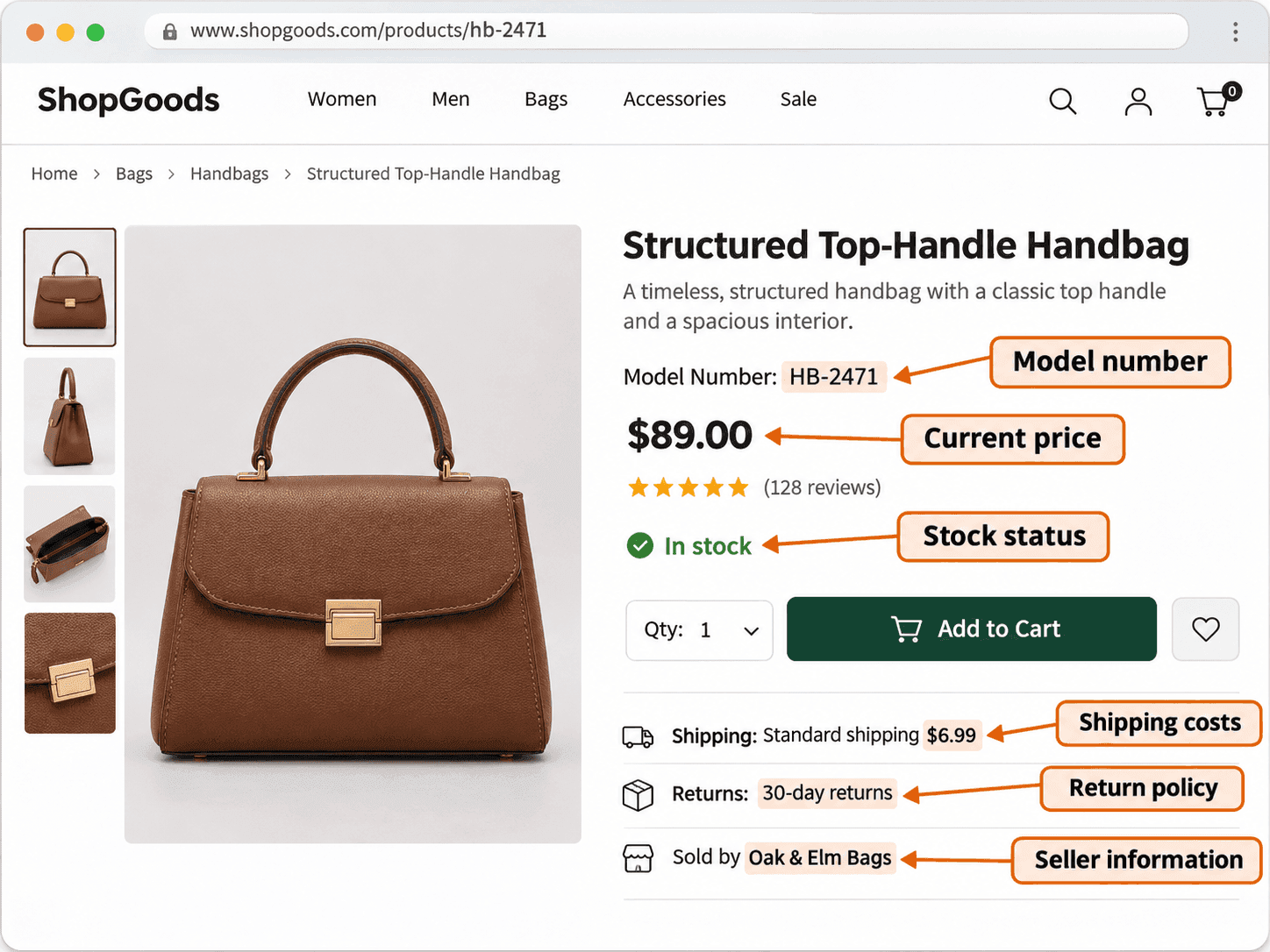
Figure 7: Check the details on a live retailer page before making a purchase.
The image is an illustrative product-page example.
Actual prices, availability, and retailer policies should always be confirmed on the live website.
By following these steps, you can move beyond simply finding a matching photograph and make a more informed decision about where to buy the product.
But what if you've checked several websites and still can't find the exact item?
It might be discontinued, sold under another name, available only in certain regions, or missing from the search results you've explored.
Before giving up or settling for a similar-looking alternative, there are a few other ways to continue your search.
What to Do When the Exact Product Is Not Found
Sometimes you can search a picture several times and still end up with unrelated products.
That doesn't necessarily mean you're doing something wrong.
The item may be discontinued, handmade, sold only in certain regions, or absent from the image-search service's available results.
When this happens, try changing your approach.
Try the Full Product and a Close-Up
If you've been searching with a close crop, switch to an image showing the whole item.
The overall silhouette might be more recognizable than a small design detail.
If you've only searched the complete product, try focusing on the logo, pattern, or unusual component.
These two searches may surface different clues.
Search the Text Visible in the Picture
Look for model numbers, tags, logos, packaging information, or printed text.
If you can read an identifying number, search it alongside the product category.
A visible barcode may also help if you can read or scan it and find a matching product record.
Combine the Category With Distinctive Keywords
When image searching isn't enough, use the visual clues to write a more specific text query.
For example, rather than searching for women's handbag, try:
Tan leather crossbody bag with brass buckle and diagonal stitching
For furniture, include details such as the leg shape, material, and approximate dimensions.
For electronics, search the brand alongside a visible model marking or distinctive design feature.
Search Other Platforms
Some items appear in online catalogs, resale marketplaces, or manufacturer archives that your first search doesn't reveal.
Try another search tool or search directly within a marketplace.
Different AI reverse image search tools can surface different types of matches, so another service may provide clues your first search missed.
Consider Older or Region-Specific Products
Some products are no longer sold through regular retail stores, while others were released only in particular countries or collections.
If you're looking for a vintage jacket or discontinued sneaker, try adding words such as vintage, discontinued, old collection, or an approximate release year to your search.
You may discover an archived product listing, an older catalog, or a secondhand seller that provides more information about the item.
If you have another photograph or a clearer crop, you can also repeat the image search with CopyChecker to investigate additional matches.
The important thing is to adjust your search based on what the picture actually shows.
A visible logo might help identify branded footwear, while an unusual shape or pattern may be more useful when searching for unbranded clothing or furniture.
This also explains why two product pictures can produce very different search results, even when you use the same tool.
To make those differences easier to understand, let's look at six common types of product images and the challenges each one presents.
Six Product-Image Cases That Show Why Search Results Vary
By now, you've seen how to search for a product using a picture, improve your search results, and check whether you've found the right item.
But there's something else worth understanding: not every product picture is equally easy to search.
Some photographs contain recognizable logos, model numbers, or unique design features that make a product easier to identify.
Others show generic items, distracting backgrounds, or only a small part of the product, which can make finding an exact match more challenging.
That's why the same search method might lead to a useful product listing for one picture but mostly similar-looking alternatives for another.
To see how these differences affect your search, let's look at six common product-image situations, starting with one that often provides several useful identifying clues.
Case 1: Branded Sneakers With a Visible Logo
A clear photograph of branded footwear provides several possible identifiers: the logo, silhouette, outsole pattern, and colorway.
A useful search result would identify the brand and potentially the exact model.
However, different sneaker releases can share similar designs, so you should still compare the SKU and colorway.
Case 2: An Unbranded Clothing Item
Imagine searching for a beige knit cardigan without a visible label.
There may be many visually similar products from different retailers.
In this situation, finding a close alternative might be easier than proving which brand manufactured the original garment.
Compare the knit pattern, button arrangement, cut, and material.
Case 3: A Coffee Table Photographed in a Living Room
Furniture can be difficult to isolate when the original image includes many objects.
Cropping away the surrounding room may help focus the search.
If you find a promising match, compare the table's leg construction, surface material, and dimensions.
Case 4: An Electronic Device With a Model Marking
Some gadgets have nearly identical designs across several generations.
A visible model number, port arrangement, or button layout can help distinguish one version from another.
For electronic products, check the official specifications before deciding that you've found the correct model.
Case 5: A Close-Up of a Product Detail
A photograph showing only a patterned fabric, buckle, or component may help identify a distinctive design.
But without the full item, it can be harder to establish which product the detail belongs to.
Search the detail and the whole product separately when possible.
Case 6: A Screenshot From Social Media
A screenshot may include captions, buttons, usernames, and unrelated objects.
Removing this surrounding interface helps make the intended product more prominent.
If the post also provides a caption or product-related hashtag, use those words to refine the search.
Comparing CopyChecker and Google Lens Across These Cases
As you've seen from the six examples, the details visible in a product photograph can make a difference in what a search tool is able to find.
But does that mean CopyChecker and Google Lens will return the same results for every picture?
Not necessarily.
Both tools can help you investigate products, but the images and webpages they surface may differ depending on the product, image quality, and available sources.
To compare them fairly, the same six pictures should be searched using both services, with the results checked for exact product matches, similar alternatives, and useful retailer or source pages.
The table below outlines what needs to be verified for each image type.
The actual search outcomes haven't been tested yet, so they're marked accordingly.
| Image Case | CopyChecker Result Type | Google Lens Result Type | Exact Match Found? | Useful Retailer/Source Page? | Notes or Verification Needed |
|---|---|---|---|---|---|
| Branded footwear | Not yet tested | Not yet tested | Unverified | Unverified | Compare SKU, logo, and colorway |
| Unbranded clothing | Not yet tested | Not yet tested | Unverified | Unverified | Compare pattern, cut, and material |
| Furniture in a room | Not yet tested | Not yet tested | Unverified | Unverified | Compare construction and dimensions |
| Electronics | Not yet tested | Not yet tested | Unverified | Unverified | Verify manufacturer and model number |
| Cropped detail | Not yet tested | Not yet tested | Unverified | Unverified | Confirm the detail belongs to the same item |
| Social media screenshot | Not yet tested | Not yet tested | Unverified | Unverified | Remove interface elements and check sources |
When comparing the results, the most important question isn't which tool displays more pictures.
It's whether those results help you identify the product, confirm its details, or find a relevant source.
For a fair comparison, use the same image and crop in both tools, record the search date and device, and check the linked pages before classifying the matches.
Even then, six searches can only show what happened with those particular pictures.
They can't establish how accurately either service performs across every product category.
And while choosing the right tool and preparing a clear picture can help, the way you interpret the results matters just as much.
It's surprisingly easy to mistake a lookalike for the original product, overlook an important detail, or trust a shopping listing simply because the photograph looks familiar.
Before you make a purchase, let's go through some common mistakes worth avoiding.
Common Mistakes When Searching for Products by Picture
Even with a clear photograph and the right image search tool, finding the exact product isn't always straightforward.
Sometimes, the search results look so convincing that you might assume you've found the right item without checking further.
Other times, a small mistake, such as using a blurry screenshot, including too many objects in the picture, or overlooking a product detail, can lead you toward completely different results.
And the mistakes don't always happen during the search itself.
You might identify the correct product but end up on an unreliable shopping website or choose a similar-looking version without realizing the difference.
Fortunately, most of these problems are easy to avoid once you know what to look for.
Let's go through the most common mistakes people make when searching for products using pictures, starting with one that's particularly easy to overlook.
1. Trusting the First Result
The first image in your search results might look exactly like the product you want, but that doesn't necessarily mean it's the correct match.
Search results can include visually similar products, reused photographs, or different versions of the same item.
Before making a decision, compare the brand, model number, and distinctive design details.
Checking a few additional results can also help you determine whether the product identification is consistent.
2. Searching with A Tiny Screenshot
A small or blurry screenshot might hide the very details you need to identify a product.
For example, two pairs of sneakers may look identical at first glance, but their logos, sole patterns, or model labels could reveal important differences.
Whenever possible, use a clearer photograph or a higher-resolution screenshot that shows these features.
3. Leaving Multiple Objects in the Image
When a photograph contains several products, an image search tool may focus on something other than the item you're trying to find.
Imagine searching for a handbag from a fashion photograph that also shows a jacket, sunglasses, and shoes.
The results might include those accessories rather than the handbag itself.
Cropping around the product helps make your intended search subject clearer.
4. Comparing Only Colors
Two products can share the same color and general appearance while being completely different items.
A black leather jacket, for instance, might look similar to another one but have different stitching, zippers, materials, or proportions.
Instead of relying on color alone, compare the details that distinguish one product from another.
5. Confusing Image Matches with Authenticity
Finding the same product photograph on several websites doesn't prove that every listing is genuine.
Images can be reused by different retailers, including sellers offering imitations or unrelated products.
Treat matching photographs as clues, then check the manufacturer's information and the seller's reputation before purchasing.
6. Buying from an Unfamiliar Retailer Without Checking
Even if you've identified the correct product, the website offering it may not be trustworthy.
Before placing an order, look for clear contact information, reasonable return policies, secure payment methods, and independent customer feedback.
Be particularly cautious when an unfamiliar retailer advertises a popular product at an unusually low price.
7. Assuming Visual-Search Results are Comprehensive
Just because a product doesn't appear in your search results doesn't mean it isn't available somewhere online.
Some retailers may not have publicly searchable product photographs, while discontinued, handmade, or region-specific items might be difficult to locate.
If your first search doesn't help, try another picture, a different search tool, or descriptive keywords based on the product's distinctive features.
Avoiding these mistakes can help you identify products more confidently and reduce the chances of following misleading results or buying the wrong item.
But another consideration's easy to overlook.
The pictures you use for searching may contain personal information or belong to someone else.
So, before uploading a photograph or reusing one you've discovered online, it's worth understanding a few basic privacy and copyright precautions.
Privacy, Copyright, and Safe Use of Product Images
Before uploading a photograph, consider whether it contains personal or sensitive information.
A product screenshot from a public shopping page is generally different from a private photograph showing someone's address, family members, or confidential documents.
Crop out information that isn't relevant to the product search.
Also, only upload images you're authorized to use or lawfully analyze, and review the privacy terms of the search service when appropriate.
If you later want to publish a product photograph on your own website, remember that finding it through reverse image search doesn't automatically grant permission to reuse it.
The image may still belong to the photographer, retailer, or another rights holder.
If you're investigating where a product photograph originated, our guide on how to find the original source of an image explains how to examine matching webpages and source clues.
Final Checklist for Finding a Product From a Picture
Before deciding you've found the right product, make sure you've checked the following:
- The original picture is clear enough to show useful details.
- Unrelated objects have been removed from the search area.
- Both full-product and detail crops have been tried where useful.
- Exact-looking matches have been separated from similar alternatives.
- Brand, model, SKU, or distinctive product features have been compared.
- The live retailer page confirms the correct variant and availability.
- Current pricing, shipping fees, and return conditions have been checked.
- The seller's legitimacy has been investigated before payment.
You don't always need to complete every possible search.
But when you're considering buying something expensive, rare, or difficult to return, these checks are particularly worthwhile.
FAQs
Can I Take A Picture of Something and Find it Online?
Yes. Take a clear photograph, upload it to Google Lens or an AI reverse image search tool, and review the results. You may find an exact item, visually similar products, or webpages that provide useful identifying information.
How Do I Find the Exact Product From A Photo?
Start with a focused photograph and look for identifying details such as a logo, model number, SKU, and distinctive construction features. Compare promising matches with the manufacturer's specifications or official product listing.
Can Google Lens Identify A Product and Show Where to Buy it?
Google Lens can help recognize products and may display shopping information or links to retailers. Available results vary by product, location, and device. Confirm the price and stock on the actual retailer website.
Can I Search for Clothes or Shoes Using A Screenshot?
Yes. Crop the screenshot around the clothing or footwear and upload it to an image search service. Visible logos, patterns, fabric details, and shoe construction can help you find possible matches.
Why Does Image Search Show Similar Products Instead of the Exact Item?
The original product may not have a searchable photograph online, or the image may lack enough identifying detail. Generic products can also look very similar. Try a clearer picture, a different crop, or a text search using visible identifiers.
How Can I Verify that Two Product Photos Show the Same Model?
Compare the manufacturer, model or SKU, measurements, materials, and at least three distinctive design details. Use official product information when possible, particularly for products with similar versions or colorways.
Can I Find a Discontinued or Vintage Product from A Picture?
Sometimes. An image search may reveal older listings, archived photographs, catalogs, or resale pages. Adding terms such as vintage, discontinued, or an approximate release year can help narrow the search.
Find the Product You Want Without Knowing Its Name
You don't need a brand name or shopping link to start looking for something you've seen online.
A clear picture, a focused crop, and the right visual search workflow can help you move from an unidentified item to a possible product match.
The final step is checking the model details, seller, price, and availability before making a purchase.
And when the exact item isn't available, the same process can help you discover alternatives that fit the style you're looking for.
Try CopyChecker AI Reverse Image Search to upload a product photograph, investigate matching images, and explore possible product sources.