Looks like you just found the perfect image for your blog, presentation, ad, or social post.
It certainly looks professional as there is no watermark, and Google happily lets you download it.
So, you can use it... right?
Honestly, not quite.
A missing watermark or copyright symbol does not make an image free to use.
In fact, copyright protection generally begins automatically when an original photograph or other qualifying creative work is created.
You may therefore need to do a little detective work before clicking “Publish.”
The good news is that checking doesn't have to involve an afternoon buried in legal documents.
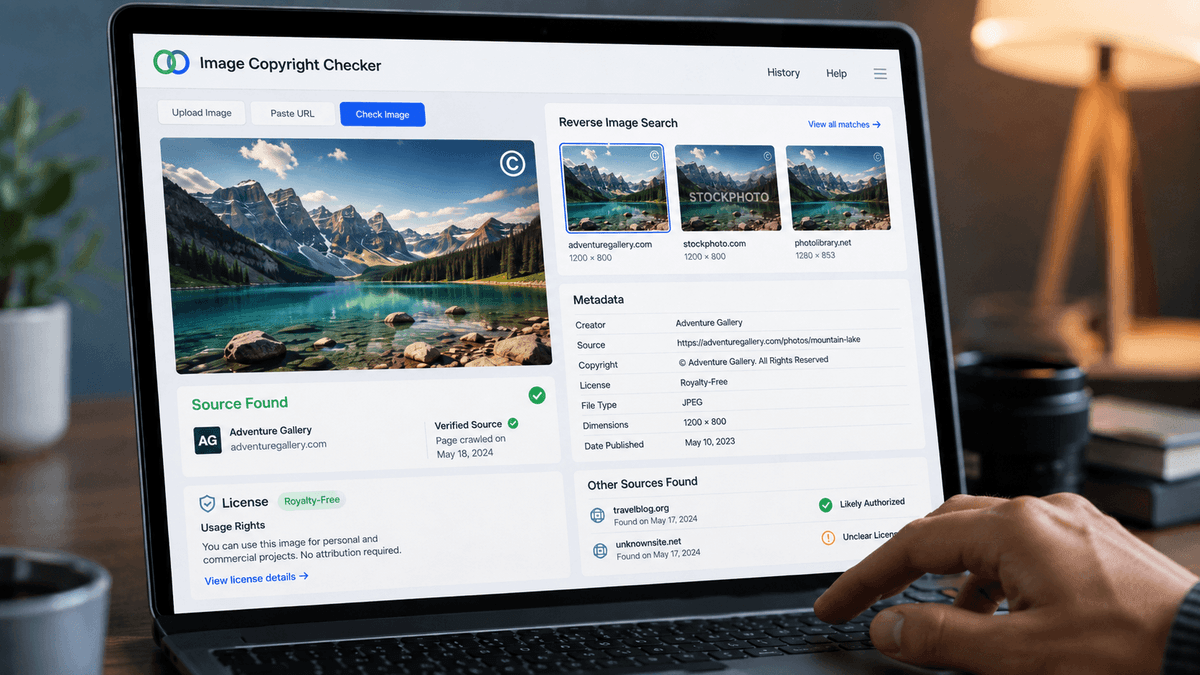
You can find the original image source to check whether an image is copyrighted by tracing it, then looking for copyright information and metadata.
Besides that, you can also review its license, check stock-image databases, and, when necessary, search copyright records.
But one distinction is worth understanding first.
The better question isn't always “Is this image copyrighted?”
It is “Do I have the right to use this image the way I intend to?”
So, let's figure that out throughout this whole blog -
What Does It Mean for an Image to Be Copyrighted?
When an image is copyrighted, it generally means someone owns the rights to that image and controls how other people can use it.
This can apply to photographs, illustrations, graphics, digital artwork, and other original visual content.
In many cases, copyright protection starts automatically when the image is created.
The creator does not need to add a © symbol, watermark, or “All Rights Reserved” notice for the image to be protected.
So, if you find a photo online with no visible copyright mark, that does not automatically mean it is free to use.
You may still need permission, a license, or another valid reason to reuse it.
Registration can provide extra legal protection and make ownership easier to prove, but it doesn't create copyright.
Image copyright is also far from unusual.
The U.S. Copyright Office recorded 79,712 visual arts registrations in fiscal year 2025, including photographs, illustrations, graphic art, and other visual works.
That is why the safest question is not simply, “Is this image copyrighted?” but rather, “Who owns it, and am I allowed to use it?”
Now let’s talk about something that you might not have thought of, and it is -
Copyright Doesn't Always Mean “You Can't Use It”
This is where things get less dramatic.
An image can be copyrighted and still be legally reusable.
For example, you may be able to use it because:
- The copyright owner gave you permission;
- You purchased an appropriate stock license;
- It has a Creative Commons license permitting your use;
- The copyright has expired, and the image is in the public domain;
- Another applicable legal exception permits your particular use.
So your real investigation has three parts:
Who owns it? → What license applies? → Does that license allow what I want to do?
To make things easier, let’s dive into -
7 Simple Ways to Check If an Image Is Copyrighted in 2026
No single sign can tell you with certainty whether an image is copyrighted.
A photo may have no watermark, no visible credit, and still be protected.
The safest approach is to check several clues together, starting with the image itself and then tracing its source, ownership, and licensing information.
The following seven methods will help you do exactly that.
1. Look for a Copyright Notice, Watermark, or Credit
Try to start with the obvious clues. An image or the page surrounding it may contain:
- A © symbol;
- Photographer or artist name;
- Agency watermark;
- Company logo;
- Image credit;
- Copyright year;
- “All Rights Reserved” notice;
- Licensing statement.
For instance, seeing © Jane Smith Photography under an image makes your investigation easier.
You can identify a creator to contact or research.
A visible Getty Images, Shutterstock, Adobe Stock, or similar watermark also strongly suggests licensing restrictions apply.
But What If There Is No Watermark?
That tells you almost nothing.
Copyright protection isn't something creators switch on by attaching a watermark.
An ordinary-looking JPEG with no copyright symbol can be just as protected as an aggressively watermarked stock photograph.
Think of a watermark as a warning sign, not as the thing that creates copyright.
2. Find and Check the Original Webpage
Suppose you found an image inside a blog article.
Don't immediately save it and move on.
Open the page and look around the image for:
- Image credit
- Source
- License
- Copyright
- Terms of use
- Media permissions
- Photo by
- Usage rights
Sometimes the information you need is in the caption.
Other times it is hiding in the footer, media policy, terms page, or image attachment page because websites enjoy making useful information an archaeological discovery.
That’s why it’s better to check the source, not just a repost
Imagine an image appears on:
- Pinterest;
- A personal blog;
- Reddit;
- A stock photo site;
- The photographer's portfolio.
Which one owns it?
You cannot determine that simply by choosing whichever result you encountered first.
The image could have been copied multiple times.
That is why finding another copy of an image is different from finding its original or authoritative source.
If the current page doesn't provide enough information, image search can be useful.
3. Check the Image Metadata
Images can contain information inside the file itself.
Depending on how the image was created and processed, metadata may reveal details such as:
- Creator;
- Copyright owner;
- Copyright notice;
- Camera;
- Creation date;
- Description;
- Source;
- Rights information.
Standards such as IPTC allow creator, copyright, credit, and source information to travel with image files.
Google can also surface some of this information when it is available.
On Windows
Right-click the image and choose:
Properties → Details
Look for creator, copyright, author, date, or related fields.
On Mac
Open the image in Preview and choose:
Tools → Show Inspector
Review the available metadata.
Now you might be thinking,
Is Metadata Proof of Copyright Ownership?
Not by itself.
Metadata can be removed when an image is:
- Compressed;
- Edited;
- Screenshotted;
- Downloaded from certain websites;
- Uploaded to social platforms.
It may also be incomplete or altered.
So, metadata is a useful clue, not a final verdict.
No copyright metadata does not mean no copyright exists.
4. Run a Reverse Image Search
If you don't know where a photo came from, search with the image itself instead of keywords.
A reverse image search can uncover:
- Websites containing the same image;
- Older versions;
- Visually similar photos;
- Photographer portfolios;
- Stock listings;
- Higher-resolution originals;
- Altered or cropped copies.
You can run a reverse image search across Google, Bing, Yandex, Yahoo, and DuckDuckGo from one place and inspect the resulting source pages.
It usually accepts uploads or image URLs and surfaces websites containing matching visuals.
If you've never done one before, the article on how to do a reverse image search walks through the process from uploading the picture to checking individual results.
So, how do you investigate the results?
Just don't simply click the first matching picture. Look for the following patterns -
| Search result | What to investigate |
|---|---|
| Photographer's website | Creator name and licensing terms |
| Getty/Shutterstock/Adobe Stock | Commercial licensing requirements |
| Wikimedia Commons | Specific license attached to that file |
| News publication | Photographer/agency credit |
| Follow the image back to its source | |
| Random blog | Check whether it credits another source |
| Social media post | Determine whether the account is actually the creator |
If you find the same image on 30 websites, that does not mean 30 websites own it.
You're working backward toward the strongest source.
Reverse image searches are useful for far more than copyright checks, too.
They can trace image sources, uncover unauthorized reuse, locate stock alternatives, verify viral photos, and find higher-resolution originals.
These are practical uses of reverse image search when investigating an image's online history.
What If Reverse Image Search Finds Nothing?
Do not conclude:
“Excellent. Copyright-free!”
A search tool can only return what it can find or index.
An image could be:
- Newly published;
- Stored behind a login;
- From a private collection;
- Poorly indexed;
- Substantially edited;
- Never previously published online.
No match means no match was found. It doesn't establish public-domain status.
If ordinary search results are too limited, an AI Reverse Image Search can give you another way to look for related, exact, or visually similar versions of the image.
5. Check Whether the Image Comes From a Stock Website
If your image appears on a stock photography platform, investigate that listing carefully.
Common examples include:
- Getty Images;
- Shutterstock;
- Adobe Stock;
- iStock;
- Other commercial image libraries.
These services generally license images rather than transfer copyright ownership to everyone who downloads them.
And here is an important scenario.
Imagine a photographer uploads a licensed photograph to a stock website.
Then someone else downloads it and reposts it on a blog.
Later, you download the photograph from that blog.
You didn't magically escape the original license because you found the image somewhere else.
That is why you need to follow the image upstream.
In that case, if a reverse search reveals a stock listing:
- Open the listing;
- Identify the contributor or agency;
- Review the licensing options;
- Check whether your intended use is covered;
- Obtain the required license before publishing.
This is exactly why finding where an image appears and finding where its rights originate are two different tasks.
6. Check for a Creative Commons License
Creative Commons makes copyright slightly more flexible.
Instead of giving each user individual permission, the creator can attach a standardized license that specifies what others may do with the work.
Creative Commons currently offers six main copyright licenses.
All require attribution, while additional conditions can restrict commercial use, adaptations, or dictate how adaptations must be licensed.
Here's the quick version:
| License | Commercial use? | Adaptations? | Attribution? |
|---|---|---|---|
| CC BY | Yes | Yes | Yes |
| CC BY-SA | Yes | Yes, with ShareAlike | Yes |
| CC BY-ND | Yes | Not for sharing adapted versions | Yes |
| CC BY-NC | No | Yes | Yes |
| CC BY-NC-SA | No | Yes, with ShareAlike | Yes |
| CC BY-NC-ND | No | Not for sharing adapted versions | Yes |
The letters make more sense once translated:
- BY = attribution required
- NC = noncommercial
- ND = no derivatives
- SA = ShareAlike
Creative Commons describes CC BY-NC-ND as the most restrictive of its six main licenses because it allows sharing with credit but not commercial use or modified redistribution.
But don't just stop at “Creative Commons”
There isn't one universal Creative Commons permission. Always identify:
- The exact license;
- The license version;
- Whether your use is commercial;
- Whether you'll modify the image;
- How attribution must be provided.
“It's Creative Commons” is the start of the answer, not the end.
7. Search Copyright Records When Necessary
For higher-stakes uses, you may also investigate official copyright databases.
In the United States, the Copyright Office maintains registration records and accepts registrations for photographs, including commercial photographs, portraits, documentary photography, photojournalism, event photography, and many other photographic works.
A registration record may help you connect a work to its registered claimant.
But there's a trap here.
“I Couldn't Find It in the Copyright Database”
That doesn't mean the image is free.
Not every copyrighted photograph is registered.
So searching copyright records can add evidence, but a failed database search cannot prove copyright doesn't exist.
Now the most common question you might be thinking of is -
How to Find the Copyright Owner of an Image
Sometimes you already know an image is probably protected, but the real challenge is figuring out who actually owns the rights to it.
That can be tricky because the same photo may appear on dozens of websites, social posts, blogs, or image-sharing platforms.
The goal is to trace the image back to the most credible original source, then verify the creator or rights holder.
So let’s see how you can do that easily -
Step 1: Search the Image
Start with a reverse image search to see where the photo appears online.
Upload the image or paste its URL into a reverse photo lookup tool and review the matching pages.
This can help you find older versions of the image, photographer websites, stock listings, news publications, or other possible original sources.
If the creator is still unclear, use the step-by-step process for finding the original artist of an image.
Step 2: Find the Strongest Source
Not every page displaying the image is equally reliable. Give more weight to sources such as:
- Creator portfolios;
- Photography agencies;
- Stock photo websites;
- Official company websites;
- Established publishers or news organizations.
A random blog or Pinterest pin may simply repost the image, so don't assume the first result you find is the owner.
Step 3: Look for Credits
Once you find a promising source, check the image caption and surrounding page for ownership clues.
Look for terms such as:
- Photo:
- Photographer:
- Image:
- Courtesy of:
- Credit:
- ©
You may also find the photographer's name in an article footer, media page, or image description.
Step 4: Inspect Metadata
If you have access to the original image file, check its EXIF or IPTC metadata. Useful fields can include:
- Creator name;
- Copyright notice;
- Credit;
- Source;
- Rights information.
Metadata can provide an important lead, but remember that it may have been removed or edited, so treat it as supporting evidence rather than absolute proof.
Step 5: Search the Creator's Name
If you find a photographer, artist, agency, or company name, search for it separately.
Combine the name with a description of the image or related keywords.
For example:
“John Smith photographer mountain lake photo”
This may lead you to the creator's official website, portfolio, licensing page, or stock profile where ownership is easier to verify.
Step 6: Compare Dates Carefully
Publication dates can help you trace an image's history.
If one page published the image in 2018 and another reposted it in 2024, the older source may be closer to the original.
However, the earliest page you find isn't automatically the copyright owner.
Search engines may not index the true original source, and older webpages can also contain unauthorized copies.
Use dates as one clue among several.
Step 7: Contact the Creator or Publisher
If you still cannot confirm who owns the image or whether you are allowed to use it, contact the likely creator, photographer, agency, or publisher directly.
Ask who owns the copyright and whether your intended use is permitted. If they grant permission, keep a written copy of the response for your records.
A short message asking for permission is much easier than discovering the copyright owner after the image has already been published.
Now that you know how to get the original owner of images, let’s find out about -
How to Check Image Copyright With Google
Google can be a useful starting point when you want to investigate an image, especially if you found the picture through Google Images in the first place.
It can help you trace where the image appears online, identify possible original sources, and find pages that may contain photographer credits or licensing information.
However, Google does not decide whether you have permission to use an image, so you still need to verify the source and usage rights yourself.
One of the easiest ways to start is with -
Use Google Lens to Trace the Image
Google Lens can identify exact and similar visuals, pages containing an image, objects inside it, and related content.
If you're searching from a phone, these steps for Google reverse image search from Camera Roll cover both iPhone and Android. Use the matches to find:
- earlier publications;
- photographer pages;
- stock listings;
- licensing pages.
Again, a Google result provides evidence to investigate, not automatic permission.
Use Google Images' Usage Rights Filter
Google Images provides a Usage Rights filter for finding images with licensing information.
On desktop:
Google Images → Search → Tools → Usage rights
You may see licensing categories including Creative Commons and commercial or other licenses.
But Google itself recommends checking the actual license and its reuse terms with the license provider and the website hosting the image.
The filter relies on licensing information supplied by those sources.
So don't treat the filter as a magical legal-green-light button.
Now what if you found a perfect picture for your project and you might be thinking about -
Can You Use the Image? Check This Table for the Answer
Finding the copyright owner is only half the job.
Even when you know who created an image, you still need to check whether your specific use is allowed.
An image may be copyrighted but available under a license, while another image may look completely free online but still require permission.
That’s why use the table below as a quick guide to understand when an image is generally safe to use and when you should stop and verify the rights first.
| Situation | Safe to use? |
|---|---|
| You created the original image | Usually yes |
| Owner gave written permission | Yes, within that permission |
| You purchased a stock license | Yes, within the license |
| Valid CC license permits your use | Yes, if you follow its conditions |
| Confirmed public-domain image | Generally yes |
| Found through Google Images | Not automatically |
| Downloaded from Pinterest | Not automatically |
| Taken from Instagram/Facebook/X | Not automatically |
| No copyright notice visible | Not automatically |
| No reverse-search results found | Not automatically |
| Source and owner remain unknown | Avoid using until verified |
The recurring theme is irritatingly simple:
Access is not permission.
The fact that your browser lets you save an image does not tell you what copyright law lets you do with it.
Is an Image Copyrighted If It Has No Copyright Symbol?
Yes.
An image can still receive copyright protection without a © symbol, watermark, signature, copyright notice, or “All Rights Reserved” label.
Those elements may make ownership easier to identify, but their absence shouldn't be interpreted as permission.
Are Google Images Copyrighted?
Many are.
Google Images is primarily a search and discovery service, not a library of photographs Google gives you permission to reuse.
The image you're viewing generally comes from another website, creator, agency, or service.
Google itself warns that images may be subject to copyright and recommends verifying licensing details before reuse.
Treat Google as the map.
You still have to visit the destination and read the rules.
Are Pinterest Images Copyrighted?
An image appearing on Pinterest doesn't make it copyright-free. Pins can lead back to:
- Photography sites;
- Ecommerce stores;
- Blogs;
- Magazines;
- Social profiles;
- Stock websites.
They can also be reposted multiple times until the original creator becomes harder to identify.
Instead of assuming the person who pinned the photo owns it, trace the visual back to its source.
A reverse image lookup is particularly useful here because source tracing is one of the most practical applications of visual search.
What About Social Media Images, Screenshots, and Memes?
Things become messier here because the internet apparently decided regular photographs weren't complicated enough.
Social Media Photos
A photo publicly visible on Instagram, Facebook, TikTok, X, or another platform does not automatically enter the public domain.
The creator may still own copyright in the underlying image.
If you're concerned about where your own photos are appearing online, a face search can help you find other websites or public profiles displaying your face. Just remember that finding a match doesn't establish who owns the photo or whether its use is authorized.
Screenshots
Taking a screenshot creates a new file, but it doesn't necessarily erase rights in the copyrighted material visible inside it.
Memes
Adding text, cropping a photograph, changing colors, or turning something into a meme doesn't automatically cancel the original copyright.
Whether a particular use is lawful can depend on context, jurisdiction, licensing, and copyright exceptions.
What About AI-Generated Images Being Copyrighted?
AI complicates the copyright discussion because copyright rules can depend on the jurisdiction and the degree of human authorship involved.
For example, entirely machine-generated output may be treated differently from an image involving meaningful human creative contributions.
There is another practical issue, too:
Even if an image was created with AI, that doesn't automatically guarantee that everything depicted or incorporated into it is safe to reuse.
So don't use:
“It's AI-generated.”
as a universal replacement for checking rights and source information.
Does Fair Use Let You Use a Copyrighted Image?
Possibly, but there is no universal “fair use percentage” or foolproof checklist that automatically makes an image legal to use.
In the United States, fair-use analysis considers several factors, broadly involving:
- The purpose and character of the use;
- The nature of the copyrighted work;
- The amount and substantiality used;
- The effect on the potential market.
The result depends on the circumstances of the individual case.
Let’s talk about something interesting in the following section, and it’s nothing but -
7 Image Copyright Myths Worth Forgetting
No single sign can tell you with certainty whether an image is copyrighted.
A photo may have no watermark, no visible credit, and still be protected.
The safest approach is to check several clues together, starting with the image itself and then tracing its source, ownership, and licensing information.
The following seven methods will help you do exactly that.
| Myth | Reality |
|---|---|
| “If It's on Google, It's Free” | Google helps you find images. It doesn't automatically grant permission to reuse them. |
| “There Is No Watermark, So It's Fine” | A watermark isn't required for copyright protection. |
| “I'll Credit the Photographer” | Attribution doesn't automatically replace permission or a required license. |
| “I Cropped and Edited It” | Editing an image does not automatically remove the original copyright. |
| “Everyone Else Uses It” | Popularity does not prove lawful reuse. Fifty unauthorized copies are still not a license. |
| “Royalty-Free Means Copyright-Free” | Royalty-free usually describes a type of licensing arrangement. The image may still be copyrighted. |
| “Reverse Image Search Found Nothing, So It's Safe” | Search results aren't a copyright registry. A missing match only means the search didn't find one. |
What Should You Do If an Image Is Copyrighted?
If you discover that an image is copyrighted, don't use it immediately unless you already have permission or a license.
A copyrighted image still belongs to its creator or rights holder, but that doesn't always mean you have to give up on using it.
In many cases, you can legally use the image by buying the correct license, asking the owner for permission, or following the terms attached to it.
Here are your main options.
Buy or Obtain a License
If the image comes from a photographer, agency, or stock photo website, check whether it is available under a license.
For example, a stock platform may let you use the image on a website, in a social media post, or in an advertisement after you purchase the appropriate license.
Before paying, confirm the license covers how you plan to use the image, especially if it will appear in commercial content.
Ask the Copyright Owner for Permission
If no clear license is available, contact the photographer, artist, company, or other rights holder directly. Explain:
- Where you want to use the image;
- Whether the use is personal or commercial;
- Whether you plan to crop or edit it;
- How long it will be displayed and where.
If they agree, get the permission in writing, for example, via email. That gives you a record of exactly what they allowed.
Follow the Creative Commons Terms
Some copyrighted images are shared under Creative Commons licenses, which allow certain types of reuse.
However, you still need to follow the specific conditions. For example:
- BY means you must give attribution;
- NC limits commercial use;
- ND restricts sharing modified versions;
- SA may require you to share adaptations under the same license.
So don't simply see “Creative Commons” and assume anything goes. Check the exact license first.
Find a Public-Domain Version or Alternative
If getting permission is difficult, look for a similar image that is genuinely in the public domain.
You can generally use public-domain images without asking the former copyright owner for permission, but you should still verify the source and whether other rights, such as trademarks or privacy rights, apply.
This is often the easiest solution when you just need a suitable visual rather than one specific photograph.
Choose Another Properly Licensed Image
You don't have to fight for one particular picture.
If the copyright terms are unclear or the owner doesn't respond, find another image with straightforward licensing from a reputable source.
A slightly different photo with clear usage rights is usually a better choice than publishing an image while hoping nobody notices.
Create Your Own Image
If possible, take your own photo, create your own graphic, or commission an original image.
Creating the visual yourself gives you much clearer control over how it can be used, although commissioned work should still have ownership and usage terms agreed in writing.
For blogs, social content, presentations, and marketing material, this can often be simpler than untangling an unclear copyright history.
Creating your own images is one way to avoid using someone else's copyrighted work, but it's also worth knowing how to protect your photos from image theft. Regular image searches can help you discover where your work appears online and investigate possible unauthorized use.
Save Proof of Your Permission or License
Once you have permission to use an image, keep proof. Save things such as:
- The original source URL;
- Creator's name;
- Screenshot of the license;
- License type and version;
- Purchase receipt or invoice;
- Permission email;
- Required attribution wording;
- Date you obtained permission.
Why bother?
Because websites change, license pages get updated, accounts disappear, and emails become strangely impossible to find exactly when you need them.
Keeping a simple record helps show why you were allowed to use the image at the time you published it.
Quick Rule to Remember
If an image is copyrighted, you normally have three practical choices:
Get permission → Get the correct license → Use a different image
If you cannot confidently confirm any of those, it is safer not to publish the image yet.
Your 60-Second Image Copyright Checklist
Before publishing an image you didn't create yourself, take a minute to make sure you actually have the right to use it.
You don't need to repeat the entire copyright investigation every time; you can confirm the image's source, owner, license, and permissions using an image copyright checker.
Use this quick checklist before you publish, share, or use the image commercially:
- Do I know where the image originally came from?
- Do I know who created or owns it?
- Did I check for copyright notices and credits?
- Did I inspect available metadata?
- Did I perform a reverse image search when the source was unclear?
- Did I check whether it appears on a stock platform?
- Do I know which license applies?
- Does that license permit my intended use?
- Have I provided attribution if required?
- Do I have permission if the license requires it?
- Have I saved proof of the license or permission?
If you cannot comfortably answer those questions, you probably aren't ready to publish the image yet.
FAQs About Checking Image Copyright
How can I check if an image is copyrighted?
Trace the original source, check copyright notices and metadata, reverse image search, and review its license. If copyright or permission remains unclear, don't assume it is free to use.
Can I use an image if it doesn't have a copyright symbol?
Not automatically. Copyright protection can exist without a © symbol, watermark, credit, or other visible notice.
Are all images on Google copyrighted?
Not necessarily all, but many Google Images results are copyrighted. Check the original hosting page and its licensing information before using one.
How do I find the copyright owner of an image?
Reverse image search, inspect metadata and credits, trace earlier authoritative sources, and check photographer, agency, or copyright records when necessary.
Can reverse image search detect copyrighted images?
It can help locate an image's sources, copies, and possible owner, but it can't provide a definitive legal ruling on copyright status.
Can I use a copyrighted image if I give credit?
Not automatically. A license may require credit, but attribution alone doesn't replace permission when you need it.
Are images from Pinterest free to use?
No. Pinterest is a sharing and discovery platform, and an image appearing there does not grant permission to reuse it.
How do I check an image's license?
Visit the original image page and look for license, copyright, usage rights, Creative Commons, or terms-of-use information.
Can I modify a copyrighted image and use it?
Modification alone doesn't eliminate copyright. Whether you can legally alter and reuse it depends on the license, permission, applicable exceptions, and jurisdiction.
What should I do if I cannot find an image's original source?
Try multiple reverse image searches and inspect likely matches. If you still can't establish the source or usage rights, choose an image with clearer licensing instead.
Always Check Before You Post, Not After
Checking whether an image is copyrighted isn't about hunting for a tiny © hidden somewhere in the corner.
You are really trying to establish three things:
Where did this image come from? Who controls its rights? Am I allowed to use it for this purpose?
Start with the visible clues. Check the source and metadata. Trace copies across the web.
Verify stock or Creative Commons licensing. And don't turn “I couldn't find anything” into “therefore it must be free.”
When the original source is the part you're struggling with, upload the image to the CopyChecker’s Image Copyright Checker and trace where it appears online before you publish it.
A quick check now is considerably easier than discovering the image's owner after your article, ad, or campaign has already gone live.
So what are you waiting for? Start using images without any worry!