Just think this way: you pour all your precious hours into designing your PowerPoint presentation, crafting clean, creative slides, adding the required insightful charts, and developing your speaker notes to the best of your ability.
But at the end of the day, you find out that some part of it is flagged as plagiarized.
Pathetic, but it is what it is. To be honest, in 2026, this fear is more real than ever!
Recent studies show that nearly 60% of students admit to unintentional plagiarism in their academic work, with many cases happening in presentations due to quick copy-pasting or AI-generated content.
In fact, professionals face similar risks when preparing client decks or reports.
During all these, have you ever wondered, “How do I safely check plagiarism in PowerPoint?” or “Which plagiarism checker in PowerPoint” is actually reliable for full PPT files?”
If yes, then trust me, you’re in the right place! As in this guide, you will get the necessary information on the tested top 5 PowerPoint plagiarism checkers that are available in 2026.
No matter if you’re a student, educator, or professional, with this guide, you’ll discover which PPT plagiarism detector best fits your needs for accuracy, ease of use, AI detection, value, and more.
So, keep reading to find out which tools made it to the list and how to choose the right one for your presentations. But let’s start with some basics first -
Why You Need a PowerPoint Plagiarism Checker in 2026
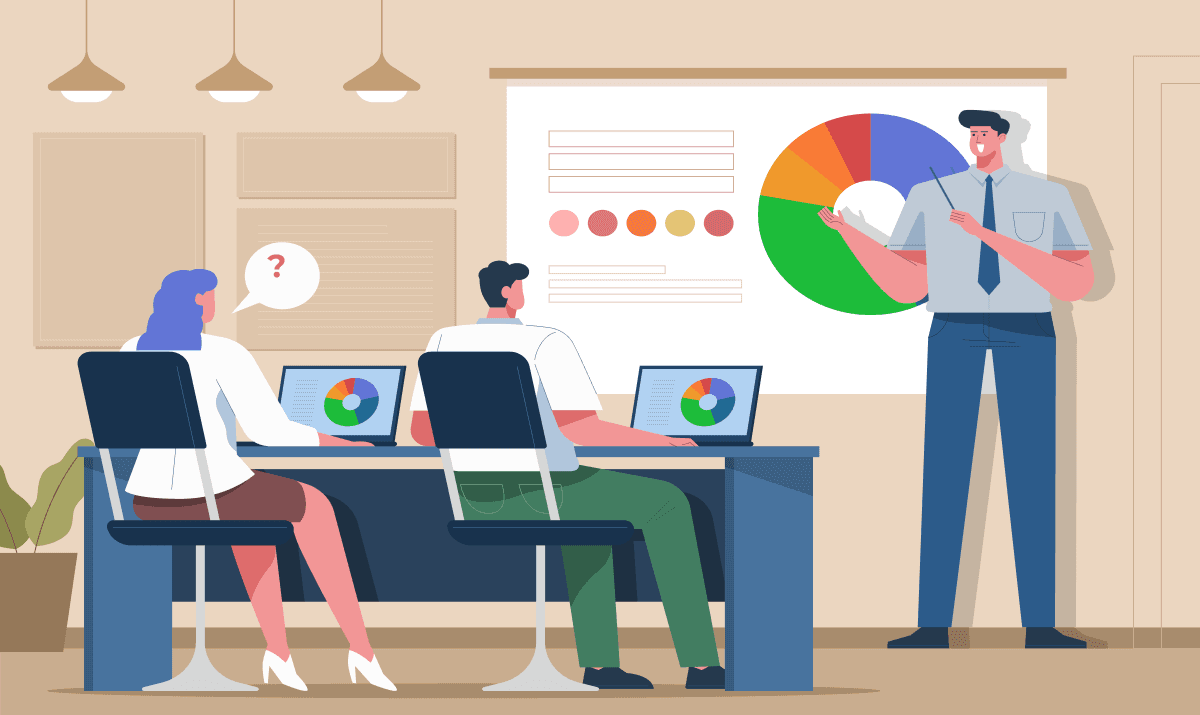
In today’s fast-paced world of presentations, accidental or unintentional plagiarism has become surprisingly common. So let’s find out why investing in a dedicated PowerPoint plagiarism checker is more important than ever in 2026:
- Plagiarism in PowerPoint presentations is often hidden: It’s so normal that you may unknowingly copy a chart from the web, or let AI generate bullet points that closely match existing sources. But at the end of the day, it’s going to be flagged.
- General tools fall short: Standard word processors and basic checkers often miss critical elements such as speaker notes, embedded text in images, slide layouts, and formatting-specific content.
- Serious consequences await: Getting caught can lead to lost academic marks, damaged professional reputation, rejected proposals, or even copyright and legal issues, so it's better to check for plagiarism PowerPoint beforehand.
- Higher expectations from audiences and institutions: Teachers, professors, clients, and employers now demand complete originality and transparency in every presentation.
- A specialized PPT plagiarism detector makes it easy: These tools scan your entire .ppt or .pptx file directly, flag potential matches, suggest proper citations, and often include built-in AI content detection.
- Essential for the AI era: As hybrid human-AI slides become the norm, checking both traditional plagiarism and AI-generated content is crucial to maintain integrity.
- Long-term benefits: Regularly using a PowerPoint plagiarism checker helps you develop better research and citation habits while protecting your credibility and hard work.
By catching issues early, a good PPT plagiarism detector saves you time, stress, and potential embarrassment when it matters most. Now that you already know why you need a plagiarism check for PowerPoint, let's know about -
How PowerPoint Plagiarism Checkers Work?
Wondering exactly how to check plagiarism in PowerPoint? The good news is that a modern PowerPoint plagiarism checker makes the entire process simple and fast.
Most tools follow the same straightforward steps, so you can scan your entire presentation in just a few minutes. Here’s exactly how it works:
Step 1: Upload your presentation file
You simply drag and drop your .ppt or .pptx file into the PPT plagiarism detector (many tools also accept an exported PDF version). No complicated setup is needed.
Step 2: The tool extracts all the content
The PowerPoint plagiarism checker automatically pulls text from every slide, speaker notes, text boxes, and even alt text hidden inside images or charts. This ensures nothing gets missed.
Step 3: It compares your slides against huge databases
The system quickly scans your content against billions of web pages, academic papers, books, journals, and previously submitted presentations to find any matches or close similarities.
Step 4: Advanced scanning kicks in (for better accuracy)
Top tools also check for image and chart similarity. Many now include AI detection to spot sections that might have been generated or heavily edited by AI tools.
Step 5: You receive a clear, easy-to-understand report
Within seconds (or a couple of minutes for large files), you get a detailed report. It shows highlighted matches on each slide, exact similarity percentages, and direct links to the original sources.
The best PowerPoint plagiarism checkers go one step further by giving you a slide-by-slide breakdown. This way, you can see exactly which parts need attention and fix them quickly, without having to rewrite your whole presentation.
Top 5 PowerPoint Plagiarism Checkers That You Need in 2026
In 2026, ensuring originality in your presentations is more important than ever! A reliable PowerPoint plagiarism checker helps you instantly check plagiarism in PowerPoint files, while detecting both traditional copying and AI-generated content.
So let’s dive into our most-awaited list of top 5 PowerPoint plagiarism checkers that deliver the best accuracy, speed, and ease of use this year -
CopyChecker – Best Overall PowerPoint Plagiarism Checker
If you're looking for one plagiarism PowerPoint checker that truly excels in every area, CopyChecker stands out as the top choice in 2026.
It combines seamless native PPT/PPTX support, high accuracy, fast scanning, built-in AI detection, and an incredibly user-friendly experience, all while delivering excellent value.
No matter if you're a student, educator, or professional, CopyChecker makes it effortless to check plagiarism in PowerPoint and ensure your presentations are completely original.
Key Features
- Direct native upload and full scanning of .ppt and .pptx files, including speaker notes and slide text
- Advanced plagiarism detection with excellent accuracy on paraphrased content and hidden matches
- Integrated AI content detection to identify hybrid human-AI slides
- Clear, slide-by-slide reports with highlighted matches, similarity percentages, and source links
- It combines other writing tools like grammar checker, paraphrasing tools, AI detector, and more to make your work faster and easier.
- Fast processing even for large presentations
- Support for multiple languages and image-based text extraction
- Simple, clean interface with no steep learning curve
Advantages and Disadvantages of CopyChecker
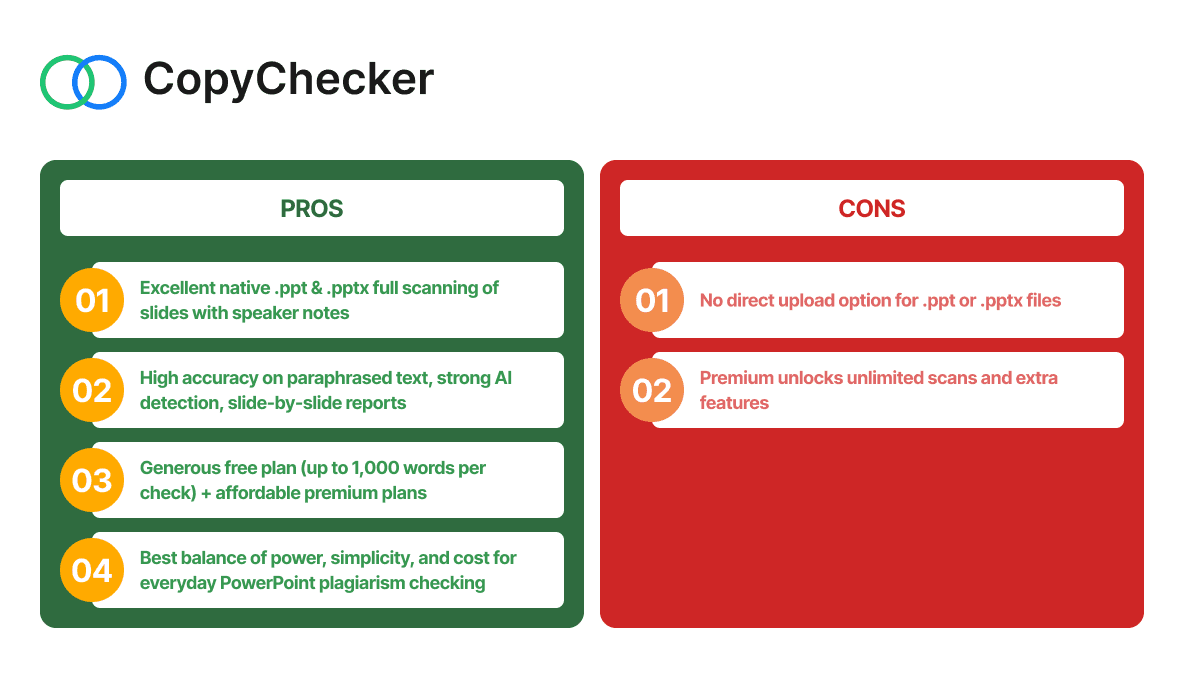
CopyChecker offers an excellent native plagiarism checker for PowerPoint with fast scanning and reliable AI detection. However, like all plagiarism checkers, it has some limitations. Let’s look at its pros and cons to decide if it fits your needs or not.
Pricing
CopyChecker offers a generous free plan that lets you check PowerPoint for plagiarism up to 1,000 words per scan. For heavier users and full PowerPoint features, the Creator Suite (Writing Suite) starts at $14.99 per user per month.
Real-user Rating/Score: 4.8/5
PlagiarismSearch – Best for Teams & Enterprises
PlagiarismSearch is well-suited for teams and organizations thanks to its support for multiple file uploads, clear, transparent pricing, and reliable scanning, including dedicated PowerPoint plagiarism checking.
Key Features
- Supports PPT/PPTX and multiple file uploads
- Scans against billions of web pages and sources
- Detailed reports with PDF download options
- Good for bulk or institutional use
Advantages and Disadvantages of PlagiarismSearch
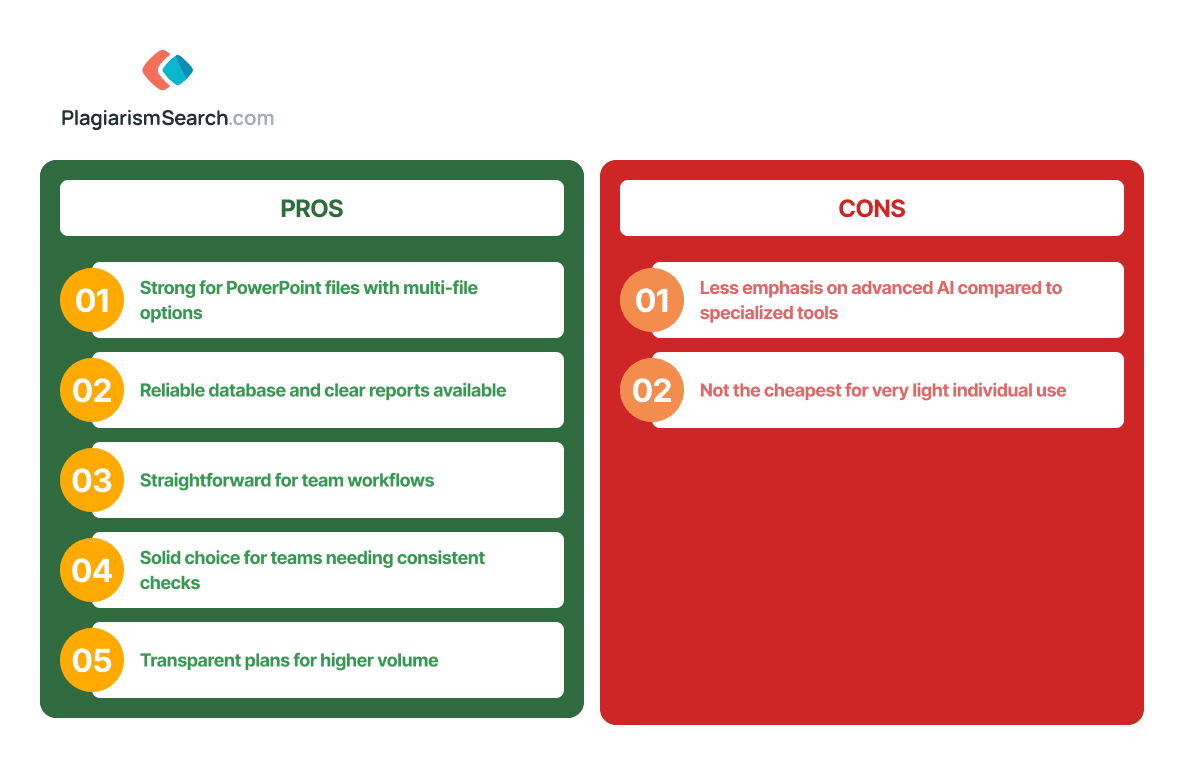
PlagiarismSearch is a solid choice for team and enterprise users who need reliable PPT file scanning and multi-file support. While it performs well for bulk checking, it has some limitations compared to more specialized tools. Let’s find out more -
Pricing
Starts from $34.95 for the Light package; other packages range from $64.95 (Standard) to $89.95 (Premium). Yearly options available for teams.
Real-user Rating/Score: 4.4/5
PaperRater – Best for Students & Educators
PaperRater is a favorite and free plagiarism checker for PowerPoint among students and teachers because it combines helpful grammar, spelling, and writing feedback, making it ideal for improving presentations while ensuring originality.
Key Features
- Integrated plagiarism detection alongside grammar and style suggestions
- Automated scoring and vocabulary insights
- Easy text upload or paste from PowerPoint slides
- Useful for learning proper citation habits
Advantages and Disadvantages of PaperRater
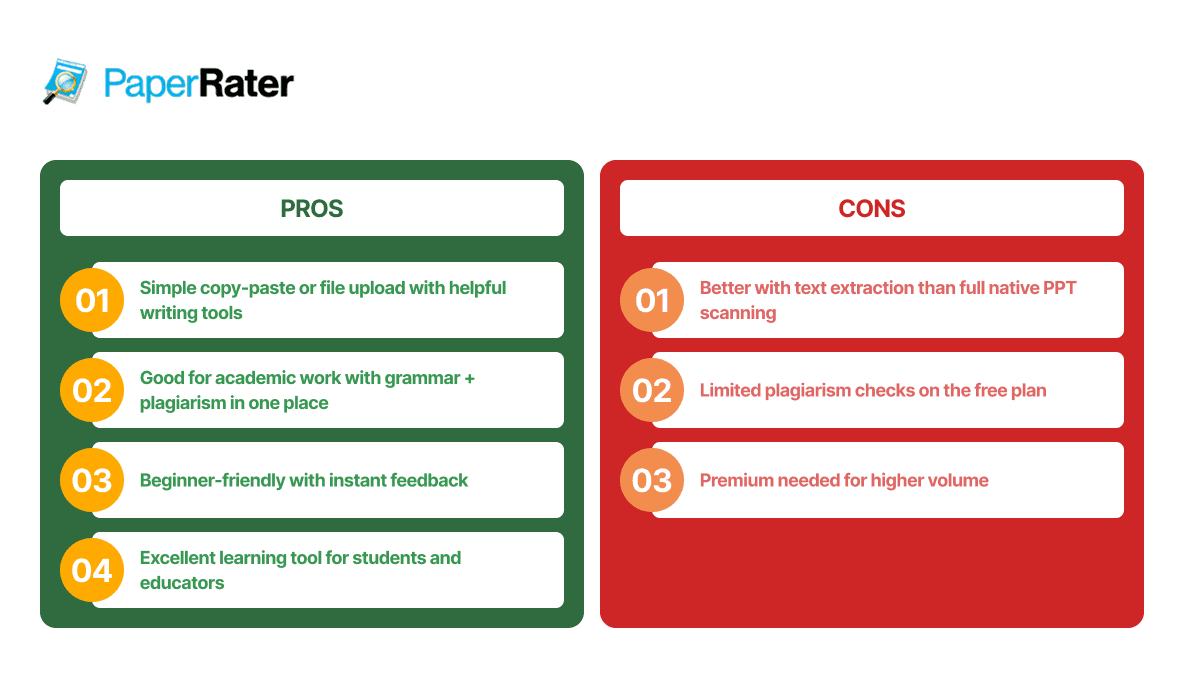
PaperRater is a popular PowerPoint plagiarism checker combining plagiarism detection with helpful grammar and writing feedback. However, its PPT support is more limited compared to dedicated tools, so let’s see if it is the best fit for your needs or not.
Pricing
Free basic plan available (limited submissions and checks). Premium starts at around $14.95 per month (or lower with annual billing).
Real-user Rating/Score: 4.5/5
Skandy – Best AI-Powered PPT Plagiarism Detector
Skandy is an amazing PowerPoint plagiarism checker free tool that excels when your main concern is distinguishing AI-generated content from human writing while still catching traditional plagiarism, making it a powerful modern PPT plagiarism detector.
Key Features
- High-accuracy AI probability detection (claimed over 98%)
- Combined plagiarism and AI-plagiarism scanning
- Detailed fragment-level analysis
- Supports text, files, and even photo/URL input
Advantages and Disadvantages of Skandy
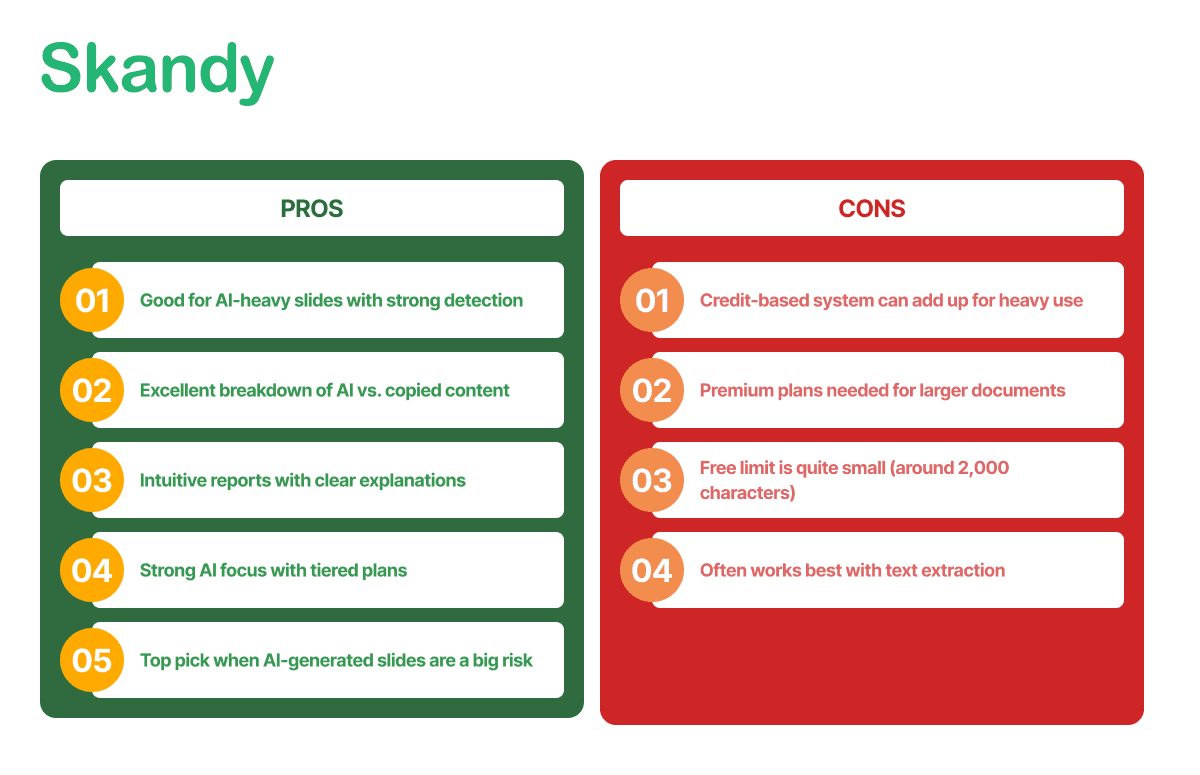
Skandy excels as an AI-powered PowerPoint plagiarism checker as it works best with text extraction and has relatively low free usage limits. The table below helps you to decide if Skandy is the right PPT plagiarism detector for your AI-heavy presentations.
Pricing
Free limited checks (up to ~2,000 characters). Paid plans: Starter ~$4.99, Standard ~$7.99, AI-Premium ~$10.99 (with higher page limits).
Real-user Rating/Score: 4.6/5
#5: ZPTZero – Best Budget-friendly Option
GPTZero plagiarism checker for PowerPoint free with a generous tier, strong AI detection, and growing plagiarism features, making it an accessible starting point for anyone on a budget who wants to check plagiarism in PowerPoint.
Key Features
- Solid free word limit with advanced AI scanning
- Built-in plagiarism checker on paid plans
- Page-by-page analysis and batch options
- Multilingual support and writing feedback
Advantages and Disadvantages of ZPTZero
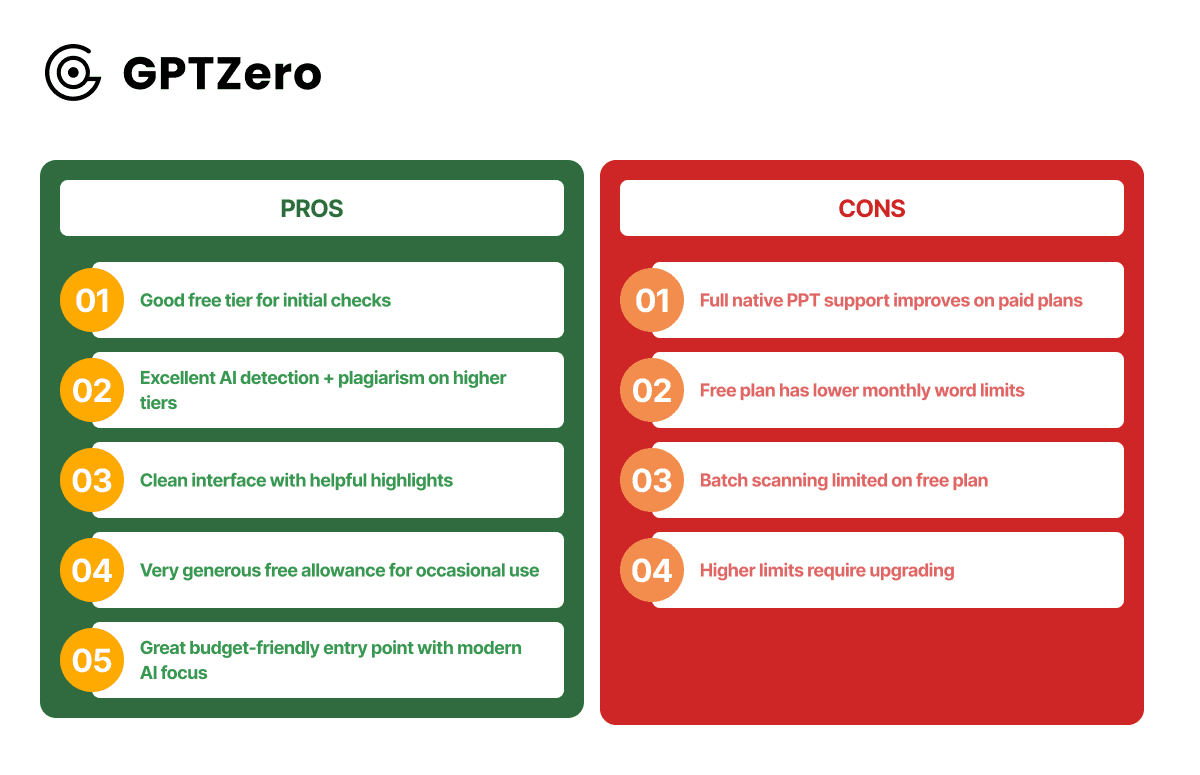
GPTZero is a budget-friendly PowerPoint plagiarism checker with excellent AI detection and a generous free word limit. But as usual its native PPT/PPTX support is limited so let’s decide together if GPTZero is the right choice for your needs or not.
Pricing
Free plan: up to 10,000 words per month. Premium starts at $12.99/month (billed annually) for 300,000 words; higher tiers available.
Real-user Rating / Score: 4.5/5
Comparison Table for the Top 5 PowerPoint Plagiarism Checkers
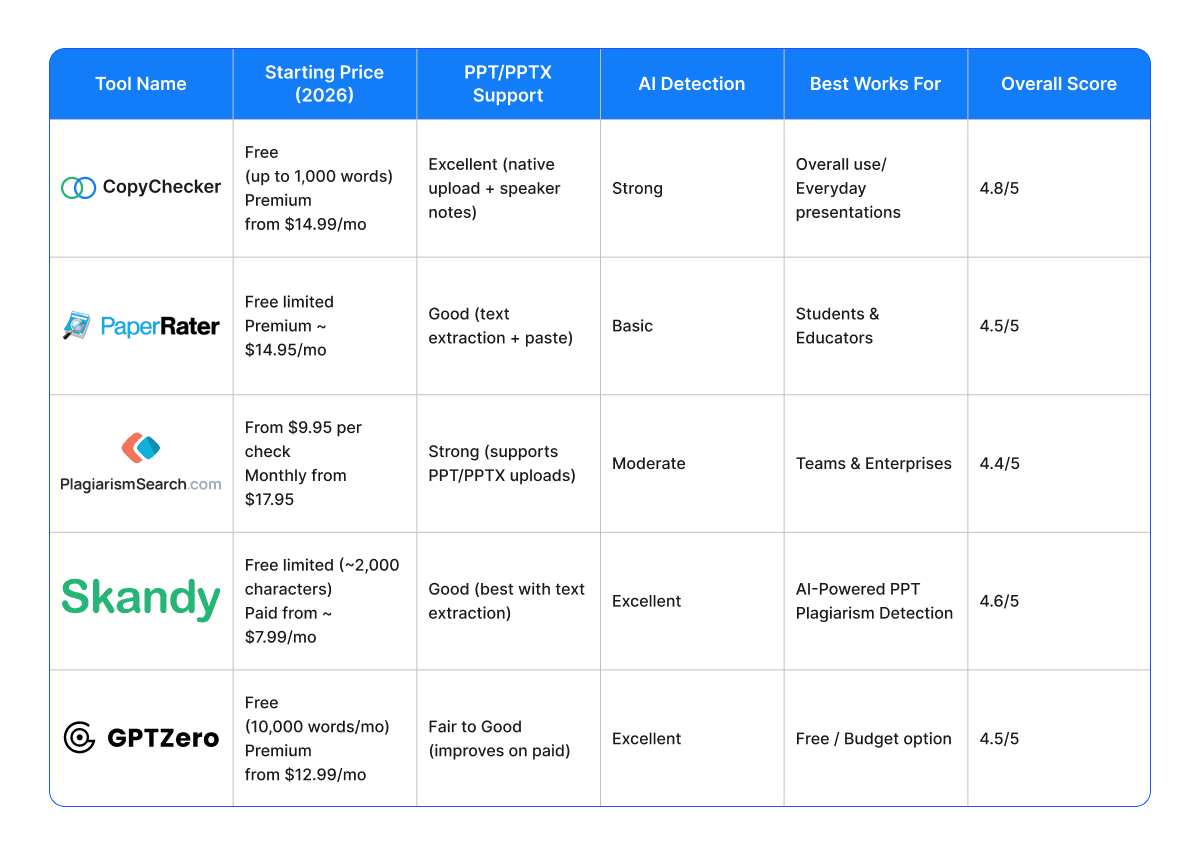
We are done with the details about the tools already, so now here’s a quick side-by-side comparison of the top 5 PowerPoint plagiarism checkers in 2026.
This table highlights key factors like PPT support, AI detection, pricing, and overall suitability to help you choose the right PPT plagiarism detector for your needs.
How to Choose the Right PowerPoint Plagiarism Checker for You
To be honest, selecting the best PowerPoint plagiarism checker basically depends on your specific needs, workflow, and budget. That is why, not every tool is perfect for everyone, so consider these practical factors before selecting your one:
- File Support & Ease of Use — Do you need direct native .ppt/.pptx upload with speaker notes scanning, or is copying text from slides enough?
- Accuracy Needs — Look for strong detection of paraphrased content, image-based text, and AI-generated slides if you use modern AI tools.
- Volume & Frequency — Occasional student assignments may work with free tiers, while professionals or teams need unlimited or bulk scanning options.
- Extra Features — Prioritize built-in AI detection, detailed slide-by-slide reports, or integrations with learning platforms if required.
- Budget — Start with generous free plans like CopyChecker or GPTZero, then upgrade only when you need higher limits or advanced reporting.
Quick Tip: Test 2–3 tools with the same sample presentation. The right PPT plagiarism detector should feel fast, clear, and actionable so you can fix issues quickly and present with confidence.
Best Practices To Avoid Plagiarism in PowerPoint Presentations

Prevention is always smarter than fixing issues at the last minute. Here are practical, easy-to-follow habits that will help you keep your PowerPoint presentations completely original and professional:
Take notes in your own words during research
Instead of copying a paragraph from a website, read the source and write a short summary in your own style. For example, instead of copying “Climate change is accelerating rapidly,” write “Rising temperatures are causing faster ice melt in polar regions according to recent studies.”
Create your own visuals and charts
Whenever possible, build original diagrams or charts using PowerPoint’s built-in tools rather than downloading ready-made images. For instance, create a simple bar chart from your own data instead of using a screenshot from another report.
Give proper credit directly on the slide
Add a small footnote or credit line at the bottom of the slide. Example: “Image source: NASA Earth Observatory (2025)” or “Data adapted from World Bank Report, 2026.”
Paraphrase bullet points and speaker notes thoroughly
Don’t just change one or two words. Rewrite the entire idea in your own voice. Bad example: “Climate change affects the economy badly.” Better: “Rising global temperatures are creating serious challenges for many industries and local economies.”
Add a dedicated References slide at the end
Include a final slide listing all sources with proper details (author, title, year, and link if available). This shows professionalism and makes it easy for your audience or teacher to verify information.
Always check your speaker notes separately
Speaker notes often contain copied text from research. Read them aloud and rewrite any sections after using a reliable plagiarism checker powerpoint free, that sound too similar to the original source.
Run a final check with a PowerPoint plagiarism checker
Before submitting or presenting, upload your .pptx file to a trusted PPT plagiarism detector, such as CopyChecker. This quick step catches any missed issues and gives you peace of mind.
You may also like to read about
- Best Free Plagiarism Checker for Research Papers in 2026
- Best Free Plagiarism Checker for Students in 2026
- Best Free Plagiarism Checker Online Tools for 2026
- Best Free Plagiarism Checkers for Teachers in 2026
Final Words
A reliable PowerPoint plagiarism checker is now essential for creating honest and impactful presentations in 2026.
Whether you choose CopyChecker as the best overall option for its excellent PPT support and balance, or pick another tool based on your specific needs (students, teams, budget, or AI focus), regular checks build better habits and protect your credibility.
Start with CopyChecker’s free plan to experience seamless checking plagiarism in PowerPoint files, then explore the other strong alternatives listed above.
Whichever free online plagiarism checker for PowerPoint you pick, the goal remains the same, deliver original, high-quality decks with confidence.

Have you tried any of these PPT plagiarism detectors? Share your experience in the comments below because we’d love to hear which one worked best for you!
FAQs
Does a PowerPoint plagiarism checker scan speaker notes?
Yes, most good PowerPoint plagiarism checkers (including CopyChecker) scan both slide text and speaker notes. Always check the tool’s features to confirm full support.
Can I check plagiarism in PowerPoint for free?
Yes. Tools like CopyChecker and GPTZero offer generous free plans that let you check plagiarism in PowerPoint with decent limits. For heavier use, affordable premium plans are available.
Does a PPT plagiarism detector also check for AI-generated content?
Many modern tools do. CopyChecker, Skandy, and GPTZero combine traditional plagiarism checking with AI detection, which is very useful for today’s hybrid presentations.
How accurate are PowerPoint plagiarism checkers?
Accuracy is generally high for text, but it depends on the tool and file quality. Dedicated PPT plagiarism detectors like CopyChecker give reliable slide-by-slide results, especially when you use native .pptx uploads.
Should I check images and charts for plagiarism in PowerPoint?
Yes, it’s a good practice. While not all tools scan visuals in depth, advanced ones can detect similar images or text within charts. Always credit sources for any non-original visuals.
What file formats can I use with a PowerPoint plagiarism checker?
Most tools accept .ppt and .pptx files directly. Some also support exported PDFs. Native PPTX upload usually gives the best and most complete results.
Is it enough to just copy-paste text from slides into a checker?
It works for basic checks, but using a tool that supports direct file upload (like CopyChecker) is better, as it scans the layout, speaker notes, and hidden text more thoroughly.
Can teachers or professors detect plagiarism in student PowerPoint presentations?
Yes, many educators use institutional tools or recommend that students run their decks through a PowerPoint plagiarism checker first. Submitting an originality report can also build trust.